First, check that your laptop can provide the video output and power required: a USB-C port alone does not guarantee a picture. A compact 14-inch screen is more likely to suit a limited workspace, while a 15.6-inch model gives you more physical screen width if you want to view documents side by side. Lenovo and ASUS list different screen sizes and specifications. Also consider the connections you need and whether pupils’ data could be seen by other passengers on the train, as the Dutch Data Protection Authority warns.
Who is a portable monitor suitable for?
Teacher travelling by train
Do you prepare lessons on a laptop and want to use a second screen without relying on a power socket? Check in advance that your laptop’s port can output video; ASUS specifically recommends doing this for the ZenScreen MB166CR.
Document-focused lesson planner
If you want to view a lesson plan alongside reference materials, compare the screen size and aspect ratio with the space available at your seat. Lenovo lists a 14-inch 16:10 screen for the ThinkVision M14d. That’s a model specification, not a guarantee that the text will be comfortable to read at your preferred scale.
Teacher with limited luggage space
If you’re carrying teaching materials and have limited space, take the monitor’s size and stand into account when choosing. NS says that luggage must not occupy seats or block an aisle or door.
What should you look for when choosing one?
First, check the connection and power requirements. Then work out how much space you have at your seat and choose a screen size that suits your documents. Extra features are most useful when they fit the way you work.
| What to consider |
What to look for |
Who is this important for? |
| Connection and power |
Check whether the exact laptop port outputs video and what power the monitor you choose needs. A separate power connection may be required when using mini-HDMI. |
I want to connect the screen without having to look for a power socket during the journey. Around 33% of consumers prioritise connection and power. |
| Portability and seat space |
Compare the dimensions and weight of the exact model, and allow for the stand when it is unfolded. |
I want to take my screen with me and set it up next to my laptop without taking up unnecessary space. Around 27% of consumers prioritise portability. |
| Room to read documents |
Compare the screen size, aspect ratio and resolution. Also check that your preferred text size is comfortable to work with. |
I want to view my lesson plan alongside reference materials, and this matters more to me than having the most compact setup. Around 20% of consumers prioritise space for documents. |
| Cost and features |
Check the current price and which cables or accessories are included. Choose touch functionality or a pen only if you’ll use those features. |
I want to pay for features that genuinely support my lesson preparation. Around 20% of consumers prioritise useful features and spending. |
Common pitfalls
-
Assuming every USB-C port supports video output
A matching connector doesn’t automatically mean your laptop’s port can send video to the monitor. ASUS specifically recommends checking your laptop port’s video output capability for the ZenScreen MB166CR.
Look up the video specifications for your exact laptop port before choosing a monitor that relies on USB-C for video.
-
Choosing a larger screen without considering your seat space
The monitor needs to fit next to your laptop. NS says that luggage must not occupy other seats or block aisles or doors.
Compare the dimensions with the space where you usually work, and put your setup away if it gets in anyone’s way.
-
Confusing the manufacturer’s warranty with your statutory rights
According to ACM ConsuWijzer, your statutory rights exist alongside any guarantees offered by the retailer or manufacturer.
Keep your proof of purchase and, if something goes wrong, check both the product information and your statutory rights with the retailer.
Brands to compare
Lenovo
The ThinkVision M14d is a compact 14-inch 16:10 option; the M14t Gen 2 is designed for those specifically looking for a touchscreen.
- Lenovo lists a resolution of 2240 × 1400 pixels and a weight of 600 g for the M14d.
- According to Lenovo, the M14t Gen 2 has a 10-point touchscreen and weighs 700 g. These are specifications for two different models, so choose the touchscreen version only if touch functionality suits the way you work.
ASUS
The ZenScreen MB166CR is a 15.6-inch FHD screen with a 360° stand.
- ASUS describes video and power being delivered through a single USB-C cable.
- Your laptop port must support video output. Check this for your laptop and this specific model.
ViewSonic
The VA1655 is worth comparing if you want the option of using mini-HDMI as well as USB-C.
- ViewSonic lists a fold-out stand and several connection options.
- According to the ViewSonic manual, a mini-HDMI setup also needs a power supply. You’ll need an external adapter to pass power through to a laptop.
ARZOPA
The A1S is a compact 14-inch FHD option with a built-in stand.
- ARZOPA lists two USB-C ports and mini-HDMI for the A1S.
- General compatibility information doesn’t replace checking whether your laptop outputs video through the connection you plan to use.
Portable monitors at Joybuy
This selection includes compact 14-inch models and 15.6-inch screens for viewing lesson plans alongside reference materials. Before you buy, check that the connection and power requirements suit your laptop.
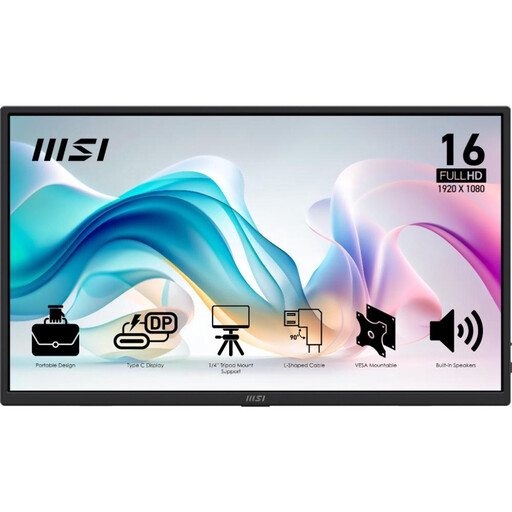 Image unavailable
MSI PRO MP165 E6
A 15.6-inch screen for viewing a lesson plan alongside reference materials; bear in mind how much space it will take up at your seat.
Full HD; USB-C; speakers. To use USB-C for video, your laptop port must support the required video output.
Joybuy
 Image unavailable
ASUS ZenScreen MB166CR
A 15.6-inch option if you want more physical screen space alongside your laptop; check that the stand fits at your seat.
1920 × 1080 pixels; Full HD; USB-C. ASUS recommends checking in advance that your laptop port supports video output.
Joybuy
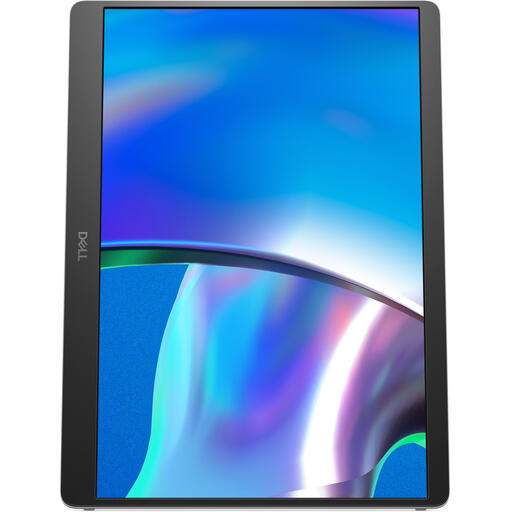 Image unavailable
Dell Pro Plus P1425
A 14-inch option to compare with larger models if you’re looking for a more compact second-screen setup.
1920 × 1200 pixels; WUXGA. If you’re using USB-C, check the video output requirements for your laptop.
Joybuy
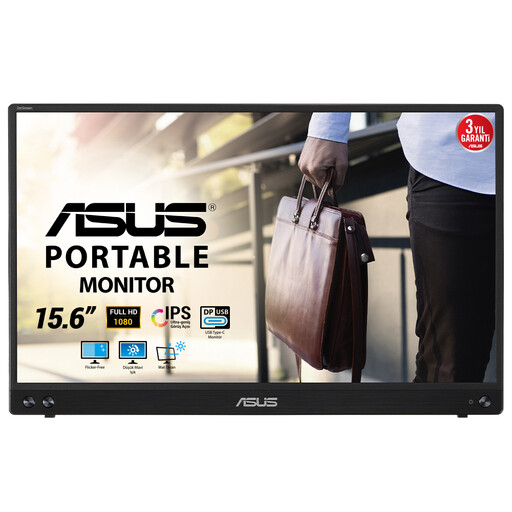 Image unavailable
ASUS MB16ACV
A 15.6-inch second screen for viewing documents side by side, if you have enough room to set it up.
1920 × 1080 pixels; Full HD; USB-C. Check that the connection is compatible with your laptop.
Joybuy
 Image unavailable
ARZOPA A1S
A 14-inch option with a built-in stand when a compact setup is important.
FHD; two USB-C ports and mini-HDMI. Check whether your laptop outputs video through the connection you choose and what power supply is needed.
Joybuy
Frequently asked questions
Does every USB-C port on a laptop send video to a portable monitor?
No. Check the video specifications for the exact laptop port and the monitor’s requirements. ASUS specifically recommends checking this for the ZenScreen MB166CR; a matching connector alone isn’t enough.
Can I use a monitor with mini-HDMI without a separate power supply?
Not with the ViewSonic VA1655 using only the mini-HDMI cable: according to the manual, it also needs a power connection. Before setting off, check which cables and power source your setup requires.
How do I set up a second screen for preparing lessons?
First connect the video cable and, if needed, the power supply. Then choose the extend option on your laptop if you want to display a lesson plan alongside reference materials. For the VA1655, ViewSonic directs users to the connected device’s display settings to change the orientation.
Can I take and use a portable monitor on an NS train?
Follow NS’s luggage rules: luggage must not occupy seats or block an aisle or door. Check whether the monitor fits alongside your laptop, and put your setup away if it gets in the way of other passengers.
Can I display pupils’ data on an extra screen on the train?
The Dutch Data Protection Authority warns that unauthorised people could gain access to sensitive pupil data; this does not mean there is a general yes or no for every situation. If other passengers can see your screen, it’s best to use material without personal data and follow your school’s privacy policies.


