
Comparing survey results
You want to view and compare survey tables, charts and reports alongside your notes.


First, check whether your laptop can output video through the port you plan to use, and how the monitor is powered. A USB-C port alone doesn’t guarantee this. A compact 14-inch screen may suit you if you’re often on the move, while a larger screen gives you more room to read. A model with a built-in battery can be useful if there’s no mains socket available. Touch is most useful if you want to point things out or annotate results on the second screen.
You want to view and compare survey tables, charts and reports alongside your notes.
You set up a second workstation between appointments and consider what will fit in your bag, how the screen is positioned and which cables you’ll need.
You want to view results in places where there isn’t always a mains socket available for your screen.
| What to consider | What should you check? | Who is this important for? |
|---|---|---|
| Connection | Check whether your laptop port outputs video, and whether the monitor, cable and power supply are compatible. | If I want to connect quickly between appointments, I need to know in advance whether my laptop can actually send video through the port I’ve chosen. Around 36% of consumers say connectivity is their main concern when buying. |
| Room to read | Compare the screen size, aspect ratio and resolution with the tables or charts you’ll be viewing. | If I want to compare data side by side, I look for enough physical screen space without overlooking whether it will fit in my bag and workspace. Around 29% of consumers prioritise room to read. |
| Portability and positioning | Measure your bag and the space available on your usual table; check the weight and how the stand is positioned. | If I often travel between customer visits, I want a screen that’s easy to carry and set up in a small workspace. Around 21% of consumers say portability is their main consideration. |
| Power supply | Check whether a mains socket is available, whether your laptop can power the screen and the test conditions used for any battery-life claim. | If I can’t rely on having a mains socket, I need to know how long the screen will work under my usual conditions and when it needs recharging. Around 14% of consumers prioritise independent power. |
The shape of the connector alone doesn’t confirm that your laptop can send video to the monitor through that port. VESA/DisplayPort explains that video over USB-C depends on supported features on both devices.
Before you buy, check the video specifications for the exact laptop port, monitor and cable you’ll need.
You may need a different cable or a separate power solution.
A stated battery life applies under the manufacturer’s test conditions. Similarly, a brightness specification doesn’t guarantee that a screen will be easy to read in every location.
Compare the stated conditions with your brightness setting, session length and usual lighting.
A screen with its own battery needs recharging, so plan a suitable time to do this.
A larger or touch-sensitive screen won’t automatically solve the problem of limited table space, and touch adds little if you only want to read.
Decide whether you’ll mainly be reading, comparing windows or pointing things out on screen, and check how much space you have.
The ThinkVision M14t Gen 2 is a 14-inch 16:10 touchscreen model for anyone looking for a compact second screen.
The Pro 14 Plus P1425 is a 14-inch 16:10 monitor for a compact mobile workspace.
The ZenScreen range includes a 15.6-inch model with mini-HDMI, as well as a separate model with a built-in battery.
The E14 G4 is a 14-inch USB-C model with an anti-glare screen.
This selection includes compact 14-inch portable monitors and 16-inch screens for viewing results alongside a laptop.
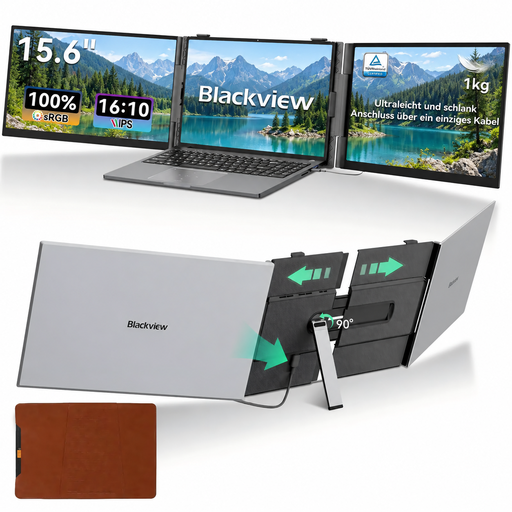 No image available
A compact size for viewing survey results alongside your laptop.
The product name lists Full HD and compatibility with 13–17.3-inch laptops.
 No image available
The larger screen may suit you if you want to view tables and charts alongside your laptop.
The product name lists FHD, IPS, 16:10, 144 Hz, two USB-C ports, mini-HDMI and a built-in stand.
 No image available
A 16-inch screen for viewing survey results alongside your laptop.
The product name lists 2.5K, IPS, 16:10, two USB-C ports and mini-HDMI.
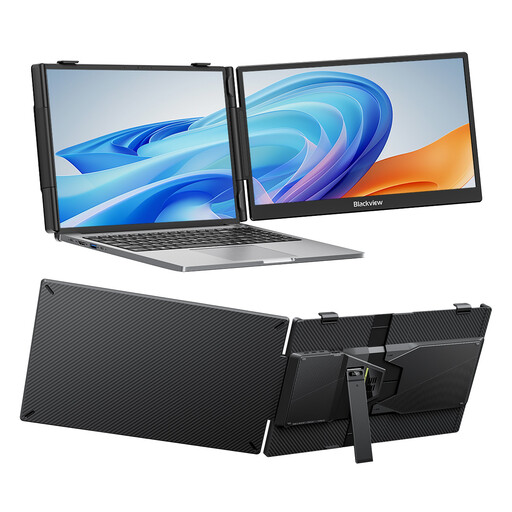 No image available
A 14-inch screen may suit a compact second workspace between appointments.
The product name lists FHD, IPS, an adjustable stand and compatibility with 13–17.3-inch laptops.
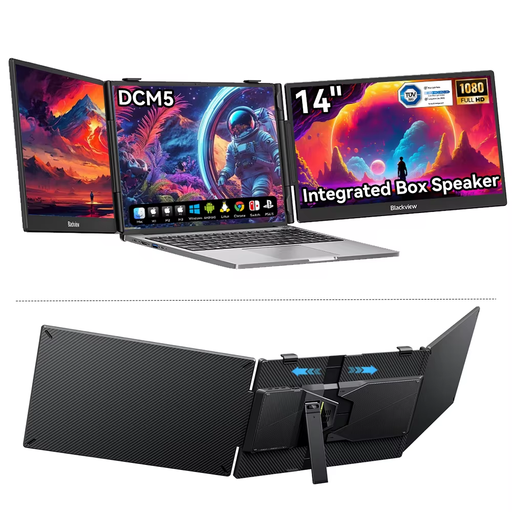 No image available
A compact screen for viewing documents or survey results alongside your laptop.
The product name lists a 16:9 IPS LCD screen for 13–17-inch laptops.
No. Check whether the laptop port you’re using supports video output, such as DisplayPort Alt Mode, and whether the cable and monitor are compatible. ASUS recommends checking this for the MB16AHV too.
Place the monitor on a stable surface, connect the suitable video and power cables, then choose whether to extend or mirror your laptop display. Check whether your model needs extra software for features such as automatic rotation; ASUS specifies DisplayWidget software for this feature on the MB16AHP.
Not automatically. According to the Dutch government, a product must be fit for purpose, and the seller must provide a solution if something goes wrong. There is no fixed statutory warranty period in the Netherlands, so check what an optional paid warranty covers. If you’re buying for business use, check the applicable terms separately.
If the results contain personal data, the organisation must determine appropriate security measures and prevent unauthorised access, according to the Dutch Data Protection Authority. You should also consider who can see the screen and assess your working environment in line with your organisation’s policy.