
Students who want to see a map and their notes side by side
Keep a neighbourhood map open while viewing sources or notes on your laptop. Compare screen size and resolution, and consider how the monitor can be positioned on a table.


A larger screen can be useful if you want to view a neighbourhood map alongside your laptop notes. A more compact screen is a better fit if you often move between study spaces. Before buying, check that your laptop can send video through the connection you’ve chosen and how the screen is powered. Touch controls, a battery or two panels are only worth considering if you’ll actually use those features.
Keep a neighbourhood map open while viewing sources or notes on your laptop. Compare screen size and resolution, and consider how the monitor can be positioned on a table.
You’ll need to set up your workspace again between study sessions. Weight, a suitable case and a stand may all influence your choice.
Check that your laptop and monitor work with the connections and power sources available to you.
The percentages reflect consumers considering a portable screen for this study setup.
| What to consider | What should you check? | Who is this important for? |
|---|---|---|
| Map visibility | Compare screen size, resolution, aspect ratio and anti-glare properties. Also check that the stand suits the table you’ll be using. | I want to be able to read map labels while keeping my notes open. Around 33% of consumers put map visibility first. |
| Portability | Check the weight of the exact model, whether a case is included and how the stand is set up. | If I move between study spaces, I want to take the screen with me without a complicated set-up. Around 25% of consumers give portability the greatest weight. |
| Connection and power | Check whether USB-C supports video via DP Alt Mode or whether you need a suitable HDMI connection. Also check which power supply and cables are required. | I want to know in advance whether my laptop can send video and how to power the screen. Around 25% of consumers give connection and power the highest priority. |
| Features and aftercare | Compare the features you’ll actually use and check whether you’ll need any extras. Keep the seller’s details. | I don’t want to pay for features I don’t need, and I want to know who to contact if the product doesn’t work properly. Around 17% of consumers put cost and aftercare first. |
A USB-C connection alone doesn’t confirm that your laptop supports the video signal required by the monitor. The ASUS and MSI models mentioned here specify DP Alt Mode for video via USB-C.
Check the specifications for both your laptop port and the exact monitor model before choosing.
ASUS states that the ZenScreen Go MB16AHP can run for up to four hours with DP Alt Mode and brightness at 100%. These are the stated usage conditions, not a guarantee of how long your study session will last.
Charge the monitor’s battery in advance, and bear in mind that you may still need a power source for a longer session.
The Dutch government says there is no fixed statutory warranty period in the Netherlands. If a product is faulty, the seller is your point of contact for a solution.
Keep your proof of purchase and contact the seller if you have a problem.
The ZenScreen range includes several types of model: a single screen with USB-C and mini-HDMI, a model with a built-in battery, and a model with two panels. ASUS product specifications describe these features for each model.
The ThinkVision M14t Gen 2 is a compact 14-inch touchscreen option. Lenovo lists a resolution of 2240 × 1400 pixels and a weight of 700 g.
The HP E14 G4 is a portable 14-inch Full HD monitor. HP describes the panel as anti-glare and lists a brightness of 400 nits.
The MSI PRO MP165 E6 is a 15.6-inch Full HD option with HDMI and USB-C. MSI lists an anti-glare IPS panel and a weight of 0.78 kg.
These portable monitors can give you a second screen alongside your laptop for viewing maps and notes. Check the connection, power supply and positioning for each model.
 Image unavailable
The 16-inch screen can give you room for a map window alongside your laptop notes.
The product name specifies a 2.5K IPS screen with a 16:10 aspect ratio, USB-C, mini-HDMI and a built-in stand.
The stated refresh rate is 144 Hz.
 Image unavailable
A 16-inch screen may suit you if you want to view map details alongside your notes.
The stated screen resolution is 2560 × 1600. The product information lists a built-in stand, USB-C and HDMI.
The stated weight is 810 g.
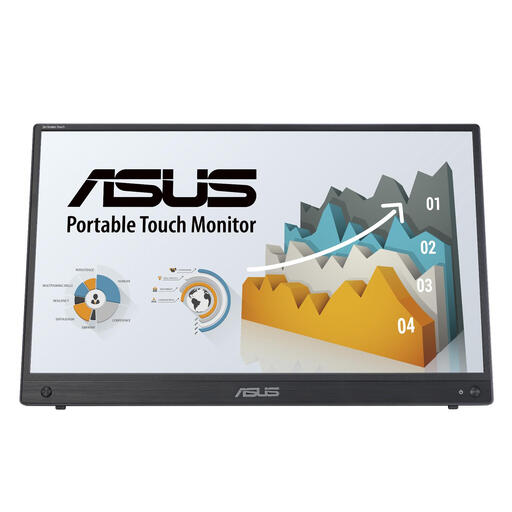 Image unavailable
Touch controls can be useful if you want to point to things on the map. Check that your device and software support them.
The 15.6-inch IPS screen has a stated resolution of 1920 × 1080. The product information lists HDMI, USB-C and a monitor stand.
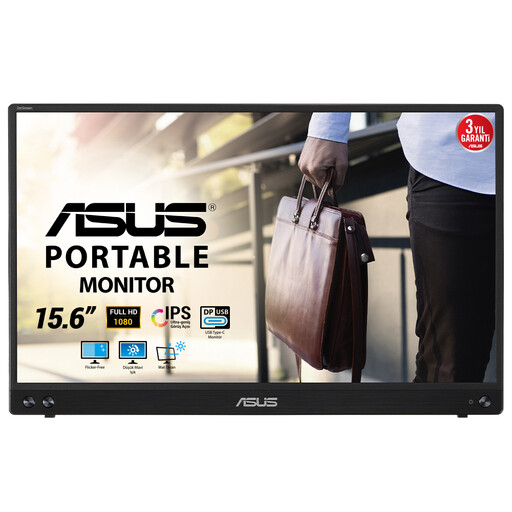 Image unavailable
This model may suit you if you want a larger map window alongside your laptop and want to handle video and power through a USB-C hybrid connection.
The product information lists a 1920 × 1080 IPS screen, a weight of 0.83 kg and a thickness of 10.5 mm.
According to the stated specifications, this model doesn’t have a built-in battery. Check that your set-up can provide enough power.
 Image unavailable
The smaller size and stated weight may suit you if you often take the monitor between study spaces.
The product information lists a 1920 × 1080 IPS screen, a weight of 600 g and a built-in stand.
The listed connections are USB-C and mini-HDMI.
Not necessarily. Check whether the laptop port you’ve chosen supports the video signal required by the monitor, such as DP Alt Mode for the ASUS MB16AHV. Also check the power supply and cable you’ll need.
Place the monitor on a stable table next to your laptop and use extended display mode if you want to show the map and notes separately. Beforehand, check that the chosen model’s stand will work in your workspace.
Treat the stated battery life as an indication for that specific model, not a guarantee that it will last for your whole session. ASUS states that the ZenScreen Go MB16AHP can run for up to four hours with DP Alt Mode and brightness at 100%. Charge the battery in advance and consider your own power requirements.
For online distance purchases, you generally have a 14-day cooling-off period, according to the Dutch government. The Netherlands has no fixed statutory warranty period; if a product is faulty, the seller is your point of contact for a solution. Check which terms and exceptions apply to your purchase.
According to information from the Dutch government, sellers and traders of electrical or electronic equipment must ensure that their products comply with the relevant European rules. Check the product information for the specific model you’re considering.