What should you look for when buying?
First compare how easy your diagram is to read, how much table space you have, the connections you need and how often you’ll carry the screen around.
| What to consider |
What should you check? |
Who should pay particular attention? |
| Detail readability |
Compare the screen size, native resolution and scaling settings with one of your own diagrams. Lenovo lists a 14-inch screen with 2240 × 1400 pixels for the ThinkVision M14d; ASUS lists a 16-inch screen with 1920 × 1200 pixels for the ZenScreen MB16FC. |
If you need to assess small labels and fine lines from your usual viewing distance, readability comes first. Around 31% of consumers say this is their top buying priority. |
| Viewing together and positioning |
Measure the available table space and check the viewing angle from the seats. Philips lists a stand for the 16B1P3302D/00 that tilts from 0 to 90 degrees. |
If you want everyone at the table to see the diagram without the screen taking over the workspace, consider its position and viewing angle. Around 23% of consumers put shared visibility first. |
| Connection, power and touch |
Check your laptop’s video and power requirements, as well as those of the monitor. Lenovo lists DP 1.2 Alt Mode and PD 2.0 for the ThinkVision M14; Philips requires DP Alt Mode for USB-C video. Check touch compatibility separately for the device you use. |
If you want to be sure that the picture, power and, where relevant, touch will work with your device, check the exact port requirements. Around 31% of consumers put a working connection first. |
| Portability and setup |
Check the weight, dimensions, space in your bag and adjustability. Lenovo lists the ThinkVision M14 at 598 g, while HP lists the E14 G4 at 640 g. Arboportaal recommends a well-adjusted workstation. |
If you often carry the screen around and use it at different tables, weight and positioning matter. Around 15% of consumers say portability is their top buying priority. |
Portable monitors at Joybuy
These portable monitors are options to compare for viewing diagrams around a shared table. Before buying, check the CE mark and product-specific documentation for the model on offer.
 No image available
TECLAST V16H 16-inch portable monitor
An option to compare if you’re looking for a 16-inch screen with a built-in stand for use at a table.
The title lists FHD IPS, 16:10, 144 Hz, two USB-C ports and mini-HDMI.
View at Joybuy
 No image available
TECLAST V16Q 16-inch 2.5K monitor
An option to compare if you’re looking for a 16-inch screen with a built-in stand for viewing diagrams at a table.
The title lists a 2.5K IPS screen, 16:10, 144 Hz, two USB-C ports and mini-HDMI.
View at Joybuy
 No image available
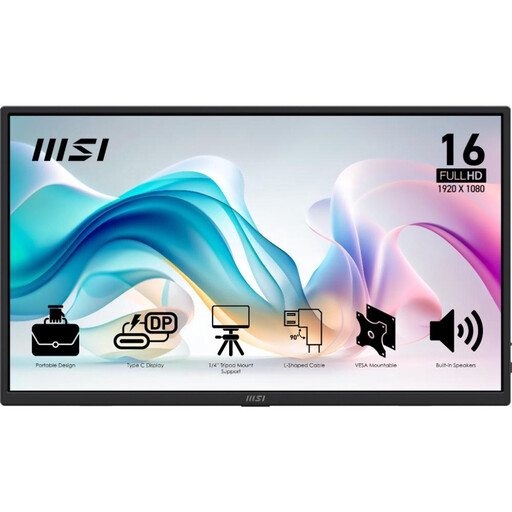
MSI PRO MP165 E6 15.6-inch monitor
An option to compare if you’re looking for a portable Full HD screen for a temporary study space.
The title lists a 15.6-inch Full HD screen and USB-C.
View at Joybuy
 No image available
ARZOPA Z1RC 16-inch 2.5K monitor
An option to compare if you want to set up a 16-inch screen with a built-in stand on the table.
The title lists 2560 × 1600 pixels, an IPS screen and USB-C and HDMI connections.
View at Joybuy
 No image available
ASUS ZenScreen MB166CR 15.6-inch
An option to compare if you’re looking for a 15.6-inch Full HD screen for viewing diagrams at a table.
The title lists 1920 × 1080 pixels and an LCD screen.
View at Joybuy
Frequently asked questions
Is USB-C on my laptop enough to connect the monitor?
No. Check whether the port supports the video signal required by the specific screen. For the ThinkVision M14, Lenovo lists DP 1.2 Alt Mode and PD 2.0; Philips lists DP Alt Mode for USB-C video on the 16B1P3302D/00.
Can everyone around the table use the touchscreen?
That depends on the device and operating system. For the TD1655, ViewSonic says there’s no touch feedback on iOS and iPadOS, vTouch software is needed for macOS, and the connected device must support USB touch signals.
How should I set up a portable monitor for longer study sessions?
Position the screen so you can look at it comfortably, and change your posture regularly. Arboportaal gives this advice for setting up a workstation; legal rules for employees who work with display screens don’t automatically apply to students studying privately.
What are my rights when buying online in the Netherlands?
When you buy online from a business, you generally have a 14-day cooling-off period. You’re also entitled to a product that is fit for purpose; according to the Dutch government, there’s no fixed statutory guarantee period in the Netherlands. These statutory rights are separate from any manufacturer’s warranty.
What product safety requirement applies to a monitor sold in the Netherlands?
The Netherlands Food and Consumer Product Safety Authority states that electrical products must carry the CE mark. Check the marking and supporting documentation for the specific model on offer.


