
Anyone working at a narrow desk
You want to keep one document open beside your laptop without the monitor stand and cables taking up your workspace.


Start by measuring the space beside your laptop, then check that your laptop’s video output works with the monitor. Next, choose between a compact second screen, extra vertical space for documents or more connection options. Be sure to measure the stand when it’s open, and check the cables and power supply.
You want to keep one document open beside your laptop without the monitor stand and cables taking up your workspace.
Consider the screen orientation, vertical resolution and scaling to make documents easy to read.
First check whether your laptop can output video via USB-C, or whether you’ll need a different video connection.
First, measure the space beside your laptop and allow for the complete setup, including the stand and cables. Then check the video connection and choose a screen aspect ratio and resolution that suit your documents.
| What to consider | What should you check? | Who is this important for? |
|---|---|---|
| Space for the screen and stand | Compare the dimensions and measure the monitor with the stand open and cables connected. | If I’m placing my laptop and a second screen side by side on a narrow desk, I want to know whether the whole setup will fit. Around 31% of consumers focus mainly on desk space. |
| Video connection and power | Check the laptop’s video output, the monitor model’s requirements, the cable and the power supply. | If I want to use a single connection, I first check whether my laptop outputs video through the relevant port. Around 31% of consumers prioritise compatibility. |
| Document viewing space | Compare the screen aspect ratio and resolution; check whether portrait orientation is supported and adjust the scaling to suit your preferences. | When reading long documents, I want to see how much text will be visible at once and whether a portrait setup is practical. Around 25% of consumers focus mainly on document viewing. |
| Storage and portability | Check the weight of the exact version and see which case, cables and power supply are included. | If I want to put the screen away or take it with me after work, I consider its weight and what I’ll need to carry. Around 13% of consumers prioritise portability. |
USB-C ports can support different functions. Without suitable video output, the second document won’t automatically appear on the monitor.
Check the video specifications for both your laptop and monitor, and find out which cable you need before relying on a single cable.
The stand takes up space when open, as does the cable routing. So a dual-screen monitor won’t necessarily save space on a small desk.
Measure the complete setup beside your laptop before choosing a model.
A touchscreen, built-in battery or second panel won’t necessarily make a single document more comfortable to view.
First decide which features you actually need, then compare the screen aspect ratio, stand, connections and adjustable scaling.
The ThinkVision M14 is a compact Full HD model, while the M14t Gen 2 is a 14-inch alternative with a 16:10 aspect ratio, 2240 × 1400 resolution and touchscreen controls.
The Pro 14 Plus P1425 is a 14-inch screen with a 16:10 aspect ratio and 1920 × 1200 resolution.
ZenScreen models vary in their connections, built-in batteries and number of screen panels.
The E14 G4 is a 14-inch Full HD monitor with USB-C.
The A1S is a 14-inch Full HD model with USB-C and mini-HDMI inputs.
These portable monitors are designed to be used as a second screen, with options ranging from 14-inch models to larger screens and a choice of video connections. If you have a small desk, measure the monitor, stand and cable space together.
 No image available
A 14-inch screen extension for laptops within the stated compatibility range. Remember to check that there’s room for the complete setup.
14 inch; Full HD, 1920 × 1080; according to the product title, suitable for 13–17.3-inch laptops.
 No image available
A compact second screen to consider if 14 inches will fit your available desk space. Check the video connection and the cable you’ll need.
IPS; Full HD, 1920 × 1080; USB-C and Mini HDMI; built-in stand.
 No image available
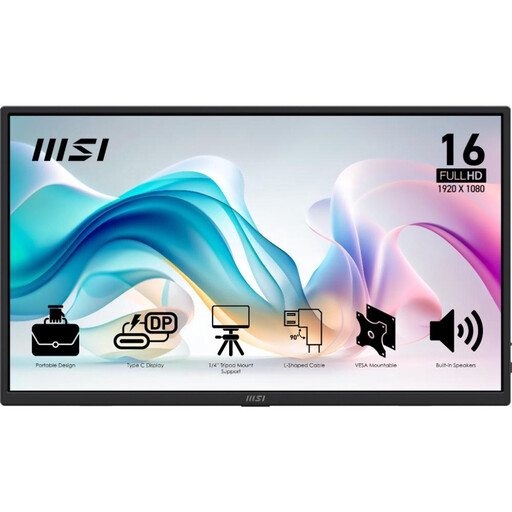
The extra vertical screen space could be useful for longer documents, but check that a 16-inch monitor will fit on your desk first.
16:10; 1920 × 1200; USB-C with DisplayPort Alt Mode; integrated stand that tilts up to 90°.
 No image available
An option to consider if you want both USB-C video and HDMI. Allow enough space for a 15.6-inch screen.
Full HD; USB-C with DP Alt Mode and HDMI; anti-glare; stand tilts up to 90°.
 No image available
The listed screen aspect ratio and resolution may be useful for documents, but a 16-inch screen needs space, so measure your desk first.
16:10; 2560 × 1600; USB-C and HDMI; built-in stand.
No. Check whether your laptop port can output video and which video system the exact monitor model uses. ASUS distinguishes between USB-C with DP Alt Mode and USB solutions that require a driver. For the ThinkVision M14, Lenovo also specifies DP 1.2 Alt Mode and PD 2.0.
Select Extend in your display settings and arrange the screens as you prefer. Microsoft Support says that for portrait orientation, you need to change the setting in Windows and physically rotate the screen. So check whether the stand allows this.
If a product is faulty, the seller in the Netherlands may be required to repair or replace it free of charge, or refund the purchase price. According to the Dutch government, there’s no fixed statutory warranty period; what you could reasonably expect from the product and the cause of the fault are taken into account. A commercial warranty doesn’t replace these rights.
For distance purchases, you usually have 14 days to change your mind. The Dutch government lists exceptions to the right to cancel. Before buying, check the seller’s information about the order and returns process.