
Frequent traveller who works on slides
You want to take a second screen with you between client meetings and set it up in a small workspace.


Start by checking your laptop’s video output, then decide whether you need a compact second screen, more workspace or a monitor with its own battery. USB-C alone does not guarantee a video signal: Philips specifies DP Alt Mode as a requirement for video over USB-C. A built-in battery or an expanded screen layout also involves different considerations for charging, portability and compatibility.
You want to take a second screen with you between client meetings and set it up in a small workspace.
You want to check in advance whether your laptop can output video over USB-C, and which connection or screen technology will suit your setup.
You often work without a reliable mains supply and want to choose how to power your second screen.
First, check that your laptop can provide the required video signal. Then compare the screen layout, portability and available power options.
| What to consider | What to look for | Who is this most important for? |
|---|---|---|
| Working video connection | Check your laptop’s video output, the monitor’s input and the cable you need. For USB-C, check whether your laptop supports DP Alt Mode. | I don’t want to find out between meetings that my laptop can’t output video through the port I’ve chosen. Around 36% of consumers give working laptop compatibility top priority. |
| Room for slides and notes | Compare the screen size, aspect ratio and resolution with the windows you want to use side by side. Decide whether you want to extend or mirror your display. | If I want to see slides, notes and source material at the same time, the screen layout is the deciding factor for me. Around 29% of consumers put extra workspace first. |
| Carrying and setting up | Check the weight of the exact model, along with its case, stand and viewing angle. | I take my screen with me often and want to set it up quickly on a small table. Around 21% of consumers give portability and setup top priority. |
| Power without a socket | Check how the screen is powered, whether your laptop can provide enough power and the conditions under which any stated battery life applies. | When I work without a socket, I want to know in advance how long the screen will run and how it will be powered. Around 14% of consumers make this their main buying concern. |
USB-C describes the connection, but does not by itself guarantee a video signal. Philips specifies DP Alt Mode as a requirement for video over USB-C.
Check the capabilities of the exact laptop and monitor ports, and choose a suitable cable before selecting a model.
Depending on your setup, you may need a different cable or a separate power solution.
ASUS gives the maximum battery life stated for the ZenScreen MB16AHP under specific conditions. Different settings or a different working session may produce different results.
Plan your power supply around the length of your session and check the test conditions listed by the manufacturer.
You’ll also need to charge a screen with its own battery.
An editorial ranking alone won’t tell you whether a model suits your laptop, workspace or presentation style.
Use model names as a starting point, then compare the connection, workspace, power supply and setup for your needs.
The ZenScreen models in this comparison offer a range of connection, power and screen setup options.
The ThinkVision M14t Gen 2 is a 14-inch 16:10 model with touch controls and an adjustable stand.
The Dell Pro 14 Plus P1425 is a single 14-inch 16:10 screen for a compact workspace.
The Business Monitor 16B1P3302D/00 is a 15.6-inch model with two USB-C ports and an adjustable stand.
The AOC 16T2 is a 15.6-inch IPS touchscreen that AOC recommends for uses including presentations and note-taking.
This selection includes portable screens that give you extra workspace for working on slides on the go, with a range of screen sizes and connection options.
 No image available
A 14-inch portable extension for anyone who wants more workspace on their laptop while travelling for business.
The product name specifies Full HD and compatibility with 13–17.3-inch laptops. Video over USB-C requires a laptop port that supports video.
 No image available
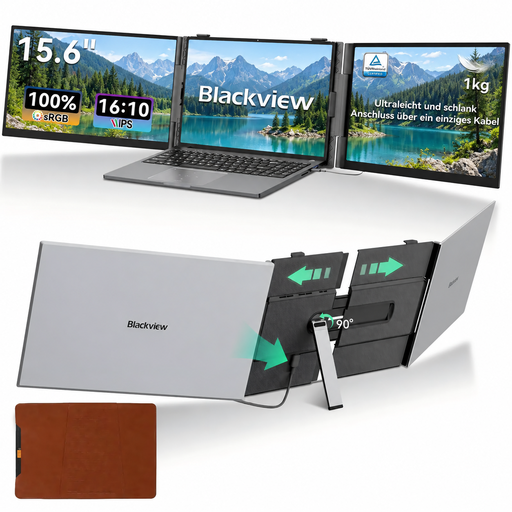
A portable dual-screen setup for anyone who wants to view slides alongside other work while on the go.
The product name specifies a 15.3-inch Full HD screen and USB-C. For video over USB-C, your laptop port must support video; also check the power requirements.
 No image available
A 16-inch 16:10 screen for anyone who wants to view slides and notes side by side.
The product name specifies 144 Hz, two USB-C ports, mini-HDMI and a built-in stand. Check whether your laptop supports USB-C video; mini-HDMI is another listed video connection.
 No image available
A 16-inch 16:10 screen for anyone who wants extra vertical space for slides and other windows.
The product name specifies 2560 × 1600 pixels, 144 Hz, USB-C and mini-HDMI. For video over USB-C, check that your laptop port supports this feature.
 No image available
A 14-inch portable screen for anyone looking for a compact extra workspace while travelling.
The product name specifies 1920 × 1200 pixels, 16:10, Type-C and mini-HDMI. Check whether your laptop’s Type-C port supports video and what power supply your setup requires.
No, your laptop port must support video. Philips specifies DP Alt Mode as a requirement for video over USB-C; ASUS also describes screen solutions that may require a driver. Check the manuals for both devices and use a suitable cable.
Extend your desktop if you want to view slides alongside notes, or mirror the display if you want to show the same content. Lenovo lists both features for the ThinkVision M14t Gen 2; ASUS also describes a setup for presenting to one person with the ZenScreen Duo MB14FCD. Test your preferred setup with your laptop and presentation software.
Check how the specific screen is powered and whether your laptop can provide the required power. If you choose a model with a battery, you’ll also need to plan when to charge it; ASUS gives the battery life stated for the ZenScreen MB16AHP under specific conditions.
No, the Netherlands government states that there is no fixed statutory guarantee period covering all products in the Netherlands. If a product is faulty, contact the seller; the consumer rights mentioned apply to purchases made by individuals and do not necessarily apply to purchases made in a company’s name.
No. For electronic equipment covered by applicable EU rules, the manufacturer uses the CE mark to declare that the rules have been met; it is not a certificate issued by a central EU body. Check that the specific product listing is compliant.