Which factors matter most?
Start with your main task, then check that the connections and set-up suit your laptop and workspace.
| Factor |
What to look for |
Who should pay particular attention? |
| Sketch details and annotations |
Check the resolution, aspect ratio, touch support and compatibility with your drawing or annotation software. |
If I want to inspect lines accurately or annotate on screen, the entire touch or stylus workflow needs to work. Around 26% of consumers say sketch detail is their top priority. |
| Reading long texts |
Compare 16:10 with 16:9, and check portrait orientation, the stand and the requirements for automatic rotation. |
When I read PDFs alongside a sketch, I want enough vertical space and a stable position. Around 26% of consumers prioritise long texts. |
| Connection and power |
Check whether your laptop port supports video and what cable and power supply the screen needs. |
If I want to use the screen without connection issues, I check the exact laptop port and power requirements before buying. Around 21% of consumers prioritise a working connection. |
| Taking it with you and setting it up |
Compare the stated weight, stand or case, and the desk space required. |
If I often take my laptop and screen with me, I want to know how the complete set-up will fit in my bag and workspace. Around 16% of consumers prioritise portability and positioning. |
| Working in bright conditions |
Compare the stated brightness and screen finish, and consider the lighting in your workspace. |
If I regularly work somewhere brightly lit, I want to assess reflections and readability for myself. Around 11% of consumers prioritise visibility in bright conditions. |
Screens for sketching and reading
This selection includes screens for annotating digital sketches and for adding reading or working space alongside a laptop. Check that each model’s connections, software and set-up suit the way you plan to use it.
 No image available
Wacom One 14.0-inch pen display
The pen display design is suited to digital annotation; check that the connection and stylus workflow work with your computer and software.
14.0-inch pen display.
View at Joybuy
 No image available
TECLAST V16H 16-inch portable monitor
The 16:10 aspect ratio and built-in stand may suit document work alongside a sketch; check your laptop’s ports and power supply.
16-inch Full HD IPS, 16:10, two USB-C ports, mini-HDMI and built-in stand.
View at Joybuy
 No image available
TECLAST V16Q portable monitor, 2.5K and 16:10
The stated 2.5K resolution and 16:10 aspect ratio are worth considering if you want to view sketch details and documents on one screen.
IPS screen, two USB-C ports, mini-HDMI and built-in stand.
View at Joybuy
 No image available
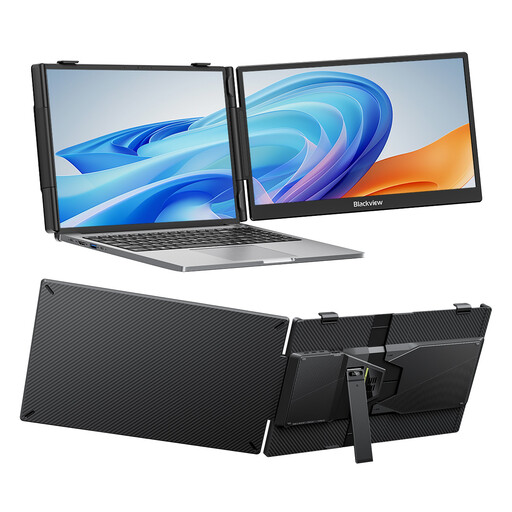
Blackview SCM5 14-inch Full HD IPS monitor
The 14-inch size and adjustable stand are worth comparing if you’re looking for a compact second-screen set-up.
Full HD IPS screen with adjustable stand.
View at Joybuy
 No image available
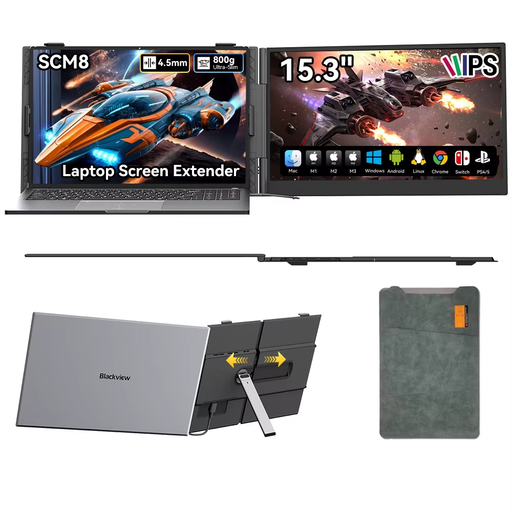
Blackview SCM8 15.3-inch portable monitor
The supplied protective case and adjustable stand may be useful if you take the screen with you and set it up in different places.
15.3 inches, USB-C connection and 180° adjustable stand.
View at Joybuy
Frequently asked questions
Will every USB-C port on your laptop send video to a portable monitor?
No. If the monitor uses DP Alt Mode, your laptop port must support video. ASUS lists HDMI with a separate USB-C power connection as an alternative for the ZenScreen MB16FC if your laptop doesn’t have USB-C with DP Alt Mode. Check the specifications for the exact port.
Can you automatically read a long PDF in portrait orientation?
It depends on the model and its software requirements. ASUS links orientation switching on the MB16FC to DisplayWidget Center; check that the software works on your system before relying on automatic rotation.
What are your rights when buying online or if a product is faulty in the Netherlands?
For an online purchase from a business, you generally have 14 days from delivery to change your mind, subject to exceptions and conditions. The Dutch Government says that if a product is faulty, you can ask the seller for an appropriate solution, such as a free repair or replacement. Check who the seller is and what return costs are listed before buying.
How should you clean the screen?
ASUS recommends switching off its LCD and OLED monitors, unplugging the cables and gently using a microfibre cloth. If needed, dampen the cloth with a small amount of purified water; don’t apply it directly to the panel. For other brands, follow the manufacturer’s instructions.
Where can you recycle an old monitor?
The Dutch Government explains that when you buy a new, similar device, a shop must take back your old one free of charge under the ‘old-for-new’ scheme, including through the online process described. Your local council recycling centre is another collection point.


