What should you look for?
First compare how the screen will sit by the window, then consider the detail and colour in your sketches, followed by connections, power and portability.
| What to consider |
What should you check? |
Who might find this more important? |
| Readability in window light |
Compare the finish, typical brightness in cd/m² and adjustability. If possible, assess the setup in similar lighting. |
If I want to keep seeing lines and labels beside a bright window, I look at reflections and the angle at which I can position the screen. Around 31% of consumers in this buying context prioritise readability in window light. |
| Sketch detail and colour |
Compare the resolution and stated colour gamut with the files you’ll be showing. Different colour spaces are not directly comparable. |
When I’m assessing fine lines and blocks of colour side by side, I want to know whether the specifications suit my files; gamut coverage alone doesn’t prove colour accuracy. Around 25% of consumers give sketch detail and colour top priority. |
| Connection and power |
Check video output, power requirements, available ports and the cables needed for the exact screen and laptop. |
I want to connect my laptop before a meeting without guessing whether a USB-C plug will work. Around 25% of consumers put a reliable connection and power ahead of other buying concerns. |
| Carrying and setting up |
Compare the size, stated weight, stand and available desk space. |
If I move the screen between small meeting spaces, I want to carry it easily and adjust the viewing angle. Around 19% of consumers prioritise portability and setup above all else. |
Portable monitors at Joybuy
These product picks focus on portable screens for viewing sketch details and moving or setting up a screen in different workspaces.
 No image available
TECLAST V16Q portable monitor
An option to consider if you’re looking for a portable screen for comparing sketch details.
According to the product name: 16:10, two USB-C ports, Mini HDMI and a kickstand.
View at Joybuy
 No image available
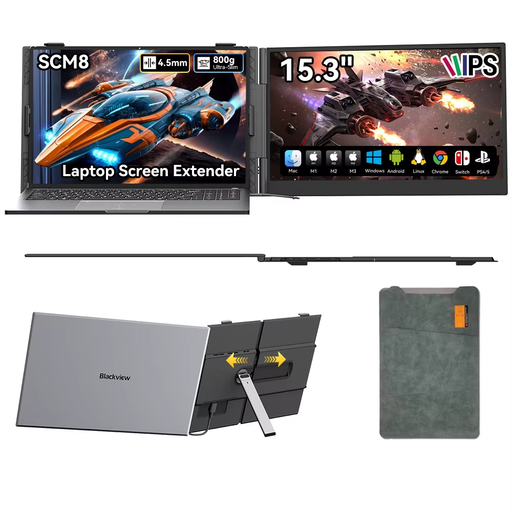
Blackview SCM8 15.3-inch portable monitor
An option to compare if you move a portable screen between meeting spaces and want to adjust the viewing angle.
The product name lists USB-C Plug-and-Play, a built-in speaker, a 180° adjustable stand and an included protective case.
View at Joybuy
 No image available
UPERFECT 16-inch 2K 144Hz portable monitor
An option to compare if you’re looking for a portable screen for sketch details and blocks of colour.
The product name lists 2560 × 1600, 16:10, 450 nits, QLED, Mini HDMI and Type-C.
View at Joybuy
 No image available
ARZOPA Z1RC 16-inch 2.5K portable monitor
An option to compare if you’re looking for a built-in stand and connections for a mobile workspace.
The product name lists 2560 × 1600, IPS, 123% sRGB, a built-in stand, USB-C and HDMI.
View at Joybuy
 No image available
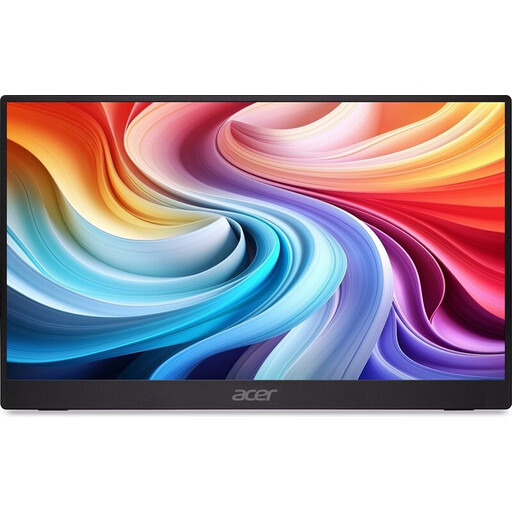
Acer PM161QB1 15.6-inch 60 Hz portable monitor
An option to compare if you’re looking for a portable screen to show sketches somewhere else.
The product name lists a 15.6-inch screen and 60 Hz. According to the product information, the stand doesn’t tilt, swivel or adjust in height.
View at Joybuy
Frequently asked questions
Is a USB-C port on your laptop enough for video and power?
Not necessarily. Philips says that video over USB-C on the 16B1P3302D/00 requires DP Alt Mode on the source device; power and charging have their own requirements too. Check the documentation for your laptop and the exact screen, along with the cables you’ll need.
How can you reduce reflections during a sketch review?
You can start by adjusting the screen angle and its position in relation to the window. Arboportaal highlights the position of workspaces in relation to windows and suitable blinds as points to consider. Also compare the finish of the screen you choose; a stated brightness rating alone won’t predict how visible it will be in your workspace.
What are your rights if a monitor bought online is faulty?
If you buy as a consumer in the Netherlands, you’re entitled to a product that’s fit for purpose and should contact the seller for a solution. According to the Dutch government, there’s no fixed statutory warranty period of two years in the Netherlands. For eligible online purchases from a business, you’ll generally also have 14 days to change your mind; check the terms and exceptions.
Are there workplace rules for working at a screen beside a window for long periods?
For employees, Arboportaal outlines requirements for computer workstations, including considerations around reflections, lighting and windows. Specific requirements for workstation setup also apply if you work at a screen for more than two hours a day. This isn’t a general product specification for every private buyer; if necessary, discuss your workspace with your employer.


