
Designer working on a laptop with local files
You want to view a sketch alongside project files and first check that your laptop, cable and screen will work together. Philips and Dell describe USB-C video connections that vary by model.


Start by checking your laptop’s video output: a USB-C port alone doesn’t guarantee a picture. Your laptop and monitor must support the same video mode. ASUS also explains this requirement for direct USB-C display. If you’re using HDMI, check what power supply is needed too. Then choose a monitor to suit your sketches and working style: a compact screen to take with you, more screen space or higher resolution for viewing details, or touch and pen controls for pointing or drawing on screen.
You want to view a sketch alongside project files and first check that your laptop, cable and screen will work together. Philips and Dell describe USB-C video connections that vary by model.
You want to view lines and text together, and weigh up screen size and resolution against portability. ASUS, Lenovo and Dell publish specifications for these features, which vary by model.
You need touch or pen controls and should check they work with your design software. Lenovo and ASUS describe touch and pen features for specific models.
First, check that your laptop, monitor and cable support the same video mode. Then choose based on how clearly you can view your sketches, the complete setup you want to carry and whether you need to draw on screen.
| What to consider | What should you check? | Who is this important for? |
|---|---|---|
| A working laptop connection | Check the video output, the mode supported by both devices, the cable and the power supply. | If I want to open a sketch alongside local project files on site, I need to know my laptop can send a picture to the screen; around 36% of consumers put a working connection first. |
| Sketch details and text | Compare screen size, resolution and finish using a sample file of your own. | When I want to assess small labels and lines alongside a sketch, I need to be able to see them clearly on screen; around 29% of consumers prioritise sketch detail. |
| Transport and setup | Check the weight of the complete setup and whether the stand, cables and power supply you need suit the way you’ll use it. | If I’m taking the monitor between meeting locations, I need to be able to carry the whole setup and position it securely; around 21% of consumers prioritise portability and setup. |
| Pointing or drawing | Know the difference between touch and pen input, and check they work with your computer and design software. | If I want to point or draw directly on a sketch during a meeting, my computer and design app need to register the input; around 14% of consumers prioritise on-screen controls. |
A USB-C port may not support the video function required for your chosen connection. Without a compatible video output, your locally opened project file won’t appear on the extra screen.
Before ordering, check your laptop’s port specifications and the monitor’s video input.
Touch or pen controls let you enter input; whether you can make and save changes also depends on the project software you use.
Try the action you want to perform in your own software, and check that the version you choose includes a pen if you need one.
The weight of the screen isn’t necessarily the weight of the complete setup you’ll take with you.
Also check how much space the stand takes up and which cables, case or power supply you’ll need for your setup.
The ZenScreen MB16AHV is worth considering if you want a single screen with mini-HDMI as an alternative connection. The ProArt PA169CDV is designed for pen input.
The ThinkVision M14t Gen 2 is a compact option to consider if you want higher resolution and touch in one device.
The Pro 14 Plus P1425 is a compact, non-touch second screen to consider if your laptop has a compatible USB-C video output.
The Business Monitor 16B1P3302/00 is worth considering if you need a USB-A or DisplayLink connection as well as USB-C.
The E14 G4 is a 14-inch Full HD alternative that comes with a stand and case.
These models are for anyone who wants to view local sketches on a portable second screen or draw on them. Before buying, check the product specifications and the EU documentation and markings applicable to the specific model.
 No image available
Ideal if you want to edit a sketch with a pen during a meeting rather than simply view it.
Check that your computer and design software support the pen input you need.
 No image available
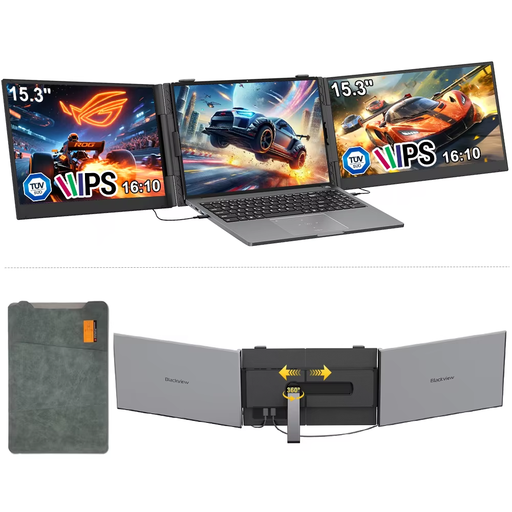
Ideal if you want to discuss a sketch and a local project file side by side on a portable screen.
The product name mentions dual-screen, a one-cable USB-C setup and 1.2 kg.
 No image available
Ideal if you want a portable second screen with a built-in stand for discussing sketches.
The product name mentions FHD, 16:10, 144 Hz, USB-C and mini-HDMI.
 No image available
Ideal if you want a portable second screen for viewing a local project file alongside your laptop.
The product name mentions 16:10, 1920 × 1200 and 60 Hz.
 No image available
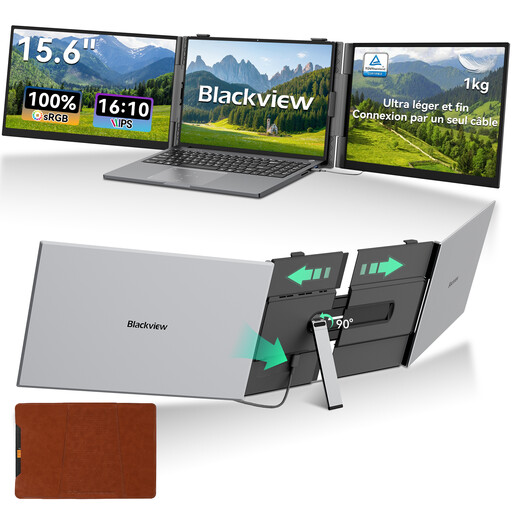
Ideal if you want an extra portable screen for viewing a locally opened project file.
The product name mentions a 15.6-inch screen, FHD and IPS.
Not necessarily. Check whether your laptop can output video through that port, and whether the screen and cable support the same connection. ASUS notes that direct USB-C display requires a video function on both the computer and the monitor.
Open the files on your computer; the monitor displays the picture sent by the computer. The video connections described don’t mean the monitor can store project files or run project software itself.
Look beyond the screen and consider the complete setup you’ll need. Check that the stand sits securely too. Lenovo lists a protective case and USB-C cable for the ThinkVision M14t Gen 2; check what’s included with the version you choose.
The rules that apply depend on the product and the relevant EU legislation. The European Commission describes RoHS restrictions for electrical and electronic equipment, unless an exemption applies; CE marking is required where applicable harmonised rules specify it. Your Europe lists the WEEE marking for screens and monitors. Check the documentation and markings for the specific model.
Report the fault to the seller. According to the Dutch government, the seller must resolve the problem or contact the manufacturer, and can’t simply send you to the manufacturer instead.