For a small desk, you’ll usually want to choose between a 14-inch screen that takes up less space and a larger 15.6-inch screen that gives you more display area. Then check whether your laptop can output video over USB-C, whether you’ll need HDMI and a separate power supply, and whether the stand keeps the screen stable and facing your client. These recommendations are based on stated product specifications, not hands-on testing.
Who is a portable presentation monitor for?
Presenter with limited desk space
You want to set up a screen beside your laptop without filling your client’s workspace. Compare both the screen size and the space taken up by the stand; Lenovo describes the adjustable stand on the ThinkVision M14d.
Presenter using different laptops
You don’t always use the same laptop, so you’ll want to check in advance whether USB-C video or HDMI will work and how the screen gets power. VESA explains that video over USB-C requires the relevant port to support a video function.
Presenter with image-heavy slides
If you’re showing detailed images or small text, pay attention to resolution, viewing angle and stated brightness. These specifications don’t guarantee that your slides will be easy to read in every room.
What should you look for when choosing?
First, check the video connection and available desk space. Then compare readability and power requirements for the location where you’ll be presenting.
| What to consider |
What to look for |
Consumer priorities |
| Compatible connection |
Check whether the laptop port supports USB-C video, such as DisplayPort Alt Mode. Otherwise, compare the HDMI ports, cable and power requirements of the laptop and monitor. |
When I’m presenting to a client, I want to know in advance that the laptop will output a picture. Around 36% of consumers prioritise a working video connection above all else. |
| Desk space |
Compare the overall dimensions and the stand when unfolded with the space available. Also consider how well the screen can be seen from your client’s seat. |
When the laptop and screen need to fit on a small desk, I want to be able to plan the setup in advance. Around 29% of consumers prioritise saving space above all else. |
| Slide readability |
Check the resolution, panel and screen finish, and stated brightness of the exact model. Test a representative slide from the intended viewing distance. |
When my client needs to follow small text or images, I want to assess readability in the room itself. Around 21% of consumers put readable slides first. |
| Power at the venue |
Check whether the laptop can power the monitor, which cables or adapter you’ll need, and whether there’s a power socket available. |
If I’m not sure whether I can power the screen from my laptop or a socket, I want to know how it will get power during the meeting. Around 14% of consumers prioritise independent power above all else. |
Things to check before your presentation
-
Assuming a USB-C connector means video will work
A USB-C port doesn’t automatically support video. Without the right video function on the laptop, the monitor won’t receive a picture over that connection.
Check the laptop port specifications and test the complete setup before your client meeting.
You may need a compatible video cable or adapter.
-
Choosing a larger screen without measuring your setup
On a small desk, the laptop, monitor, cables and unfolded stand all need to fit together.
Measure the available space and compare it with the dimensions of the exact screen and stand.
-
Assuming a battery or HDMI connection means you won’t need cables
A built-in battery doesn’t replace the video signal. With HDMI, the port, cable and power supply still need to be right.
Make a note in advance of the laptop output, monitor input, cable required and power source.
Depending on the connection, you may need a compatible HDMI cable or a separate power supply.
-
Assuming consumer return rules automatically apply to a business order
Whether consumer rules apply depends in part on who buys the monitor and under what terms. A business order isn’t automatically covered by the same rules as a private purchase.
Before paying, check whether you’re buying as a consumer or a business, and which terms apply to your order.
Brands to compare
Lenovo
The ThinkVision M14d is a compact 14-inch option; the M14t Gen 2 is worth considering if you need touch controls.
- Lenovo says the M14d has a 2240 × 1400 IPS panel, an adjustable stand and two USB-C ports.
- Lenovo lists touch support for the M14t Gen 2; check that the connected device supports this feature. These specifications don’t automatically apply to other Lenovo monitors.
ASUS
ZenScreen models vary in their connections and setup options. Examples include the MB16AHV with mini-HDMI, the MB16AHP with a battery, and the dual-screen MB14FCD.
- ASUS lists two USB-C ports and mini-HDMI for the MB16AHV; the manufacturer says the ZenScreen Go MB16AHP has a built-in battery.
- These features apply to different models. A 15.6-inch screen needs more desk space than a 14-inch model, so check the cables and power requirements for each version.
HP
The HP E14 G4 is a 14-inch option to consider if you want to compare an anti-glare screen and stated brightness.
- HP lists an anti-glare screen with 400 nits of brightness and a single USB-C cable connection for the E14 G4.
- These are HP’s specifications, not the result of an independent brightness or compatibility test. Check that the laptop outputs video through the USB-C port you’ll be using.
Acer
The PM161Q B is a 15.6-inch IPS option with USB-C.
- Acer specifies an anti-glare screen and brightness of 250 cd/m² for version UM.ZP1EE.B02.
- Check the full part number: these specifications apply to UM.ZP1EE.B02 and may not apply to other PM161Q versions. The stated figure isn’t a real-world test in a meeting room.
Portable monitors at Joybuy
These Joybuy products include compact 14-inch options and larger portable monitors. Compare the connection and space requirements with your presentation setup.
 No image available
Blackview DCM6 PRO 14-inch Full HD dual-screen laptop monitor
A 14-inch screen may suit a compact setup beside a laptop; check the desk dimensions in advance.
The product information lists a resolution of 1920 × 1080 and compatibility with 13–17.3-inch laptops. For video over USB-C, the relevant laptop port must support video output.
View at Joybuy
 No image available
Arzopa A1S 14-inch Full HD monitor with stand
The 14-inch version is a compact option to consider for use beside a laptop on a small desk.
The product information lists an IPS panel, 1920 × 1080 resolution, an anti-glare finish and a built-in stand. According to the description, it connects via USB-C or mini-HDMI; also check the laptop’s video output and power supply.
View at Joybuy
 No image available
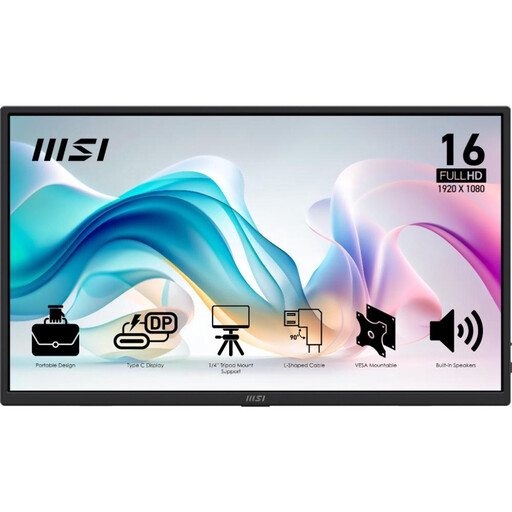
MSI PRO MP165 E6 15.6-inch Full HD monitor
This larger screen may suit you if you want more display area and have enough desk space; measure the complete setup in advance.
The product information lists a Full HD IPS screen, USB-C with DisplayPort Alt Mode, HDMI 2.0b and a weight of 0.78 kg. The stand tilts up to 90°; the description says HDMI and USB-C cables are included. Check that the laptop supports USB-C video.
View at Joybuy
 No image available
ASUS ZenScreen MB166CR 15.6-inch Full HD monitor
Consider this 15.6-inch model if you have enough space to set it up beside your laptop.
The product information lists a Full HD IPS screen with an anti-glare finish and an adjustable 360° stand. Check whether the laptop’s USB-C port supports video.
View at Joybuy
 No image available
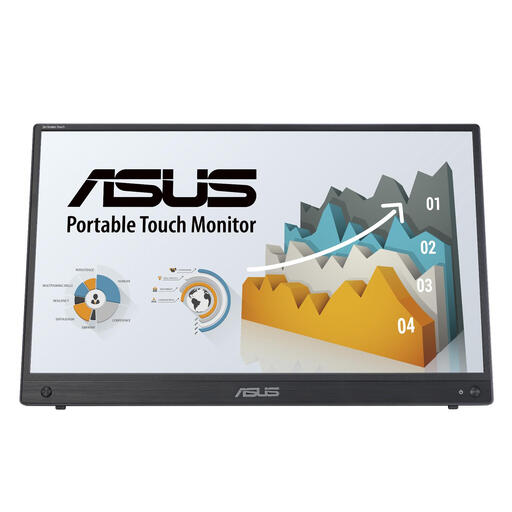
ASUS ZenScreen MB16AHT 15.6-inch Full HD touchscreen monitor
This larger model is worth considering if you genuinely need touch controls during your presentation and have enough desk space.
The product information lists a Full HD IPS touchscreen and HDMI and USB-C connections. Check the video connection to your laptop and whether the connected device supports touch.
View at Joybuy
Frequently asked questions
Can every USB-C port send a presentation to a portable monitor?
No. Check whether the USB-C port on your laptop supports a video function such as DisplayPort Alt Mode. VESA explains that video over USB-C depends on a supported function of this kind; also check whether the connection supplies the power required.
What should I test before presenting at the venue?
Test the laptop, monitor and cable together with a representative slide. Check that an image appears, what power is needed, and whether the stand keeps the screen stable and facing your client.
Do I have 14 days to change my mind if I buy the monitor online in the Netherlands?
For many online purchases made as a consumer, the Dutch government says you have 14 days to change your mind. If you buy in a company’s name, don’t assume the same right applies: the Chamber of Commerce explains that different rules apply to business agreements and that consumer protection may apply in certain cases.
Is the manufacturer’s warranty the same as my statutory rights?
No. A manufacturer’s warranty doesn’t replace your statutory rights when you buy as a consumer. The Dutch government says there is no fixed statutory warranty period in the Netherlands; for a business purchase, also check the relevant contract terms and legal position.


