If you don't have a reliable power supply on site, start by looking for a monitor with a built-in battery, and check the stated battery life and test conditions. If you can power the screen from your laptop or a compatible power bank, first check the video connection and power requirements; then consider readability and, if needed, touch functionality. ASUS states that the ZenScreen Go MB16AHP lasts up to four hours in DP Alt Mode at 100% brightness, but this is no guarantee of how long your entire setup will run.
Who is a portable monitor without a mains socket suitable for?
Planners working without a mains socket
If you want to view drawings and materials lists on site, factor in the power requirements of both your laptop and monitor when choosing. ASUS Support describes powering a monitor from a laptop or a suitable power bank as possible options.
Readers of digital construction plans
If you want to view details and references alongside a plan, compare the screen size, resolution and stand adjustability. Lenovo Netherlands and HP Netherlands list these screen specifications for their respective models.
Annotating on site
If you want to point things out or write directly on a digital plan, check touch support, pen type and software compatibility together. Lenovo Netherlands lists a passive pen with the ThinkVision M14t Gen 2.
What should you look for when choosing one?
Monitor with a built-in battery
Choose this if: you don't want the screen's power needs to rely on your laptop all the time.
Bear in mind: battery life depends on the test conditions. ASUS states that the MB16AHP lasts up to four hours at 100% brightness in DP Alt Mode.
Monitor powered by your laptop
Choose this if: your laptop supports the right video signal and power connection for the monitor.
Bear in mind: the screen draws power from your laptop. A USB-C connector alone doesn't prove that the port can output video.
Monitor powered by a power bank
Choose this if: you want to work on site for longer and the monitor, power bank and laptop all support the power setup you choose.
Bear in mind: check the power requirements and whether the exact model supports power pass-through. This feature doesn't guarantee that every power bank can also charge your laptop.
Start with power and connections, then compare readability, input options and positioning based on your plans and workspace.
| Concern |
What to look for when buying |
Who is this important for? |
| Power without a mains socket |
Check whether the exact model has a battery, what power sources it accepts and the conditions under which its battery life is measured. |
If I want to view drawings on site without using up my laptop battery to power the screen, power comes first. Around 31% of consumers say reliable power is their top priority. |
| Video and power connections |
Check video output from the source device, video input on the screen, the cable and the power setup separately. |
I want to know in advance whether my laptop or phone can send a picture to the screen I've chosen. Around 25% of consumers put connection compatibility first. |
| Reading plans clearly |
Compare screen size, resolution, aspect ratio and stand; if possible, check readability using your own plan files. |
If I want to view measurement notes and details side by side, I focus on how much information fits legibly on screen. Around 19% of consumers prioritise plan details. |
| Annotating directly |
Check touch and pen support on your source device and in your software, as well as the type of pen included. |
I want to point things out or annotate a digital plan directly, so I check that my device and app support the input method. Around 13% of consumers make annotation their top priority. |
| Setting it up safely and securely |
Check the case, stand and care instructions for the exact model; don't assume it's protected against dust or moisture unless this is confirmed. |
If I move the screen between workspaces, I want to know how to carry it and set it up securely. Around 12% of consumers prioritise positioning and protection. |
Common buying mistakes
-
Assuming every USB-C port supports video
According to ASUS Support, a USB-C connection may supply power only and not output a video signal.
Before buying, check the video capabilities of the ports on both the source device and monitor, and choose a suitable cable.
You may need a different cable, video connection or power setup.
-
Assuming a battery-life claim applies to your entire setup
ASUS's stated maximum battery life for the MB16AHP applies to the monitor under the specified test conditions, not to the connected laptop.
Plan power for the screen and source device separately, and take the stated battery-life conditions into account.
-
Confusing an included passive pen with an active stylus
Lenovo lists active stylus support for the ThinkVision M14t Gen 2, but says that a passive pen is included.
Check which type of pen you need, which features are supported and whether your annotation software works with it.
If you need active pen features, check whether you'll need to buy a separate compatible stylus.
-
Assuming a carry case protects against construction dust or moisture
A case or cover for transport doesn't, by itself, confirm that a monitor is suitable for a dusty or damp workspace.
Set up the screen somewhere protected and stable, and follow the instructions for the exact model when using and caring for it.
Brands and models to compare
ASUS
The ZenScreen Go MB16AHP is worth considering if you're looking for a portable monitor with a built-in battery.
- ASUS lists a 7800 mAh battery for the MB16AHP and up to four hours of use in DP Alt Mode at 100% brightness.
- That stated battery life applies to those test conditions and doesn't tell you how long your laptop will last. Also check the connections and power requirements of your setup.
Lenovo
The ThinkVision M14t Gen 2 is worth comparing if you're looking for a compact touchscreen for documents and annotations.
- Lenovo Netherlands lists a resolution of 2240 × 1400 pixels, 10-point touch and a passive pen in the box for this model.
- Support for an active stylus doesn't mean one is included. Also check power requirements and software compatibility.
HP
The HP Series 5 Pro 514pn, listed on HP Netherlands, is worth considering if you want to view detailed documents on a portable screen.
- HP Netherlands lists a 14.36-inch screen with 2560 × 1600 pixels, two USB-C ports and a hard screen cover for the 514pn.
- Before using it without a mains socket, check how the exact model and your source device will be powered.
MSI
The PRO MP165 E6 is a 15.6-inch Full HD model worth comparing if you're mainly looking for an extra screen.
- Joybuy's product description lists USB-C with DP Alt Mode and HDMI for the PRO MP165 E6.
- Check that the USB-C video and power setup works with your source device; product listings aren't independent usage tests.
ViewSonic
The TD1656-2K is a touchscreen option; the VX1655-4K-OLED is a separate model to consider if you're looking at 4K OLED displays.
- ViewSonic states that the TD1656-2K requires vTouch for touch functionality on macOS, and that touch input isn't supported on iOS and iPadOS.
- Check the resolution of the exact TD1656-2K version before making it a deciding factor. Features of the OLED version don't automatically apply to the touchscreen model.
Joybuy products for planning on site
These portable monitors are designed for viewing plans on site. The selection includes models with different screen sizes, connections and input options. Before buying, check that the video and power setup for the exact model works with your laptop or other source device.
 Image unavailable
TECLAST V16H 16-inch portable monitor
An option if you want to set up a portable screen with a built-in stand in different workspaces.
16 inches, FHD, 16:10 and 144 Hz. The product description lists USB-C for video and power, Mini-HDMI and a built-in stand.
View at Joybuy
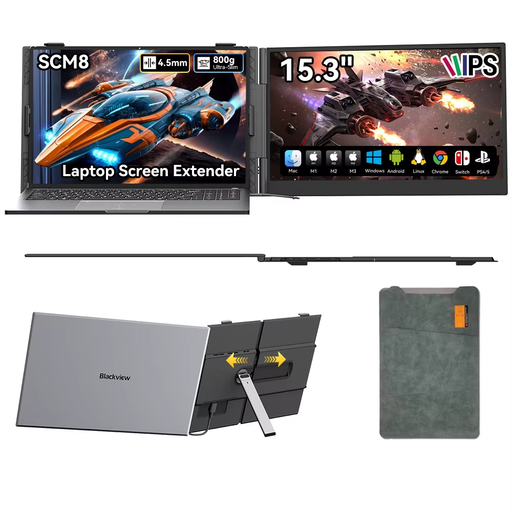 Image unavailable
Blackview SCM8 15.3-inch portable monitor
An option if you want to carry a portable screen with a case and adjustable stand between workspaces.
15.3 inches. The product description lists a USB-C cable for video and power, built-in speakers, a stand adjustable to 180° and a protective case.
View at Joybuy
 Image unavailable
UPERFECT 15.6-inch Full HD touchscreen monitor
An option if you want to interact with plans directly on screen and your source device and software support touch.
Touchscreen with 1920 × 1080 pixels. The product description lists USB-C for video and power, Mini-HDMI and a cover that doubles as a stand.
View at Joybuy
 Image unavailable
UPERFECT 16-inch 2K 144Hz QLED monitor
Worth comparing if you're looking for a portable screen with a stated resolution of 2560 × 1600 and a 16:10 aspect ratio.
The product name lists 144 Hz, QLED, Mini-HDMI, Type-C and VESA compatibility. Check that the video and power setup works with your source device.
View at Joybuy
 Image unavailable
ARZOPA Z1RC 16-inch 2.5K portable monitor
An option if you want to set up a portable screen with a built-in stand for viewing plans.
The product name lists 2560 × 1600 pixels, an IPS screen, 16:10, USB-C and HDMI.
View at Joybuy
Frequently asked questions about portable monitors without a mains socket
Can I connect any portable USB-C monitor to my laptop with a single cable?
No. First check whether your laptop's USB-C port can output video and whether the monitor supports that video connection. Then check separately whether the laptop can supply enough power. ASUS Support describes HDMI as an alternative video connection for some setups.
How long will a monitor with a built-in battery work without a mains socket?
It varies by model and test conditions. ASUS states that the ZenScreen Go MB16AHP lasts up to four hours in DP Alt Mode at 100% brightness; this figure doesn't tell you how long the battery in your connected laptop or phone will last.
Can I draw on a touchscreen straight away using my tablet or Mac?
Not without checking compatibility. ViewSonic states that the TD1656-2K requires vTouch for touch functionality on macOS, and that touch input isn't supported on iOS and iPadOS. Also check that your drawing or annotation app supports the input method you want to use.
How do I remove dust from a portable screen?
In its care instructions, ASUS recommends switching off the monitor, disconnecting the cables and gently wiping the panel with a clean microfibre cloth. Also follow the care instructions for the exact model.
In the Netherlands, can I get help if my monitor proves faulty during normal use?
Yes. According to the Government of the Netherlands, you should contact the seller if there's a problem; the Netherlands has no fixed statutory warranty period. Whether a repair is free of charge depends, among other things, on the product's expected lifespan and the cause of the problem. A manufacturer's warranty is additional.


