For a project proposal alongside reference materials or a schedule, a portable monitor is a good choice if it fits on the shared desk and your laptop can provide both the picture and the power it needs. A larger screen gives you more room, while a more compact model is easier to carry. Only opt for a battery, touch controls or a dual screen if you need those features. Manufacturers’ specifications describe what a monitor can do, but they don’t tell you how easy it is to read text from your usual viewing distance.
Who is a portable monitor suitable for?
Writers working with lots of reference material
If you want to write your proposal on your laptop while viewing reference material or a schedule, consider the usable screen area, text scaling and how much desk space the stand takes up. ASUS and Lenovo list different screen sizes and configurations for their models.
People who often change workspaces
If you regularly carry and set up your monitor in a new place, consider its size, weight, case, stand, connections and power supply together. For their models mentioned here, ASUS and Lenovo provide details including weight and stand specifications.
Anyone who wants to annotate documents digitally
If you want to point things out or write directly on documents during meetings, check not only touch and the supplied pen, but also compatibility with your laptop and software. Lenovo describes touch and stylus support for the ThinkVision M14t Gen 2; the pen included with the Dutch version mentioned here is passive.
What should you look for when choosing?
Single 15.6-inch screen
Suitable if: you want to view a proposal and reference material side by side, and have enough desk space.
Consider: check the space it needs, and how your laptop provides a picture and power.
Compact 14-inch screen
Suitable if: you often change workspaces or are looking for a more compact screen.
Consider: decide whether text is comfortable to read on the smaller panel.
Monitor with its own battery
Suitable if: you’re not sure whether a power socket will be available while you work.
Consider: the stated battery life depends on the test conditions and doesn’t meet your laptop’s power needs.
Foldable dual screen
Suitable if: you want to keep several documents or a schedule visible at the same time.
Consider: check the desk space required, supported screen modes and power supply.
First decide how many documents you want to view at once and how you’ll connect the monitor. Then consider portability, power and any touch controls.
| Consideration |
What to look for when buying |
Who should pay particular attention? |
| Room for documents |
Compare screen size, aspect ratio, resolution and text scaling with your viewing distance and the space available on your desk. ASUS lists 15.6 inches and Full HD for the MB16AHV; Lenovo lists 14 inches and 2240 × 1400 pixels for the M14t Gen 2. |
If you want to read reference material alongside your proposal as you write, usable screen space matters. Around 26% of consumers in this writing scenario prioritise room to read. |
| Connecting picture and power |
Check that your laptop port, monitor port and cable support video, and find out how the monitor gets power. ASUS lists USB-C with DP Alt Mode and mini-HDMI for the MB16AHV; AOC lists those connections for the 16T20E2. |
If you want to avoid finding that the monitor won’t work with your laptop, check both the video connection and power supply beforehand. Around 26% of consumers give a working connection top priority. |
| Carrying and setting it up |
Compare the dimensions, stated weight, case and stand with what you want to carry and the space available on your desk. ASUS lists a net weight of 0.9 kg for the MB16AHV; Lenovo lists 700 g for the M14t Gen 2. |
If you often change workspaces, you’ll want a screen you can carry and set up each time. Around 21% of consumers particularly value this combination. |
| Working without a power socket |
Check how both the monitor and laptop get power. ASUS lists a built-in battery for the MB16AHP and a maximum battery life of four hours under the stated test conditions. |
If you can’t rely on mains power, consider how both devices will be powered. Around 16% of consumers prioritise being able to work without a guaranteed power socket. |
| Annotating directly on screen |
Check touch and pen support, which pen is included with the version you’re buying, and whether your laptop and software support the controls you want. Lenovo lists ten-point touch and stylus support for the M14t Gen 2. |
If you want to point things out or write on documents during meetings, the controls and software compatibility matter. Around 11% of consumers prioritise on-screen annotation. |
Common buying mistakes
-
Assuming every USB-C port supports video
The shape of the connector doesn’t prove that your laptop supports the required video mode. Check the specifications for your laptop, monitor and cable before buying.
Depending on the connection you choose, you may also need a suitable cable, adapter or separate power solution.
-
Choosing a larger or dual screen without measuring the desk
At a shared desk, you’ll also need room for your laptop, the monitor stand and any papers. Measure the available space and decide first how many documents you want to view at once.
-
Assuming the stated battery life is guaranteed working time
ASUS gives the maximum battery life of the MB16AHP under specific test conditions. Plan how your laptop will get power too, and consider the battery life in the context of those conditions.
-
Confusing stylus support with an included active pen
Lenovo lists stylus support for the ThinkVision M14t Gen 2, but the Dutch version mentioned here includes a passive pen. If annotation is the reason you’re buying, check the exact version, what’s included in the box and whether your software supports it.
You may need to buy a compatible pen separately to get the pen controls you want.
Relevant brands to consider
ASUS
The ZenScreen models in this guide include single-screen options, a version with a built-in battery and a dual-panel model. Choose based on the setup you need, not just the brand name.
- ASUS lists USB-C with DP Alt Mode and mini-HDMI for the MB16AHV; the MB16AHP has a built-in battery and the MB14FCD has two panels.
- Check laptop compatibility and desk space. Stated battery life depends on the test conditions.
Lenovo
The ThinkVision M14t Gen 2 is a compact screen for anyone who wants to view a second document or use touch controls in meetings.
- Lenovo lists a 14-inch screen, 2240 × 1400 pixels, a weight of 700 g and ten-point touch for this model.
- Stylus support doesn’t mean an active pen is included; the Dutch version mentioned here comes with a passive pen.
HP
The E14 G4 is a 14-inch USB-C option for a mobile document setup.
- HP lists Full HD, an adjustable stand, a case and 400 nits for this model.
- Check that the connection and setup suit your laptop and workspace.
Dell
According to Dell, the Pro 14 Plus P1425 is a 14-inch screen for a compact workspace.
- Dell lists a resolution of 1920 × 1200 pixels and a tilting stand for this model.
- This model doesn’t have a touchscreen. Assess the connections and text scaling with your own laptop and documents.
AOC
The 16T20E2 is a single 15.6-inch Full HD screen with USB-C and mini-HDMI.
- AOC lists a magnetic case that doubles as an adjustable stand.
- Check the power supply and how it will sit on your desk; the manufacturer’s description doesn’t tell you how stable the setup will be there.
Portable monitors at Joybuy
These Joybuy picks are portable second screens for working with documents and moving between workspaces. Compare the screen sizes and connections listed with your laptop and the space available on your desk.
 No image available
Blackview DCM8 Pro 15.3" FHD Dual-Screen Portable Monitor
A portable screen extension for viewing other material alongside your proposal. The product name lists a 15.3-inch screen, FHD, a dual-screen setup and a one-cable USB-C connection; check that the connection works with your laptop.
View at Joybuy
 No image available
Portable Monitor PM14R 14" IPS
A compact option for viewing a proposal and reference material side by side. The product name lists a 14-inch IPS screen, 1920 × 1200 pixels, a 16:10 aspect ratio, Type-C and mini-HDMI. A one-cable connection for picture and power depends on the connected device supporting it.
View at Joybuy
 No image available
UPERFECT 16" 2K 144Hz Portable Monitor
A portable screen for document work if you’re also looking for a connection beyond USB-C. The product name lists a 16-inch QLED screen, 2560 × 1600 pixels, a 16:10 aspect ratio, 144 Hz and mini-HDMI alongside Type-C.
View at Joybuy
 No image available
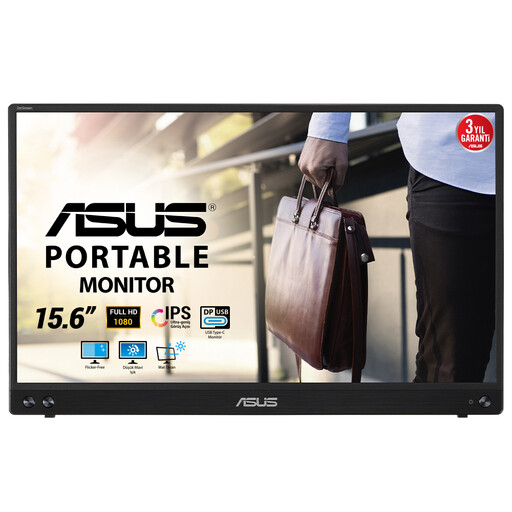
ASUS MB16ACV 15.6" Full HD-monitor
A single second screen for a proposal and reference material. The product name lists a 15.6-inch screen and 1920 × 1080 pixels; check your laptop’s video and power connections. The product information states that a driver is required for USB-A.
View at Joybuy
 No image available
Arzopa A1S 14.0" FHD Portable Monitor
A portable second screen for a compact document setup. The product name lists a 14-inch screen and Full HD; the product information mentions a built-in stand. If you’re using it with a phone, check that the USB-C port meets the stated requirement.
View at Joybuy
Frequently asked questions
Is a USB-C port on my laptop enough to connect the monitor with one cable?
Not without checking the port specifications. ASUS lists USB-C with DisplayPort Alt Mode for video on the MB16AHV, as does AOC for the 16T20E2. Check that your laptop supports this mode and that the connection you choose also provides the power needed.
How should you set up a portable monitor for a long writing session?
Position the monitor securely and adjust the text size and viewing angle to suit your workspace. Arboportaal sets out additional workplace requirements for employees who work at a screen for more than two hours a day; a portable monitor on its own doesn’t show that the entire workspace meets those requirements.
What should you take with you when moving between workspaces?
Before you leave, check that you have the video and power cables you need, plus any adapter. HP lists a case with the E14 G4; AOC describes a case for the 16T20E2 that also works as a stand. Follow the chosen model’s instructions for care and maintenance.
What warranty and cooling-off period apply to a consumer purchase in the Netherlands?
According to ACM ConsuWijzer, the legal guarantee depends on what you could reasonably expect from the product under normal use; there is no standard legal guarantee period of two years. For online consumer purchases, you generally have a statutory cooling-off period of up to 14 days after delivery, with some exceptions. Check who the seller is and which returns policy applies to your purchase.
Do Dutch workplace health and safety rules require you to buy a portable monitor?
No, Arboportaal doesn’t specify a portable monitor as a required product. For employees who work at a screen for more than two hours a day, Arboportaal describes conditions under which a separate monitor or keyboard must be available when using a laptop; there are also requirements for setting up the workspace. Whether these rules apply to you depends, among other things, on your employment relationship and working hours.


