
Report reader at a shared table
This report reader wants to view text, comments and source material side by side, but has limited desk space and lighting that can vary.


For reviewing a draft report in a shared workspace, a portable monitor is a good fit if your laptop supports the chosen video connection and can supply power; a USB-C connector alone doesn’t guarantee this. According to USB-IF, video and power depend on the capabilities of the specific port. Choose a larger screen if reading space matters more than desk space, or a more compact model if portability comes first. Touch is mainly useful if you want to annotate directly on the screen.
This report reader wants to view text, comments and source material side by side, but has limited desk space and lighting that can vary.
This employee carries a second screen, case and cables, and wants to be able to connect and set it up in different places.
This reviewer wants to mark up or add notes on the second screen, and needs to check that their software supports the touch or pen feature they want.
First check your laptop’s connection and power capabilities, then consider readability and setup. Choose touch only if you want to make notes directly on the screen.
| What to consider | What should you check? | Who is this important for? |
|---|---|---|
| Connection and power | Check whether your laptop port supports video and whether the chosen connection supplies enough power. Also make sure your cable or adapter is compatible with both devices. | I want to know before buying whether my laptop can output video through the chosen port and power the screen. Around 36% of consumers put connection and power compatibility first. |
| Readability | Compare the screen size, aspect ratio and resolution with the text size you usually use. Also consider glare and the screen’s position in relation to light sources. | When reading long reports, I want to keep text and comments legible side by side, without glare or awkward text sizing getting in the way. Around 29% of consumers prioritise the readability of reports and comments. |
| Portability and setup | Check the weight, case, stand and how much desk space the screen takes up. Make sure the stand offers the viewing angle you want. | If I move between workspaces, I want a screen I can carry with the cables I need and set up on the desk space available. Around 21% of consumers prioritise portability and setup. |
| Direct annotation | Check that the screen, laptop and review software support touch and pen input. Also check which pen, if any, is included with the model. | I want to mark up or add notes on the second screen and know in advance whether my software supports this. Around 14% of consumers prioritise direct annotation. |
USB-C describes the connector, but doesn’t by itself tell you which video and power features a laptop port supports. USB-IF distinguishes between USB features, Alternate Mode and power capabilities.
Check the port specifications for your laptop and monitor, and work out which cable, adapter and power setup your combination requires.
A high resolution doesn’t automatically mean text will be comfortable for you to read. Arboportaal identifies small characters, glare and poor lighting as factors that can reduce readability.
Consider screen size, text size, anti-glare features and the position of light sources alongside the desk space available.
Touch control, an included passive pen and support for an active stylus are different things. Lenovo lists a passive pen with the ThinkVision M14t Gen 2 and also describes support for an active stylus.
Check which input features your software supports and which pen is included with the model on offer.
Dell specifies the Pro 14 Plus P1425 as IPS, while a Joybuy listing describes it as Mini LED. ASUS lists the MB16ACV at 0.9 kg, while a Joybuy listing gives its weight as 0.83 kg.
If differences could affect your choice, ask for the exact model and its specifications; don’t infer performance from a single listing.
The features listed apply to the specific models below; they are not a general recommendation for an entire brand range.
The ZenScreen MB16AHV and MB16ACV offer different connection options for a portable screen.
The ThinkVision M14t Gen 2 is a compact option for anyone who wants to touch or annotate report material directly.
The Pro 14 Plus P1425 is a compact 16:10 option for working with text if you don’t need touch.
The E14 G4 is a 14-inch Full HD IPS model with USB-C and a case for carrying it around.
This selection includes 14- to 16-inch portable monitors with different aspect ratios and connections, suited to reviewing reports in changing workspaces. Before buying, check that your laptop’s port is compatible with your chosen monitor.
 No image available
A 16-inch screen with a 16:10 aspect ratio for anyone who wants to view report text on a larger second screen.
2560 × 1600 pixels; two USB-C ports, mini-HDMI and a built-in kickstand.
 No image available
A 14-inch screen for anyone who wants to view report text and comments side by side on a compact monitor.
IPS, 1920 × 1200 pixels and 16:10; the description lists Type-C, mini-HDMI and a protective case. According to the description, video and power over a single USB-C cable work only with supported devices.
 No image available
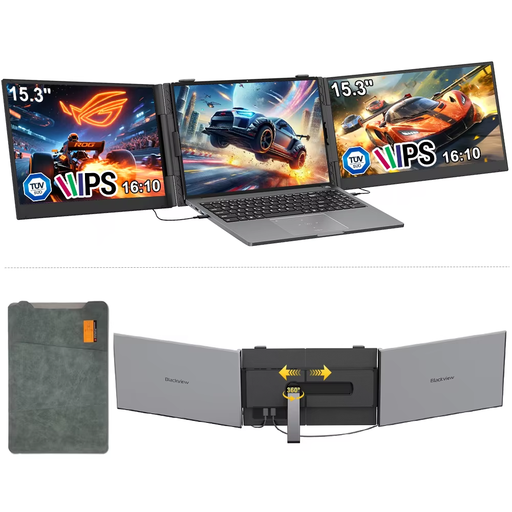
A 15.3-inch screen for anyone who wants to take a larger second screen to another workspace.
IPS, 16:10, 1920 × 1200 pixels and 60 Hz.
 No image available
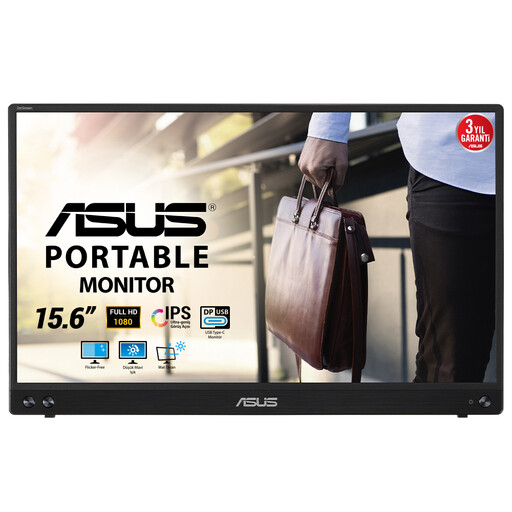
A 15.6-inch screen for anyone who wants more physical reading space and can use a hybrid USB-C connection.
Full HD, 1920 × 1080 pixels. ASUS specifies one hybrid USB-C port and no HDMI input.
 No image available
A 14-inch monitor with a built-in kickstand for a workspace you set up at different tables.
1920 × 1080 pixels and IPS; the product description lists two USB-C ports, mini-HDMI and a weight of 600 g.
No, don’t assume it will. Check whether the specific laptop port supports the screen’s video mode and whether the connection supplies enough power. USB-IF distinguishes between USB features, Alternate Mode and power capabilities.
Choose a text size you can read comfortably, and watch out for glare. Also consider contrast and lighting. ASUS says the ZenScreen MB16AHV can be set up in both portrait and landscape orientations; whether portrait mode works for your document also depends on your software and the space available.
Lenovo lists a passive pen in the box and also describes support for an active stylus. Check which pen feature you need and what’s included with the model on offer.
Arboportaal states that for employees who work with a screen for more than 2 hours a day, the screen and keyboard must not be attached to each other. A separate portable monitor doesn’t automatically make your whole workstation suitable; discuss a permanent setup with your employer.
For a consumer purchase, a product must do what you can reasonably expect it to do. The seller is your point of contact if you need a solution, and there is no fixed statutory warranty period for every product, according to the Dutch government. When buying online from a business, you usually have 14 days to change your mind, although exceptions apply; check what applies to your specific purchase.