
Planner comparing drawings
Wants to keep a floor plan open alongside a budget or schedule, and cares about readability, positioning and reflections.


Start by choosing a portable monitor that can receive a picture from your laptop and that you can position and read comfortably on the shared table. A standard second screen is enough for viewing plans alongside notes. Choose a touchscreen or built-in battery only if you need that feature and it is compatible with your connections, software and any stylus you plan to use.
Wants to keep a floor plan open alongside a budget or schedule, and cares about readability, positioning and reflections.
Wants to point things out or write directly on a digital plan during a meeting. Touch support, stylus type and the application in use are all relevant.
Takes the screen between tables and needs to consider the connections, power supply and available space at each workstation.
First decide how large and easy to read your plans need to be. Then check the connection and power supply. Touch, a stylus or a battery are mainly relevant if you will actually use those features.
| What matters when buying | What to check | Especially important for |
|---|---|---|
| Displaying plans clearly | Compare screen size, resolution, aspect ratio and anti-glare properties. Check how text and lines look from your expected viewing distance. | If I need to read a floor plan alongside a budget, I want to make out the details from where I’m sitting. Around 31% of consumers say readability is their main concern when buying. |
| Connecting the picture and power | Check whether your laptop port supports video output, such as DisplayPort Alt Mode, and whether the cable, monitor input and power supply are compatible. VESA/DisplayPort describes Alt Mode for video over USB-C. | For my laptop, I want to know in advance that both the picture and power will work through a suitable connection. The fact that the plugs are the same shape doesn’t guarantee this. Around 31% of consumers prioritise connection compatibility. |
| Annotating plans | Check touch support on your computer, the annotation features in the application, and whether the supplied stylus is suitable or you need an active stylus. | If I want to write directly on a digital plan during a meeting, the touch function, stylus and software all need to work together. Around 19% of consumers prioritise annotation. |
| Positioning and carrying | Check the dimensions, weight, space needed for the stand and viewing angle. Allow for cables and any accessories too. Arboportaal describes the requirements for a complete workstation setup when working at a screen for extended periods. | At different tables, I want to know how much space the stand and cables take up, and whether I can carry the screen with me. Around 19% of consumers say positioning and portability are their main concerns when buying. |
The shape of the connection alone doesn’t tell you whether the laptop port sends a video signal. Without suitable video output, the connection won’t work as intended.
Check the specifications for the exact laptop port and monitor model before you buy.
You may need a different cable, adapter or power solution.
The stylus supplied with the Lenovo ThinkVision M14t Gen 2 is passive. Lenovo specifies the stated pressure levels for use with a compatible active stylus.
Decide in advance whether you want to point things out, take ordinary notes or draw with pressure sensitivity. Also check that your computer and application support the features you need.
Pressure-sensitive drawing may require a suitable active stylus.
On a shared table, the stand and cables take up space too. The built-in stand on the ASUS MB16AHV is not height-adjustable.
Measure the space available for the screen, laptop and cables, and check the viewing height of the complete setup. Arboportaal describes the relevant requirements for working at a screen.
You may need a separate stand or a different workstation setup.
The ZenScreen MB16AHV and MB16AHP models offer different connection and power options.
The ThinkVision M14t Gen 2 is a compact option for meetings where you want to annotate digital plans.
The E14 G4 is a 14-inch Full HD second screen with USB-C.
The Pro 14 Plus P1425 is a 14-inch screen for viewing documents alongside a laptop.
The PM161Q B is a 15.6-inch Full HD screen for standard second-screen use.
These Joybuy product picks are portable second screens for plans and documents in a shared workspace. Check that each model’s connection and features suit your setup.
 No image available
Could suit viewing plans alongside notes, provided its size and connections work with your setup.
16 inches, FHD, IPS, 16:10, 144 Hz, two USB-C ports, Mini HDMI and a built-in stand.
 No image available
Could suit you if you want to work directly on the screen during meetings. Check that your computer and application support this first.
15.6 inches, 1080P, touchscreen, USB-C, Mini HDMI and VESA mounting compatibility.
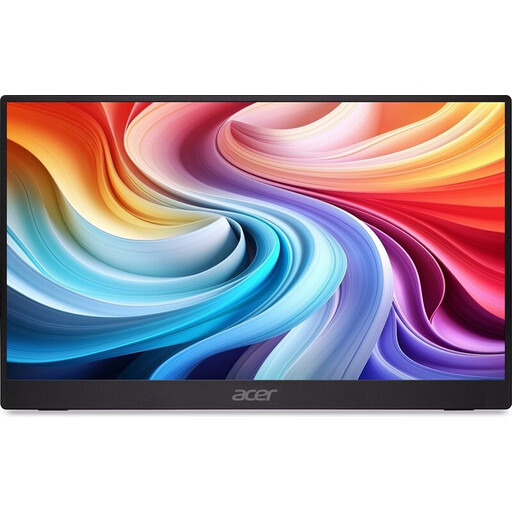 No image available
A portable second screen to consider if its size and connections suit your laptop and shared workspace.
15.6 inches and 60 Hz. No charger is included, so check what power supply you’ll need.
 No image available
Could suit you if you’re looking for a portable screen to display plans alongside documents. Check that the connections match your equipment.
16 inches, 2560 × 1600, 16:10, QLED, 144 Hz, Mini HDMI, Type-C and VESA compatibility.
 No image available
Could suit you for viewing renovation plans alongside other documents, provided there’s enough table space for the screen and stand.
16 inches, 2560 × 1600, 16:10, IPS, USB-C, HDMI and a built-in stand.
No, the shape of the plug alone isn’t enough to tell. Check whether the laptop port supports the required video output, such as DisplayPort Alt Mode, and whether the monitor, cable and power supply are compatible. VESA/DisplayPort describes DisplayPort Alt Mode for video over USB-C.
Don’t assume so: Lenovo specifies a passive stylus and says the stated pressure levels require a compatible active stylus. Also check that your computer and drawing or PDF application support the input you want to use.
Not by itself; assess the entire workstation setup, not just the monitor. Arboportaal explains that if an employee works at a screen for more than two hours a day, the screen and keyboard must not be fixed together. When using a laptop, a separate screen or keyboard must be available.
Consumers generally have a statutory 14-day cooling-off period after delivery for online purchases, although there are exceptions. Business.gov.nl states that this consumer cooling-off period does not apply when a business buys for business purposes. So check who the legal buyer is.
No, the Netherlands has no fixed statutory guarantee period. According to the Government of the Netherlands, your rights if a product is faulty depend, among other things, on what you could reasonably expect from it. Any manufacturer’s guarantee is separate from these statutory rights.