
Reader of lengthy manuals
Wants to refer to text, tables and diagrams on a separate screen while working. Consider the screen’s aspect ratio, reflections and whether you can position it so the manual remains comfortable to read.


First, choose a portable monitor that can actually receive a picture from your laptop or other source device: a USB-C port alone doesn’t guarantee this. Then compare screen space, reflections, positioning, portability and power. A larger or more versatile screen isn’t automatically the most convenient choice for a shared reading table.
Wants to refer to text, tables and diagrams on a separate screen while working. Consider the screen’s aspect ratio, reflections and whether you can position it so the manual remains comfortable to read.
Brings a laptop or other source device and needs to check whether its USB-C port carries video or whether another video connection is needed. Philips stresses that the source device must support DP Alt Mode to send video over USB-C with the 16B1P3302D/00.
Moves the screen between reading tables and weighs up bag space, the stand and access to power. Lenovo lists a tilting stand for the ThinkVision M14t Gen 2; also check how the specific model you choose sits on your table.
First check that the video connection works with your device. Then compare reading space, positioning and power for your library session.
| What to consider | What to look for | Who should pay particular attention? |
|---|---|---|
| Reading space and reflections | Compare screen size and aspect ratio, anti-glare properties, and the options for tilting or positioning the screen vertically. | If I want to read lengthy text, tables or diagrams alongside my laptop, I look at usable screen space and reflections. Around 36% of consumers prioritise readability. |
| Video connection | Check whether the source device supports video through the chosen connection; DP Alt Mode may be needed for USB-C video. | If you want to avoid a monitor that won’t receive a picture from your device, check the exact combination of device and screen. Around 29% of consumers put connection compatibility first. |
| Portability and positioning | Compare the dimensions and stated weight of the specific model, as well as the stand and its range of tilt. | If I often take the screen with me and use it at different reading tables, size and positioning factor into my choice. Around 21% of consumers prioritise portability and table space. |
| Power while reading | Check how the screen is powered with your connection and the conditions under which any stated battery life applies. | If you want to keep reading when there’s no suitable socket available, consider power and charging. Around 14% of consumers prioritise a reliable power supply. |
A USB-C port on a device doesn’t prove that it can send a video signal to a monitor. Philips states that the source device must support DP Alt Mode to send video over USB-C with the 16B1P3302D/00.
Before buying, check the video specifications of your device and chosen monitor, then make sure the connection is compatible.
Depending on the combination, you may need a different cable or power solution; check this before taking your setup with you.
The maximum battery life stated for the ASUS ZenScreen Go MB16AHP applies under the conditions specified by ASUS and doesn’t necessarily predict how long your session will last.
Compare the test conditions with how you plan to use it, and make sure you have a way to recharge or connect a power supply.
For longer sessions, you may need a charging or power solution.
More pixels can give you more room for documents, but physical screen size and the text scaling you choose also affect how large text appears. A higher resolution alone doesn’t guarantee comfortable reading.
Compare screen size and aspect ratio and, if possible, view a representative manual using the text scaling you plan to use.
MediaMarkt’s published top five shows a commercial product selection and ranking; it isn’t a proven test of how comfortable manuals are to read. MediaMarkt lists the ASUS MB16AHV at 780 grams, while ASUS gives an estimated net weight of 0.9 kg.
At most, use a list like this to compare models. Check the specifications for the exact version and base your choice on your own connection and reading needs.
The ZenScreen range offers a choice of setups: a single anti-glare screen with USB-C and mini-HDMI, a model with a battery, and a dual-screen model.
The ThinkVision M14t Gen 2 is a compact document monitor with a 14-inch 16:10 touchscreen.
The portable Business Monitor 16B1P3302D/00 combines a 15.6-inch Full HD screen with two USB-C ports and a tilting stand.
The Dell Pro 14 Plus P1425 is a 14-inch anti-glare 16:10 model for a compact document setup.
The HP E14 G4 is a portable 14-inch Full HD monitor with an anti-glare screen.
These portable monitors are for anyone who wants to read manuals alongside a laptop. In particular, check that the video connection and setup suit your device and reading table.
 No image available
Designed for anyone who wants to display a manual alongside their laptop screen; check that your laptop is within the stated size range.
14 inches, Full HD and compatible with laptops from 13–17.3 inches.
 No image available
An option for viewing a manual on a separate screen alongside your laptop; check which connections your device supports before you buy.
16 inches, FHD IPS, 16:10, 144 Hz, two USB-C ports, mini-HDMI and a built-in stand.
 No image available
Suited to anyone who wants to read lengthy manuals on a portable screen; check which connection works with your device.
16 inches, 2.5K, IPS, 16:10, two USB-C ports, mini-HDMI and a stand.
 No image available
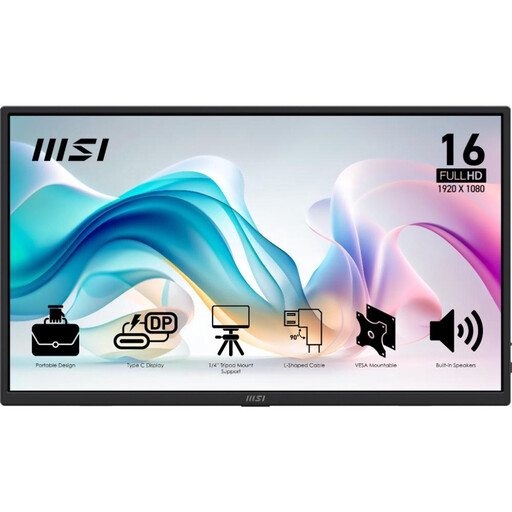
A portable option for viewing a manual alongside your laptop; check that the intended USB-C connection carries video.
15.6 inches, Full HD, IPS and speakers.
 No image available
For anyone who wants to read manuals on a portable screen; check that the connection matches your device’s video output.
16 inches, 2K, 16:10, 2560 × 1600 pixels, mini-HDMI and Type-C.
Not without checking the video specifications. Philips requires DP Alt Mode on the source device for video over USB-C with the 16B1P3302D/00; also check the connection on your chosen monitor and cable.
Reduce reflections and adjust the viewing angle and text scaling to suit your workspace. Arboportaal discusses these points for screen-based work; employers’ requirements don’t automatically apply to every library visitor.
It depends on the model and how you use it. ASUS states that the MB16AHP lasts up to four hours under the specified conditions; plan to charge it or connect a power supply if your session is longer.
For qualifying distance purchases, the Dutch government generally provides a 14-day cooling-off period; check whether the rules apply to your purchase. If a product is faulty, contact the seller to arrange a solution. The Netherlands has no fixed statutory warranty period that applies to every product.
Not automatically just because you’re visiting. The rules described by Arboportaal apply to employers and employees doing screen-based work; you can still use reflections and positioning as practical points to consider when choosing a monitor.