
Laptop user reading instructions
Wants to keep a PDF or parts list open alongside their work and focuses on readable text and screen space.


Start with the device you use to open the instructions. Check whether its USB-C port supports video output and supplies enough power, or look for a suitable monitor with HDMI and a compatible power solution. Then compare how clearly text appears at your viewing distance, how much room the stand needs and whether you can display pages in portrait mode. Extra resolution or a touchscreen only matters if you’ll actually use those features.
Wants to keep a PDF or parts list open alongside their work and focuses on readable text and screen space.
Opens instructions on different laptops or other devices, and needs to match the video output, cable and power supply.
Wants to put the screen away after use and needs to consider the stand, viewing angle and space for cables.
| What to consider | What to look for | Who is this important for? |
|---|---|---|
| Readability | Try one of your own instruction manuals at the screen size you’re considering, and check the zoom, viewing distance and portrait mode, if available. | If I want to read small text and diagrams alongside another window, I consider both the physical screen space and the text size setting. Around 36% of consumers prioritise readability. |
| Connection and power | Check whether the specific port supports video, which inputs the screen has and how it is powered. | When I connect different devices, I want to know in advance whether the chosen cable will carry video and power. Around 29% of consumers prioritise a working connection. |
| Table set-up | Measure the available space and check the dimensions, viewing angle, portrait mode and position of the connections. | If the kitchen table is used for other things too, I want to position the screen securely and put it away easily afterwards. Around 21% of consumers focus mainly on set-up and storage. |
| Features and accessories | Check which stand, cables and power supply are included with the version on offer, and whether you’ll actually use the touchscreen. | When I’m mainly reading instructions, I don’t want to pay for features or accessories I don’t need. Around 14% of consumers look primarily at extras and accessories. |
A USB-C port on a device isn’t automatically suitable for connecting an external monitor. ASUS and MSI specify DP Alt Mode for the monitor connections mentioned.
Check the exact port on your source device, as well as the monitor’s connection and power requirements, before choosing a cable.
A 14-inch screen can have more pixels than a 15.6-inch screen and still offer less physical space for reading. Text size and viewing distance matter too.
If possible, view one of your own PDFs on screens of a similar size and check the small text, diagrams and portrait mode.
ASUS states that the accessories included may vary by region.
Check what’s in the box for the specific version you want to buy.
ASUS’s Dutch product page describes the ZenScreen MB16AHV as a 15.6-inch Full HD monitor with two USB-C inputs, mini-HDMI and a stand for landscape or portrait use.
Lenovo describes the ThinkVision M14t Gen 2 as a 14-inch 16:10 monitor with a touchscreen and adjustable viewing angle.
According to the manufacturer, the MSI PRO MP165 E6 is a 15.6-inch Full HD monitor with HDMI, two USB-C ports and a tilt-adjustable stand.
The Dutch product page describes the HP E14 G4 as a portable 14-inch Full HD monitor with USB-C and an anti-glare screen.
These product picks are portable monitors that can be used as a second screen alongside another device. Check the listed dimensions, connection and table set-up for each model.
 No image available
Designed for anyone who wants to use a portable second screen alongside a laptop.
14 inch; Full HD according to the product description. The title states compatibility with laptops from 13 to 17.3 inches.
 No image available
Ideal if you want to read instructions on a portable second screen and need a built-in stand.
16 inch, 16:10 aspect ratio and FHD IPS according to the product title; 144 Hz, two USB-C ports and Mini HDMI are also listed.
 No image available
An option to compare if you’re looking for a portable screen with several connection options.
The product title lists an IPS screen with a 16:10 aspect ratio, two USB-C ports and Mini HDMI.
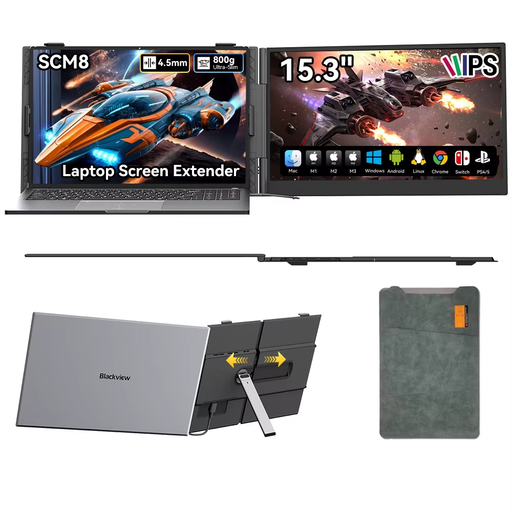 No image available
Ideal if you want to adjust the viewing angle at the table and use a protective case for storage.
The product title lists USB-C, a 180° adjustable stand and an included protective case.
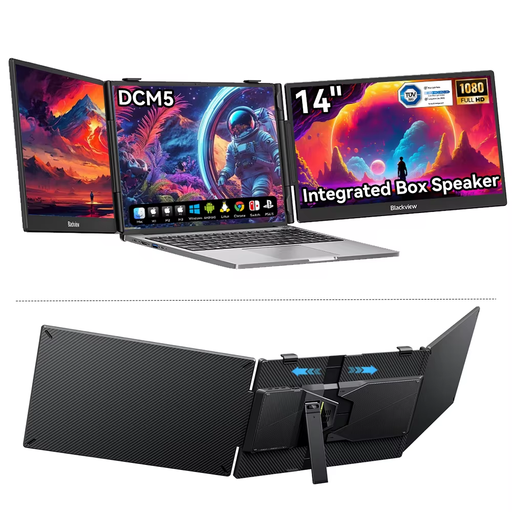 No image available
Designed for anyone considering a smaller portable second screen alongside a laptop.
14 inch, IPS LCD and 16:9 aspect ratio according to the product title. The title states compatibility with laptops from 13 to 17 inches and mobile devices.
No, it depends on the port on your source device and the screen’s power requirements. Check whether the port supports video and whether the combination supplies enough power. ASUS lists DP Alt Mode for the MB16AHV’s USB-C inputs, while MSI specifies DP Alt Mode and a power delivery function for the PRO MP165 E6.
Position the monitor securely and keep liquids away from it. Follow your model’s instructions for cleaning. The AOC 16T2 manual says to disconnect the power before cleaning and to make sure no liquid gets inside the monitor.
Compare the energy label and product information sheet for the exact monitor. The European Commission explains that energy labels apply to electronic displays, including computer monitors. Don’t estimate power consumption based on screen size alone.
According to ACM ConsuWijzer, online purchases generally come with a statutory cooling-off period of up to 14 days after delivery, with some exceptions. Your statutory guarantee is separate from any manufacturer’s warranty. If a product used normally doesn’t meet what you could reasonably expect from it, the seller must offer an appropriate solution.