Start with a monitor that can actually receive a video signal from your laptop and fits on the shared table. A compact 14-inch screen can be handy for viewing slides and reference material side by side; a 15.6- or 16-inch screen gives you more physical viewing space, but needs more room. Also check the video connection, power supply, stand and included cables: a USB-C port alone does not guarantee video compatibility.
Who is a portable monitor right for?
Presenter working with reference material
You keep slides, notes and references open side by side, prioritising workspace and readability over extra features. Lenovo and Philips offer models with different screen sizes and aspect ratios, giving you options to choose from.
Flexible worker using different tables
You pack up your workspace regularly. The monitor’s dimensions, weight and stand, along with the cables and power supply you need to carry, all affect how practical it is on different tables. Lenovo, ASUS and Philips list a range of sizes and setup options for the models mentioned.
Creator sharing work for feedback
You want to show your slides to someone sitting next to you, so you consider the screen’s position and tilt. Lenovo lists touch control for the ThinkVision M14t Gen 2; Philips describes a tilting stand for the 16B1P3302D/00.
What should you look for when choosing?
First check that your laptop can drive the screen you’re considering. Then compare the usable screen space, how it can be set up and what you’ll need to carry.
| What to consider |
What to look for |
Who should prioritise this? |
| Video and power |
Check the exact port on your laptop, the monitor’s video input, and the cable and power supply required. Mini HDMI can provide another video connection, but you’ll still need to check the power requirements. |
When I connect my laptop, I want to know in advance whether it can send a picture to the screen and how the monitor is powered. Around 36% of consumers put connectivity and power first. |
| Readable workspace |
Compare screen size, aspect ratio and resolution. Also check which display scaling setting on your laptop is comfortable to read. |
When I have slides and reference material open at the same time, I want to use them side by side without the layout becoming impractical. Around 29% of consumers prioritise readable space for slides and other material. |
| Portability and setup |
Compare the screen’s dimensions on the table and its stated weight. Also check which stand, case and cables are included with the model. |
When I change workspaces often, I want to be able to carry a screen with me and set it up on the table available. Around 21% of consumers prioritise portability and setup. |
| Viewing or interacting together |
Decide whether you mainly want a second workspace, a screen to share or touch control. If you want to use touch, check that your laptop and software support it. |
When I’m discussing slides with someone, I consider the screen’s position and whether touch would add anything to the way I work. Around 14% of consumers say viewing or interacting together is their main consideration. |
Common pitfalls
-
Assuming every USB-C port supports video and power
Video over USB-C depends on requirements being met by both the laptop port and the monitor. The Philips 16B1P3302D/00 requires DP Alt Mode on the source device; check video connectivity and power separately.
Before buying, compare the specifications for the exact port on your laptop with the monitor’s video input and power requirements. Also check which cables and power accessories are included with the model.
You may need an additional compatible cable or power solution if the connections don’t match. Check what you already have and what comes with the monitor.
-
Comparing only the number of pixels
A 14-inch screen with a different aspect ratio gives you a different amount of physical workspace from a 15.6-inch screen. Resolution alone doesn’t tell you how much space the slides and reference material will take up on the table, or how large the text will appear.
Compare screen size, aspect ratio and resolution together, and check which display scaling setting works for your slides and text on your laptop.
-
Assuming versions with the same name are identical
For the ARZOPA A1S, the stated specifications on the brand page we consulted differ from the Joybuy listing in areas including colour depth, contrast and speakers.
If you find differences, confirm the exact version and specifications of the product before basing your choice on them.
Relevant brands to consider
Lenovo
The ThinkVision M14d is a compact 14-inch option with a 16:10 aspect ratio; the M14t Gen 2 adds touch control.
- Lenovo lists a resolution of 2240 × 1400 pixels for both models. For the M14d, Lenovo specifies two USB-C ports with DP Alt Mode.
- Check that your laptop supports video through the relevant USB-C port. Touch is only useful if you need that functionality.
ASUS
The ZenScreen MB16AHV is a 15.6-inch model with USB-C and mini HDMI connectivity.
- ASUS lists two USB-C ports, mini HDMI, a kickstand and a matte IPS panel for this model.
- ASUS gives the net weight as 0.9 kg. If you use mini HDMI, check the power supply requirements separately.
Philips
The Business Monitor 16B1P3302D/00 is a 15.6-inch USB-C model with an adjustable stand.
- Philips lists two USB-C ports and a stand that tilts from 0 to 90 degrees.
- For video over USB-C, this model requires DP Alt Mode on the source device. Also check the requirements for power and charging.
HP
The HP E14 G4 is a 14-inch Full HD monitor supplied with a stand and case.
- HP describes video and power over a single USB-C cable when used with a compatible laptop.
- Check that your laptop’s USB-C port meets the requirements for video and power.
ARZOPA
ARZOPA describes the A1S as a compact 14-inch Full HD option with a stand.
- ARZOPA lists a 16:9 screen with 1920 × 1080 pixels.
- The ARZOPA and Joybuy listings differ on specifications such as colour depth, contrast and speakers. Confirm the exact version before taking these details into account.
Portable monitors at Joybuy
These Joybuy options are intended as second screens for presentation work and include larger portable monitors and a compact 14-inch model. Connections, controls and setup options vary by model.
 No image available
TECLAST V16Q portable monitor
An option if you’re looking for a larger workspace with a 16:10 aspect ratio and a monitor with Mini HDMI connectivity.
- 16 inches, 16:10, 2.5K, 144 Hz and IPS.
- Two USB-C ports, Mini HDMI and a built-in stand.
View at Joybuy
 No image available
Blackview TABLE 9 portable monitor
Suits anyone looking for a portable 16-inch screen with a 16:10 aspect ratio to use as a second workspace.
- 16 inches and 16:10.
- The product name lists a retractable, rotating magnetic stand.
View at Joybuy
 No image available
UPERFECT 15.6-inch touchscreen monitor
An option if you want to use touch on slides displayed on a second screen. Check that your laptop and software support the controls you want to use.
- 15.6 inches and 1080P.
- The product name lists USB-C and Mini HDMI.
View at Joybuy
 No image available
UPERFECT 16-inch portable monitor
Suits anyone looking for a larger 16:10 screen and a monitor with Mini HDMI connectivity.
- 16 inches and 16:10, with 2560 × 1600 pixels.
- QLED; the product name lists Mini HDMI, Type-C and VESA compatibility.
View at Joybuy
 No image available
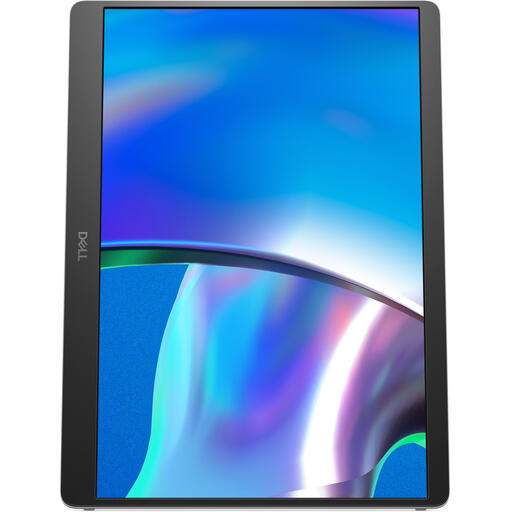
DELL Pro Plus P1425 14-inch monitor
A compact 14-inch alternative if you’re looking for a portable second screen for presentation work.
- 14 inches and 1920 × 1200 pixels.
View at Joybuy
Frequently asked questions
Does every USB-C port on a laptop send video to a portable monitor?
No. The Philips 16B1P3302D/00 requires DP Alt Mode on the source device for video over USB-C. Check the specifications for the exact port on your laptop; USB-C ports on monitors can also differ in their video capabilities.
How should I set up the screen to edit or discuss slides?
Place the monitor on a stable surface and connect the appropriate video cable and power supply. On your laptop, choose whether to extend or mirror your desktop. Extending it lets you spread slides and reference material across two screens. Before discussing your work, check which window will be visible to anyone looking at the screen. Philips says the stand on the 16B1P3302D/00 tilts from 0 to 90 degrees.
What should I take with me besides the monitor?
Check what video cable, power adapter, stand and case are included with the exact model. ASUS lists a USB-C cable, power adapter, mini-HDMI-to-HDMI adapter and case among the accessories supplied with the ZenScreen MB16AHV. Don’t assume other models come with the same accessories.
Who can help if a monitor bought in the Netherlands turns out to be faulty?
For a purchase made as a consumer, you should be able to seek a solution from the seller. The Dutch Government explains that the Netherlands has no fixed statutory guarantee period; a manufacturer’s warranty is separate from your statutory rights. The appropriate solution depends, among other things, on the cause of the fault and the reasonable period of use you could expect.
Can I return a monitor bought online if it doesn’t suit my workspace?
For an online consumer purchase in the Netherlands, there is generally a statutory 14-day cooling-off period after delivery, according to ACM ConsuWijzer. Check the terms and any return costs that apply to your purchase; a longer return period offered by a seller is a separate commitment.


