Choose a portable monitor that receives both video and power through a suitable laptop port if there isn’t a spare socket for the screen. Check that the port supports both functions. If a socket is available and your workspace is mostly fixed, a larger USB-C hub monitor gives you more screen space and can charge your laptop if its power output is sufficient. Lenovo, Philips, ASUS and Dell list different connection and power requirements for their models.
Who could benefit from an extra screen?
Analyst without a spare socket
You want to view loan data on a second screen without plugging in a separate monitor adapter. Whether you can do this depends on the laptop port’s video and power capabilities. Philips, for example, says the 16B1P3302D/00 is powered via USB and requires DP Alt Mode for video over USB-C.
Analyst working with lots of windows
You might want to read a table alongside a report and are mainly looking for more screen space. A larger desktop monitor could be a good fit if you have a spare socket; Dell describes the P2425E as a 24-inch 16:10 monitor.
Analyst who moves between workspaces
You take your second screen with you between workspaces and weigh its portability and stand against screen space and the laptop battery available. Lenovo lists the L16’s weight as 980 g. Also check how its stand can be adjusted on the tables you use.
What should you look for when choosing?
Start with the power supply: can the monitor work without its own socket, or is mains power available? Then compare screen space, portability and adjustment options.
| What to consider |
What should you check? |
Who is this important for? |
| Power without a socket |
Check whether the monitor can be powered by your laptop and whether the laptop port supports the required video and power functions. |
If there’s no spare socket at a reading table, I want to know whether my laptop can power the screen and send it a video signal. Around 36% of consumers prioritise working without a separate monitor power supply. |
| Room to read tables |
Compare the screen size, resolution and aspect ratio with the space you have on your desk. |
I want to read a loan table and its explanation side by side without constantly switching between them. Around 29% of consumers give top priority to having room for several windows. |
| Moving between workspaces |
Check the weight of the model and whether its stand suits the tables you work at. |
When I move between reading tables, a screen I can take with me matters more than a larger fixed screen. This is a priority for around 21% of consumers. |
| Comfort during longer sessions |
Look at the tilt and height adjustments, and whether you can position the screen suitably in your workspace. |
During longer analysis sessions, I want to position the screen to suit the table and my eye level. Around 14% of consumers say their working setup is their main consideration. |
Common buying mistakes
-
Assuming every USB-C port carries video
A compatible connector doesn’t guarantee that the laptop port supports video. Philips says DP Alt Mode is required for USB-C video on the 16B1P3302D/00.
Before buying, check the video capabilities of the specific laptop port and monitor, and make sure you choose a suitable cable.
-
Confusing power pass-through with a built-in battery
A monitor with power pass-through can only charge your laptop if an external power source is also connected. That’s different from a screen that works without a power source of its own.
Decide whether you want to work without a socket or use a single socket to charge your laptop as well.
To charge through the monitor, you’ll need to connect or bring a suitable external power source.
-
Choosing a large hub monitor without a socket for it
USB-C power delivery to your laptop doesn’t mean the monitor itself works without power. Dell says the P2425E can power a laptop via USB-C, but the monitor still needs mains power, so it’s designed for a fixed setup.
First check which power connections are available at your workspace, then choose your screen size.
-
Assuming portable means adjustable
A portable screen doesn’t automatically come with a stand that lets you adjust its height. ASUS says the ZenScreen MB16FC isn’t height-adjustable; Arboportaal recommends positioning the screen to suit your workspace.
Check the stand and viewing angle where you’ll actually use the screen.
If the stand doesn’t suit the table, you may need a different screen setup.
Brands and models to consider
Lenovo
The ThinkVision M14d is a compact second screen, while the L16 is a larger, portable 16:10 model.
- Lenovo lists the M14d’s resolution as 2240 × 1400 on a 14-inch screen, with power pass-through up to 65 W. The L16 has a 1920 × 1200 resolution on a 16-inch screen and weighs 980 g, according to Lenovo.
- The M14d has less physical screen space than a larger model. You’ll need a power source to use power pass-through.
ASUS
The ZenScreen MB16FC is a portable 16:10 monitor with USB-C and mini-HDMI.
- ASUS lists a 1920 × 1200 resolution, two USB-C ports and mini-HDMI.
- ASUS says the height isn’t adjustable. Separately check the connections and power supply you’ll need when using HDMI.
Philips
The Business Monitor 16B1P3302D/00 is a portable monitor powered via USB.
- Philips lists two USB-C ports and a tilting stand.
- Philips says the source device must support DP Alt Mode for video over USB-C. So a USB-C connection alone isn’t enough to confirm compatibility.
Dell
The Pro 24 Plus P2425E is a larger USB-C hub monitor for a fixed workspace with mains power.
- Dell lists a 24-inch 16:10 screen and up to 90 W power delivery via USB-C.
- The monitor itself needs mains power, so it won’t solve the problem if there’s no socket for the screen.
Portable monitors at Joybuy
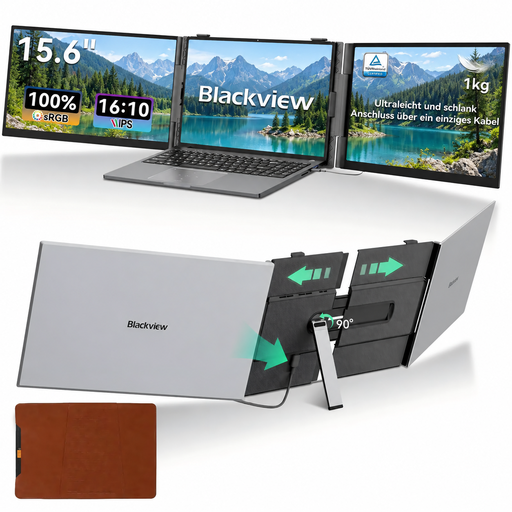
These Joybuy picks are portable extra screens for use alongside a laptop. Check whether your laptop port supports video and how each monitor is powered.
 No image available
Blackview DCM6 PRO 14-inch Full HD laptop extender
This model is designed as a laptop extension; the product title says it’s compatible with laptops from 13 to 17.3 inches.
- 14-inch Full HD screen
- 1920 × 1080
- According to the product title, suitable for laptops from 13 to 17.3 inches
Check that your laptop’s connection supports the video and power functions you need.
Joybuy
 No image available
Blackview DCM8 Pro 15.3-inch portable monitor
This portable monitor could suit you if you’re looking for a larger second screen that you can take between workspaces.
- 15.3 inches, Full HD
- One-cable USB-C setup according to the product title
- Weight according to the product title: 1.2 kg
Before relying on a single cable, check which video and power functions your laptop port supports.
Joybuy
 No image available
TECLAST V16H 16-inch FHD monitor
This 16-inch portable screen could suit you if you’d prefer a larger viewing area for loan data and want to be able to move the monitor too.
- 16 inches, FHD, IPS and 16:10
- Two USB-C ports and mini-HDMI
- Built-in stand
Check in advance that the input you want to use matches your laptop’s video output.
Joybuy
 No image available
TECLAST V16Q 16-inch 2.5K monitor
This portable monitor could be worth considering if you’re looking for a 16-inch second screen with a higher stated resolution for tables and reports.
- 16 inches, 2.5K, IPS and 16:10
- Two USB-C ports and mini-HDMI
- Built-in stand
Check that the connections and power supply suit your laptop and workspace.
Joybuy
 No image available
Lenovo L16 16-inch WUXGA IPS monitor
The L16 could suit you if you’re looking for a portable 16-inch screen for tables and reports. Check that its power setup works with your laptop and workspace.
- 1920 × 1200, 16:10
- Two USB-C ports with DP Alt Mode
- Lenovo lists a weight of 980 g and power pass-through up to 65 W
Lenovo says the stand has limited height adjustment, so check whether it suits your table setup.
Joybuy
Frequently asked questions
Does every USB-C port on your laptop send video to a portable monitor?
No. Having a compatible connector doesn’t prove that the port supports video. Philips requires DP Alt Mode for USB-C video on the 16B1P3302D/00, so check the specifications for your laptop, monitor and cable.
Does power pass-through work without a socket?
Not if you want to charge your laptop through the monitor: you’ll also need an external power source. Lenovo lists power pass-through up to 65 W for the ThinkVision M14d; this doesn’t mean the monitor has a built-in battery.
How should you set up an extra screen for longer analysis sessions?
Check the screen height and viewing angle at each workspace. Arboportaal recommends positioning the top of the screen just below eye level; the best setup will also depend on the table and stand.
What are your rights if you’re unhappy with a monitor bought online or it breaks?
According to ACM ConsuWijzer, online purchases generally come with a statutory cooling-off period that ends 14 days after delivery, although exceptions apply. If a product doesn’t meet the standards you could reasonably expect under normal use, you’re also covered by a legal guarantee through the seller; a manufacturer’s warranty doesn’t replace this right.
Are there specific legal workplace requirements for screen work?
For employees, Arboportaal outlines employers’ obligations relating to screen work. Its guidance says that if you work at a screen for more than two hours a day, the screen and keyboard you use must not be attached to one another. How the rules apply to you depends on your employment and workplace circumstances.


