
Second-screen user viewing plans
Wants to keep a rain garden plan open while project documents remain available on their computer. Having enough screen space to read and a reliable video connection matters more than extra controls.


First, choose a monitor that works with your computer’s video output and power supply. A USB-C port alone doesn’t guarantee a video connection. Then compare the available screen space with how easy it is to carry, and only consider touch and pen support if you want to annotate directly on the screen.
Wants to keep a rain garden plan open while project documents remain available on their computer. Having enough screen space to read and a reliable video connection matters more than extra controls.
Takes plans and project files between workspaces, and considers screen size, weight, stand and available power supply.
Wants to add notes directly to a digital plan and needs to check that the monitor, pen, computer and drawing app all work together.
Start with your computer’s connections and power supply. Then compare the available screen space and portability. Only look at pen and touch features if annotating directly is important to you.
| Consideration | What to look for when buying | Who is this important for? |
|---|---|---|
| Being able to read plans and documents clearly | Compare the screen size, resolution and aspect ratio with your plan and workspace. Dell lists the P1425 as 14 inch, 16:10 and 1920 × 1200 pixels; ASUS lists the MB16ACV as 15,6 inch, 16:9 and 1920 × 1080 pixels. | If I have a plan open alongside project files, I want to be able to read the details without judging the screen by its diagonal measurement alone. Around 36% of consumers give screen space top priority. |
| A reliable connection and power supply | Check your computer’s video output, the required video mode, cable and power supply. Philips requires DP Alt Mode on the source device for video over USB-C. | If I work on different computers, I want to know in advance whether the available connections will support both the picture and power. Around 29% of consumers rank a reliable connection first. |
| Carrying and setting it up | Compare the weight, dimensions, case and stand for the exact model. Lenovo lists 700 g for the M14t Gen 2; ASUS gives an estimated net weight of 0,9 kg for the MB16ACV. | If I take my screen between workspaces, I want it to fit in my bag and on the available table space. Around 21% of consumers say portability is their main priority. |
| Annotating directly on screen | Check touch control, the supported pen type, and compatibility with your computer and drawing app. Lenovo lists active stylus support for the M14t Gen 2 and includes a passive pen. | If I want to write or point things out on a digital plan, I want to know which input method my drawing app actually supports. Around 14% of consumers give direct annotation top priority. |
To display video over USB-C on the Philips 16B1P3302D/00, the source device must support DP Alt Mode.
Before choosing a monitor, check your computer’s video specifications and the requirements for the exact model.
Lenovo lists active stylus support for the ThinkVision M14t Gen 2, but specifies that a passive pen is included as an accessory.
Check which type of input your drawing app requires and which pen comes with the exact model.
According to the Dutch government, the Netherlands has no fixed statutory warranty period. If a product is faulty, the retailer is your point of contact.
Compare the terms of any extra warranty with your existing statutory rights before deciding.
The ZenScreen MB16ACV is a 15,6-inch model worth comparing as a second screen.
The ThinkVision M14t Gen 2 is a compact 14-inch 16:10 option with touch input.
The Pro 14 Plus P1425 is a 14-inch 16:10 option without a touchscreen.
The Business Monitor 16B1P3302D/00 is a 15,6-inch Full HD model with two USB-C ports and an adjustable stand.
These Joybuy product picks are aimed at viewing plans on a second screen alongside project files on a computer. Check the documentation for the exact model; Business.gov.nl notes that a CE mark is not a quality mark.
 Image unavailable
An option for viewing plans alongside local project files on a portable second screen.
According to the product title: 16 inch, 16:10, FHD IPS, 144 Hz, two USB-C ports, Mini HDMI and a built-in stand.
 Image unavailable
An option for a second screen, so you can view plans and project files side by side.
The product information lists a 16:10 screen with 2560 × 1600 pixels, 144 Hz, IPS, two USB-C ports and Mini HDMI.
 Image unavailable
A portable second screen for viewing a plan alongside project files.
The product information lists 16 inch, 16:10, 1920 × 1200 pixels, USB-C, Mini HDMI and an adjustable stand.
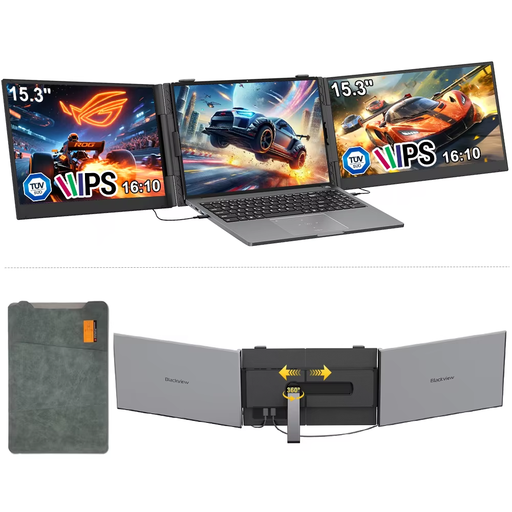 Image unavailable
A portable option for viewing plans and documents on a second screen.
The product information lists an IPS screen with a 16:10 aspect ratio, 1920 × 1200 pixels and 60 Hz. The stated weight is 1,2 kg.
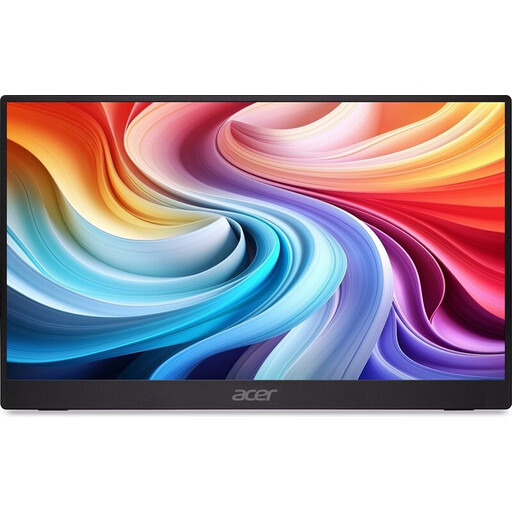 Image unavailable
A portable second screen for viewing plans alongside local files.
The product information lists an IPS screen, a stand, HDMI and USB-C, and a weight of 0,75 kg. It also says that a charger is not included as standard; check what you need for your setup.
No. Use the portable monitor as an external display and open your files on the connected device. Microsoft Support explains how to arrange multiple displays and set up an extended desktop in Windows. Also check compatibility with your own computer.
First, check the cable and connection, then make sure your computer and monitor support the video mode you’re using. Microsoft Support recommends pressing Windows key + P when an external display is connected, then selecting ‘Extend’.
No. According to the Dutch government, the Netherlands has no fixed statutory warranty period. How long a product should be expected to work properly depends on what you can reasonably expect from it. If a product is faulty, the retailer is your point of contact.
No. A CE mark is not a quality mark. Business.gov.nl explains that, on its own, it says nothing about readability, connection to your computer or suitability for annotation.