What should you look for when choosing?
Start with the practical essentials: a working connection, enough power and a stable setup. Then consider how important colour reproduction, screen size and freedom from mains power are for your presentation.
The points below are for consumers looking for a portable monitor to show a photo portfolio while travelling by train.
| What to consider |
What should you check? |
Who is this important for? |
| Colour reproduction |
Compare the stated colour space and calibration of the exact model. View your own photos on the device you’ll use for the presentation. |
If I’m discussing colours, I want to know what colour information the screen provides and how my photos look on it. Around 31% of consumers say colour reproduction is their top priority. |
| Power during the journey |
Check how the monitor is powered and test the full presentation without using a train socket. According to NS, the availability of power sockets on Sprinters varies by train type. |
If I don’t want to rely on a power socket or my source device’s battery, I’ll look for a suitable independent power supply. Around 25% of consumers prioritise being independent of mains power. |
| Size and positioning |
Compare the dimensions, weight and stand of the exact model. Try out the setup with your source device and bag in the space available. |
If seating space is limited, I want to be able to arrange and carry the screen and accessories neatly. Around 25% of consumers say ease of handling and positioning are their top priorities. |
| Video connection |
Check whether your source device’s port can output video, which cable you need and how the monitor is powered. Also test whether your portfolio displays as you want it to. |
If I want to use my existing device, I need to make sure the connection to the monitor works beforehand. Around 19% of consumers put a working video connection at the top of their list. |
Portable monitors at Joybuy
These Joybuy products are portable monitors for showing photos on the go, from 14-inch models to 15.6- and 16-inch screens. Before setting off, check that the connection, power supply and setup will work with your source device and fit your seat space.
 No image available
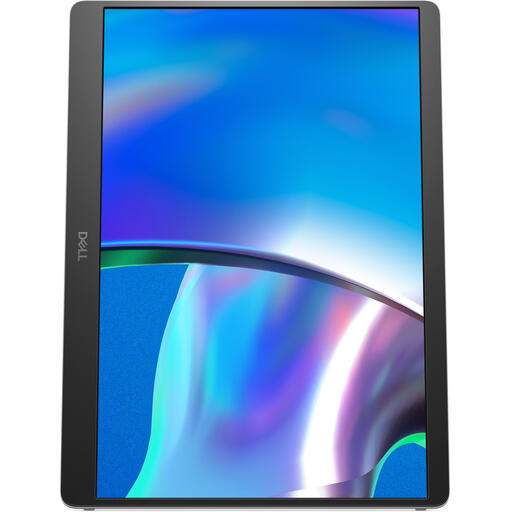
DELL Pro Plus P1425, 14-inch WUXGA monitor
A 14-inch screen may suit a compact presentation setup.
The description lists an IPS screen with 1920 × 1200 pixels, an adjustable stand and USB-C for video and power. Check that your source device’s USB-C port supports video output.
Joybuy
 No image available
TECLAST V16H, 16-inch FHD IPS monitor
This model may suit you if you’re looking for a portable screen with a built-in stand and have enough space for a 16-inch display.
The product title lists FHD, a 16:10 aspect ratio, two USB-C ports and Mini HDMI. Check that your source device can output video through the connection you plan to use, and how the monitor will be powered.
Joybuy
 No image available
TECLAST V16Q, 16-inch 2.5K IPS monitor
This model may be worth considering if its stated sRGB coverage suits your photo presentation and you have room for a 16-inch screen.
The product title lists 2.5K, 100% sRGB, USB-C, Mini HDMI and a built-in stand. Stated sRGB coverage isn’t an independent measure of colour accuracy; also check the calibration of the exact model.
Joybuy
 No image available
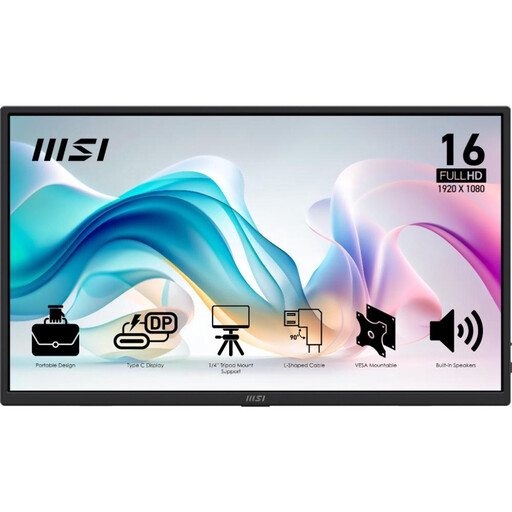
MSI PRO MP165 E6, 15.6-inch Full HD monitor
A portable 15.6-inch screen with a stand may suit you if your presentation space is large enough.
The product description lists an IPS screen with an anti-glare coating, USB-C with DP Alt Mode, HDMI and a built-in stand. Check your source device’s video output and the power supply required.
Joybuy
 No image available
ASUS ZenScreen MB166CR, 15.6-inch Full HD monitor
This model may suit you if you’re looking for a portable screen with an adjustable stand and have enough space for a 15.6-inch display.
The product description lists an IPS screen, USB-C and a 360° stand for landscape or portrait positioning. Check that your source device can output video via USB-C.
Joybuy
Frequently asked questions
Will every USB-C connection work with a portable monitor?
No. Your source device’s USB-C port must be able to output video. For example, ASUS advises checking this for the ZenScreen MB16AHV; also check how your particular device and monitor combination will be powered.
Can I rely on there being a power socket on the train?
Not without checking what your train offers. NS says that the availability of power sockets or USB charging points on Sprinters depends on the train type. So test your presentation without power from the train as well.
How can I assess colours during the journey?
Check your screen’s colour settings and calibration beforehand, and use photos you know well. Adobe describes calibration as part of colour management; changing ambient light means a train journey isn’t a controlled environment for making final decisions about prints.
Where should I put my screen and bag while showing my photos?
Keep your setup within the space available to you and follow NS’s rules. NS advises passengers to stow luggage in the racks, under the seat or between seat backs.
What are my rights in the Netherlands if I’m unhappy with an online monitor purchase or it breaks?
For online purchases by consumers, there is generally a 14-day cooling-off period after delivery, with some exceptions; ACM ConsuWijzer explains how this period works. If a product is faulty, the seller is responsible for providing a solution under the statutory guarantee. These rights are separate from any manufacturer’s warranty.


