
Choosing photos without a power socket
You want to use a second screen without it constantly drawing power from your laptop. So check how the monitor is powered, as well as your laptop’s power requirements.


Choose a portable monitor with its own battery if you don’t want your laptop to power the screen continuously. A monitor without a built-in battery may suit you if your laptop or another compatible source can provide the picture and has enough power available. Colour gamut and ambient light matter when assessing colour, but Adobe describes monitor calibration as part of colour management. An extra monitor won’t store your photos or back up your archive.
You want to use a second screen without it constantly drawing power from your laptop. So check how the monitor is powered, as well as your laptop’s power requirements.
You might want to view folders, thumbnails or a selected photo alongside your main workspace. In that case, the connections, screen space and where you’ll put the monitor all matter.
You also want to assess colours while choosing your photos. Check the stated colour reproduction and the ambient light, and remember that a colour gamut alone doesn’t mean the monitor is calibrated.
First, work out how the screen will be powered and whether your laptop can output the video signal you need. Then compare the screen space and colour features that suit the way you organise your photos.
| What to consider | What should you check? | Who is this important for? |
|---|---|---|
| Use away from a power socket | Compare a built-in battery with power from your laptop or another compatible source. If the monitor has a battery, check the conditions for its stated battery life and remember to allow for your laptop’s power needs too. | When I’m working away from a power socket, I don’t want the screen constantly drawing power from my laptop. Around 31% of consumers prioritise powering the screen independently. |
| Video connection | Check that your laptop can output video through the port you plan to use and that the cable fits both devices. A USB-C connector alone doesn’t mean the port supports video. | Before choosing a screen, I want to know that my laptop and cable can actually provide a picture. Around 25% of consumers give a working video connection top priority. |
| Colour when assessing photos | Compare the stated colour coverage and options for reducing distracting ambient light. Calibrate the monitor if colour choices matter; don’t treat manufacturer specifications as an independent measurement of your particular unit. | If I want to assess colour differences while organising my photos, I look at colour reproduction and calibration. Around 25% of consumers prioritise colour assessment. |
| Workspace and portability | Consider screen size, resolution, aspect ratio and stand together, in relation to the space available on your table and in your bag. Also check that your photo software supports the second-screen view you want. | I want to see thumbnails or photos alongside my main workspace, but I also need to be able to carry and set up the screen. Around 19% of consumers give this balance top priority. |
A USB-C connection doesn’t guarantee a video signal. For the ASUS MB16AHP, ASUS specifies a source device that supports DisplayPort Alt Mode.
Before ordering, check the laptop port specifications, the monitor’s video input and the cable separately.
ASUS states that the MB16AHP lasts up to 4 hours when used via DP Alt Mode with brightness set to 100%. This isn’t a stated battery life for the monitor and your laptop together.
Plan power for both devices and compare the conditions behind the stated monitor battery life with how you’ll use it.
A manufacturer’s colour coverage specification isn’t the same as an independent measurement of your particular unit. Adobe describes monitor calibration as part of colour management in Lightroom Classic.
Use colour gamut to compare models, and calibrate the monitor if you’ll be making colour-critical decisions with it.
A colour-critical workflow may require calibration equipment.
According to Adobe, a backup from Lightroom Classic contains only the catalogue file; photos and exports need to be backed up separately.
Keep your choice of monitor separate from your backup plan for the catalogue and photo files.
Separate backups may require additional storage.
The ZenScreen models mentioned offer different power and connection options.
The ThinkVision M14d is designed for a compact USB-C setup, while the M14t Gen 2 adds touch controls.
The VP16-OLED is a colour-focused option with a folding hood.
The E14 G4 mentioned is a 14-inch Full HD second screen for a compatible USB-C setup.
The Joybuy models below are portable second screens for use alongside a laptop. For each model, check that your laptop supports video through the connection you plan to use and that the available power suits your setup.
 No image available
A portable second screen for anyone who wants a larger workspace alongside their laptop. Check your laptop’s video and power options first.
16 inches, FHD, IPS and 16:10. The product name lists two USB-C ports, mini-HDMI and a built-in stand; the product description mentions USB-C for video and power.
 No image available
An option for anyone who also considers stated sRGB colour coverage when organising photos. This specification isn’t a substitute for calibration when making colour-critical decisions.
2560 × 1600 pixels, 16:10, IPS and 100% sRGB according to the product information. The description says USB-C supports video and power; the product name also lists mini-HDMI.
 No image available
Worth considering if you’ll actually use the touchscreen while reviewing photos. Check that your computer and software support the controls you want to use.
15.6 inches, 1080p and touchscreen. The product name lists USB-C and mini-HDMI; the description mentions USB-C for video and power, and a cover that doubles as an adjustable stand.
 No image available
A portable second screen to take along with your laptop setup. Check both the video signal route and the available power.
2560 × 1600 pixels, 16:10 and QLED. The product name lists 450 nits, 1200:1, mini-HDMI and VESA compatibility; the description mentions USB-C for video and power.
 No image available
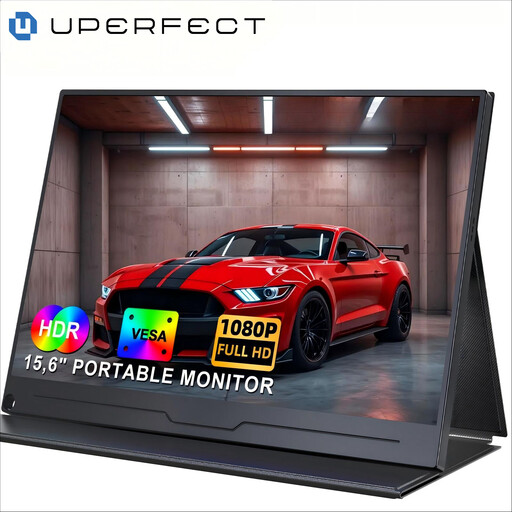
A second screen for anyone looking for Full HD and an IPS panel. Don’t assume USB-C alone will provide enough power.
15.6 inches, 1920 × 1080 pixels and IPS. The product description lists USB-C for video and power; check that your laptop supports the required video output.
No, it depends on the port. Check your laptop specifications to see whether the connection you plan to use supports video in the mode required by the monitor. For example, ASUS specifies DisplayPort Alt Mode for the MB16AHP.
A camera can send a picture to a monitor if the connections are compatible: ViewSonic lists micro-HDMI for direct viewing on the VP16-OLED. A video connection alone doesn’t provide archive software or storage; you’ll need a computer and suitable software to organise your photos.
Reduce distracting ambient light and calibrate the monitor if you’re making colour choices. Adobe describes calibration as part of colour management in Lightroom Classic; ViewSonic lists a folding hood for the VP16-OLED.
No. Adobe states that Lightroom Classic’s backup feature covers only the catalogue file; you need to back up your photos and exports separately.