
Photographers reviewing images by a window
If you’re examining vegetation details somewhere with light coming in, you’ll want to consider reflections and screen positioning.


When working by a bright window, first look for an anti-glare screen, the stated brightness and ways to position the monitor effectively. Then check whether its colour specifications and resolution suit your photo work. ASUS Netherlands lists an anti-glare surface and typical brightness of 500 cd/m² for the ZenScreen MB16QHG, but factory specifications alone can’t predict exactly how readable the screen will be in your workspace.
If you’re examining vegetation details somewhere with light coming in, you’ll want to consider reflections and screen positioning.
If you’re assessing colours and fine details, you can take stated colour gamut and factory values into account, without treating them as measurements of the screen during use.
If you take your screen between workspaces, weigh up its size and weight against its brightness and the space available to work.
Start by considering reflections and where you’ll position the monitor. Then look at the colour and detail specifications you need, and whether the weight, connections and power supply suit the way you work.
| What to consider | What to look for | Who should prioritise this? |
|---|---|---|
| Readability in window light | Check the screen surface, stated brightness and options for adjusting the screen’s position. | If the window is reflected in my screen, I want to be able to see vegetation details without relying on a brightness figure alone. Around 36% of consumers prioritise readability in window light. |
| Colour and detail | Check the colour gamut, any factory values and the resolution for the exact model; don’t treat these as a current independent measurement. | When I’m assessing subtle colour differences or small details, I want to know which colour and resolution specifications apply to this model. Around 29% of consumers give colour and detail top priority. |
| Weight and size | Compare the stated weight and screen size with your workspace and the things you take with you. | If I often carry my second screen around, I want its size and weight to suit my workspace. Portability is the main concern for around 21% of consumers. |
| Connection and power | Check whether your laptop port supports video and how the exact monitor model connects and gets its power. | I want to know in advance whether my laptop can output video through the port I plan to use, and what power supply is required. Around 14% of consumers prioritise ease of connection. |
A stated brightness won’t automatically prevent reflections. ASUS Netherlands lists typical brightness of 500 cd/m² and an anti-glare surface for the ZenScreen MB16QHG; the amount of light coming in and the screen’s position will still affect your workspace.
Also compare the screen surface and positioning options. If possible, assess the screen in similar lighting conditions and try a viewing angle that doesn’t reflect the window directly.
A USB-C connector alone doesn’t tell you whether the laptop can send video through that port. Philips states that the host device must support USB-C with DP Alt Mode for video transmission on the 16B1P3302D/00.
Before choosing, check the video capabilities of your laptop port and the connection required by the exact monitor model.
A stated colour gamut or factory value doesn’t, by itself, tell you how an individual screen will display colours in use.
Choose the colour specifications that suit your photo work, and for critical colour work, distinguish between stated specifications and a verified measurement.
Two different models are worth considering: the ZenScreen MB16QHG for working by a window and the ProArt PA169CDV for colour- and detail-focused work.
The ThinkVision M14d is a compact option to take with you when selecting photos between workspaces.
The portable Business Monitor 16B1P3302D/00 is an option if you’re looking for extra screen space and an adjustable stand.
This selection includes portable screens for reviewing photos, with options to compare screen surface, resolution, colour specifications and use on the go. Check the stated features and connections of the version you choose against your workspace and laptop.
 Image unavailable
Worth a look if you’re after a portable touchscreen with VESA mounting.
The product title lists a 15.6-inch screen, 1080P, touchscreen and VESA mounting.
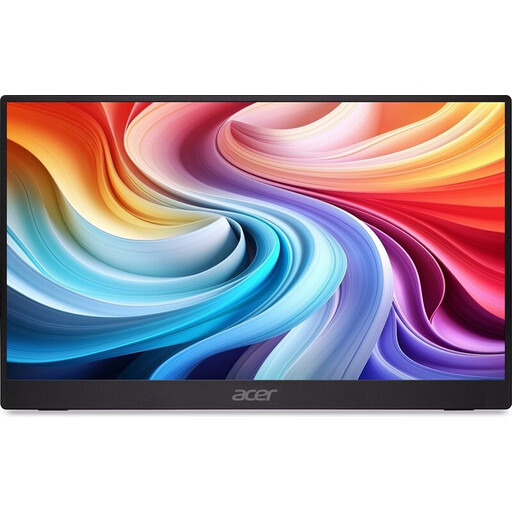 Image unavailable
A portable second-screen option to consider if you need an HDMI or USB-C connection.
The product description lists an IPS screen, HDMI and USB-C. It also states that the stand isn’t adjustable and a charger isn’t included as standard.
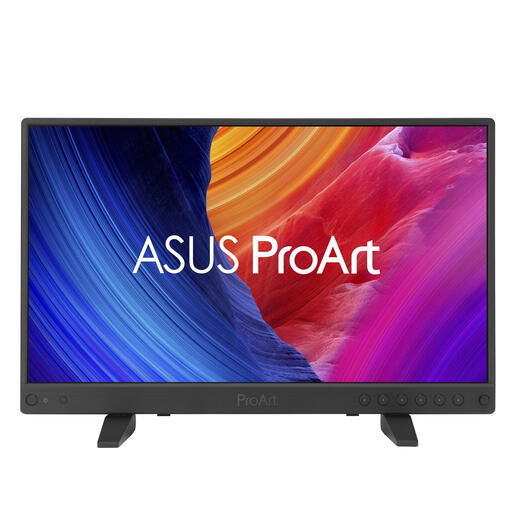 Image unavailable
Worth considering if you want to compare stated resolution and colour specifications for photo work.
The product description lists 3840 × 2160, 100% sRGB, factory calibration with ΔE < 2 and brightness of up to 400 nits. The stated net weight is 1.4 kg.
 Image unavailable
An option if you’re looking for a portable screen with a built-in stand and find Full HD resolution suitable for your photo work.
The product title lists a 16-inch IPS screen, Full HD, a 16:10 aspect ratio, two USB-C ports and Mini HDMI.
 Image unavailable
An option to take with you if you want to weigh up resolution and colour specifications alongside weight and screen positioning.
The product description lists 2560 × 1600, an IPS panel, a stated colour gamut of 123% sRGB, 350 cd/m², 810 g and a built-in stand. The brightness rating alone doesn’t guarantee readability next to a bright window.
ASUS lists typical brightness of 500 cd/m² for the ZenScreen MB16QHG, but this doesn’t guarantee readability next to your window. You’ll also need to consider reflections and whether you can position the monitor differently.
No. The host port must support video if you want to send a picture over USB-C. Philips explicitly lists DP Alt Mode for the 16B1P3302D/00; also check the connection and power requirements for the exact model.
First, check whether your computer can output video through the port you’ve chosen, and whether the connection and power supply are suitable for the monitor model. A USB-C connection doesn’t automatically provide every feature you need.
According to the Dutch Government, in many cases you have a 14-day cooling-off period when buying at a distance; whether this applies depends on the specific purchase. The Dutch Government also states that the Netherlands has no fixed statutory warranty period.
The European Commission states that the rules for electronic displays also cover computer monitors, and that the energy label provides information for comparison. Check the product information for the exact model, and don’t infer its energy class from size or brightness alone.