Start with the power supply: choose a monitor with its own battery if you don’t want the second screen to rely entirely on your laptop’s battery, or check whether your laptop can provide video and enough power to a monitor via USB-C. Then make sure the connection, screen layout and setup suit your laptop and workspace. You’ll also need to charge a monitor with its own battery separately.
Who is this choice relevant to?
Writer without a mains socket
You want to view the job advert and your letter at the same time, without the monitor relying entirely on your laptop’s battery. ASUS states that the ZenScreen Go MB16AHP offers up to four hours of monitor battery life when using DP Alt Mode at 100% brightness. This is not the battery life of the complete laptop setup.
Anyone who wants to keep reference material beside their letter
For example, you want to keep a job advert or CV visible while you write. Check that your laptop can output video through the connection you’ve chosen; Acer lists DP Alt Mode and sufficient power as requirements for USB-C use with a PM1 monitor. Lenovo and Dell offer examples of compact 16:10 screens.
Traveller with a small workspace
You need to fit the monitor, laptop and required accessories on a limited-size table, and take them with you. Lenovo lists the ThinkVision M14t Gen 2 as weighing 700 g; also check its dimensions and how much room the stand takes up.
What should you look for when choosing?
Without a mains socket, the practical order is: first work out how the monitor gets power, then check the video connection, and finally consider the space for reading and how easy it is to carry.
| What to consider |
What to look for |
Who is this most important for? |
| Power while you write |
Check whether the exact model has a battery or is powered by an external source. If you’re using USB-C for power, both your laptop and monitor must support the necessary features. |
Without a mains socket, I want to know whether the monitor has its own power supply and how long it will last with my settings. Around 29% of consumers put power supply at the top of their list of concerns. |
| Working video connection |
Check your laptop’s video output, the monitor’s input and whether you have the right cable or adapter. A USB-C connector alone doesn’t prove that the port can output video. |
Before I set off, I want to be sure my laptop can send video to the second screen. Around 29% of consumers give a working video connection top priority. |
| Room to read documents |
Compare the screen size, aspect ratio, resolution and anti-glare finish. Also check whether text is readable at the size you want. |
If I want to view a job advert, CV and letter side by side, readable screen space matters most to me. Around 24% of consumers prioritise being able to view their documents clearly. |
| Carrying and positioning |
Check the dimensions, stated weight and how much table space the stand needs. Also allow for any cables and a protective case. |
For a small workspace, I want to know whether the monitor will fit in my bag and stand securely. Around 18% of consumers put portability at the top of their list of concerns. |
Common mistakes
-
Assuming every USB-C port provides video and power
A compatible connector doesn’t automatically mean your laptop can output video or provide enough power for the monitor. Acer lists DP Alt Mode and sufficient power from the source as requirements for USB-C use with a PM1.
Before you buy, check the specifications for your laptop’s port, the exact monitor model and the cable.
-
Confusing the monitor’s battery life with that of the whole setup
ASUS states that the MB16AHP offers up to four hours of monitor battery life when using DP Alt Mode at 100% brightness. This specification doesn’t tell you how long the laptop will last.
Charge both devices separately and take your laptop’s battery life into account when planning your writing session.
-
Mistaking an HDMI connection for a power supply
HDMI can transmit video, but it doesn’t answer the separate question of how the monitor gets power. The ASUS MB16AHV has mini-HDMI and also lists separate USB-C power specifications.
If you’re using HDMI, check separately which power supply and cables the exact screen needs.
You may need a separate power source or an extra cable for your chosen setup.
Brands to compare
ASUS
The ZenScreen range includes both a monitor with a built-in battery and models with different video connections.
- ASUS states that the ZenScreen Go MB16AHP offers up to four hours of battery life when using DP Alt Mode at 100% brightness.
- That stated battery life applies to the monitor under the conditions listed, not the complete laptop setup. ASUS says the MB16AHV doesn’t have height adjustment.
Lenovo
The ThinkVision M14t Gen 2 is a compact 14-inch 16:10 screen with touch controls.
- Lenovo lists a resolution of 2240 × 1400 pixels, a weight of 700 g and two USB-C connections.
- Touch controls and the higher resolution are only useful if your workflow and connected device can make use of them; they don’t provide power on their own.
HP
The E14 G4 is an example of a 14-inch monitor that, according to HP, can receive video and power from a laptop through a suitable USB-C cable.
- HP specifies an anti-glare Full HD panel and an adjustable stand.
- A USB-C setup depends on having a suitable laptop port and sufficient power.
Dell
The Pro 14 Plus P1425 is a 14-inch 16:10 option for working with documents in a compact workspace.
- Dell lists a resolution of 1920 × 1200 pixels and tilt adjustment.
- The display specifications alone don’t tell you whether your laptop can power the monitor without a mains socket.
Acer
The PM1 series is worth considering if you have a suitable USB-C source that can provide video and power.
- Acer lists USB-C with DP Alt Mode and sufficient power as requirements for this setup.
- Specifications can vary between models, so check the exact PM1 model and your laptop port’s capabilities.
Portable monitors on Joybuy
This selection features portable monitors that give you extra room for documents when working on a laptop. Check how each model connects for video and what power supply the setup needs.
 Image unavailable
PM14R 14-inch portable monitor
A compact option for viewing documents side by side. Check that your laptop supports your chosen video connection and power supply.
14 inches, 1920 × 1200 pixels, IPS and 16:10. The product information lists USB-C and mini-HDMI; the product description says supported devices can receive video and power through a single cable. The stated weight is 1,18 kg, and a protective case is included.
View on Joybuy
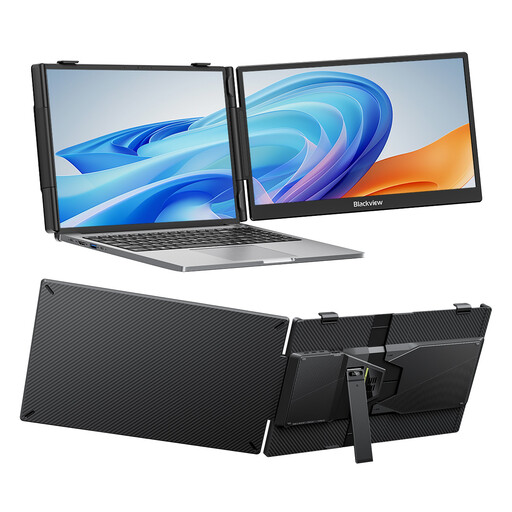 Image unavailable
Blackview SCM5 14-inch portable monitor
An option for anyone who wants an extra screen and an adjustable stand alongside their laptop. Check the connection and power requirements for your device.
14 inches, Full HD and IPS. The product title lists an adjustable stand and compatibility with laptops from 13 to 17,3 inches.
View on Joybuy
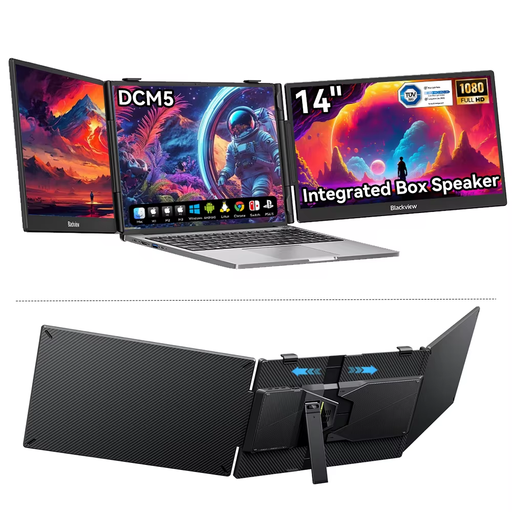 Image unavailable
Blackview DCM5 14-inch portable monitor
An extra screen for working on a laptop. Check that your device’s USB-C port supports the required video function.
14 inches, 16:9 and IPS LCD. The product description lists a single USB-C cable for connection and power; check that your laptop supports this.
View on Joybuy
 Image unavailable
UPERFECT 15,6-inch touchscreen monitor
A larger touchscreen for anyone who wants to use touch controls while writing. Check separately that your laptop and monitor support the connection and power supply you need.
15,6 inches and Full HD. The description lists USB-C for video and power, as well as a mini-HDMI input. The built-in case doubles as a stand.
View on Joybuy
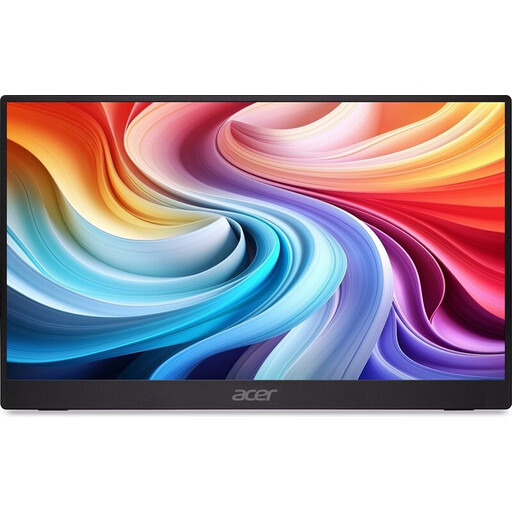 Image unavailable
Acer PM161QB1 15,6-inch portable monitor
An option for anyone looking for a larger portable screen. Check how your laptop outputs video and what power source you’ll need.
15,6 inches, 60 Hz and HDMI and USB-C connections. The stated weight is 0,75 kg, and the monitor has a stand. According to the product information, a charger isn’t included as standard.
View on Joybuy
Frequently asked questions
Can I connect a USB-C monitor to any USB-C port?
No. Not every USB-C port outputs video or provides enough power. Check your laptop’s port specifications and the requirements of the exact monitor model; Acer explicitly lists DP Alt Mode as a requirement for USB-C use with a PM1.
How do I use two screens for my cover letter?
Connect the video and power as described in your monitor’s manual, then select an extended desktop in your computer’s display settings. You could, for example, put the job advert on the second screen and your letter on your laptop. Adjust the text size so that everything is comfortable to read.
What should I check if my monitor has a battery?
Charge the monitor and laptop separately, and take the right video cable with you. ASUS states that the ZenScreen Go MB16AHP offers up to four hours of monitor battery life when using DP Alt Mode at 100% brightness. Separately, make sure your laptop battery can last through your writing session.
What are my rights in the Netherlands when I buy a monitor online?
For distance purchases, you usually have a 14-day cooling-off period, according to the Government of the Netherlands. You’re also entitled to a product that is fit for purpose, and if there’s a fault, the seller is your point of contact for a solution. In the Netherlands, there is no fixed statutory two-year guarantee period for every product.


