
Looking at map details together
You want several people around the table to be able to read street names and other details. Screen space, image quality and positioning matter more to you than extra controls.


For displaying a neighbourhood map at a shared table, choose a portable monitor after checking whether your laptop or tablet can send a video signal through the connection you plan to use, and how the screen is powered. Then match the screen size, resolution and adjustability to the seating and the space available on the table. Touch input matters mainly if someone wants to interact with the map on screen; a built-in battery can be useful if there isn’t a suitable power socket nearby.
You want several people around the table to be able to read street names and other details. Screen space, image quality and positioning matter more to you than extra controls.
You want to know in advance whether your laptop can send a video signal to the screen, and whether you have the right connection and power supply.
You may be using a table with no nearby power supply or moving your setup around. In that case, the monitor’s weight and how it gets its power are important considerations.
First, check your device’s video output and how the monitor will be powered. Then assess how the screen looks from the seats around the table, and decide whether touch input or a built-in battery is really necessary.
The percentages show consumers’ main purchasing priorities for this map-viewing session.
| What to consider | What should you check? | Who is this important for? |
|---|---|---|
| Reading map details together | Check the screen size, resolution, surface and stand. If possible, view the map from the seats you plan to use. | If I want to read street names with others from different seats, I focus on how the screen looks and where it can be positioned. Around 31% of consumers prioritise readability for a group. |
| Connecting video and power | Check your laptop or tablet’s video output. For USB-C video with the 16B1P3302D/00, Philips requires the connected device to support DP Alt Mode. | If I want to display the map from my laptop, I want to know in advance whether the connection will work and how the screen will be powered. Around 31% of consumers give a working connection top priority. |
| Positioning and controls | Check the tilt range and whether touch input works with your device and map software. Lenovo specifies ten-point touch for the ThinkVision M14t Gen 2. | If I want to interact with the map on the table or adjust the viewing angle, I check whether the screen is suitable. Around 25% of consumers prioritise positioning or controls. |
| Using the monitor without a power socket | Check the weight and power options. ASUS states that the ZenScreen MB16AHP offers up to four hours of battery life under the specified conditions. | If I’m using the monitor somewhere without a power socket, I want to know how long the session can last and whether it can be recharged. Around 13% of consumers give independent power top priority. |
For USB-C video on the Philips 16B1P3302D/00, Philips requires the connected device to support DP Alt Mode. So having the right connector doesn’t necessarily mean the map will display.
Before buying, check the video output on your own device and the requirements for the exact monitor model.
If your device doesn’t meet the connection requirements, you may need a different connection or another screen.
Touch input is only useful if someone wants to interact with the map on screen; two panels can take up more space around a shared table than you need to display a single map.
Decide in advance whether participants will navigate the map on screen and how much table space is available.
ASUS states that the ZenScreen MB16AHP offers up to four hours under the specified conditions, so actual battery life depends on how it is used.
Plan your session around the conditions attached to the battery-life claim, and make sure you have a way to recharge it if needed.
If the battery life isn’t sufficient, you may still need access to a power supply during the session.
The ZenScreen range offers different options for sharing a map, from a single screen to a model with a built-in battery or two panels.
The ThinkVision M14t Gen 2 is a compact option if you want touch controls and an adjustable stand.
The 16B1P3302D/00 is a portable monitor for displaying maps at the table.
The E14 G4 is a 14-inch portable screen with a stand and case.
These product picks are aimed at displaying a neighbourhood map at the table. According to the product information, each screen has a built-in or tilting stand.
 No image available
An option for setting up a portable screen on the table when you want to look at a neighbourhood map with others.
16-inch IPS screen, 16:10, 144Hz, two USB-C ports, mini-HDMI and a built-in stand.
 No image available
The built-in stand can be useful if you want to set the monitor up on the table for reading a map together.
16-inch IPS screen, 2560 × 1600 pixels, 16:10, two USB-C ports and mini-HDMI.
 No image available
An adjustable stand makes this monitor suitable for setting up on the table to share a map.
16-inch IPS screen with 1920 × 1200 pixels and a 16:10 aspect ratio; two USB-C ports with DisplayPort Alt Mode and a tilting stand. For USB-C video, the connected device must support DisplayPort Alt Mode.
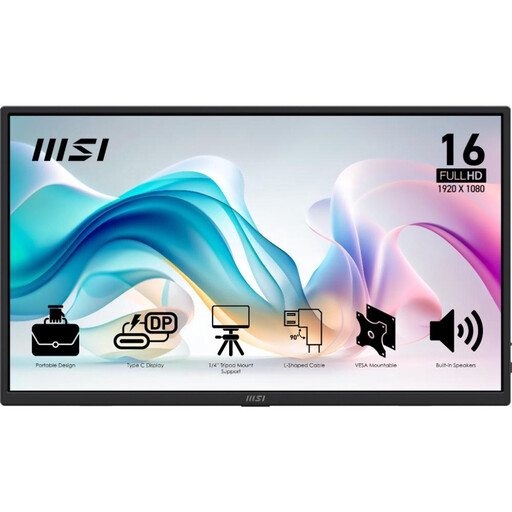 No image available
The integrated stand can help you set the screen up on the table for shared use.
15.6-inch Full HD IPS screen with a matte finish and a stated 178° viewing angle. Two USB-C ports with DP Alt Mode, HDMI, a stand that tilts up to 90°, a weight of 0.78 kg and a protective case. USB-C video requires DP Alt Mode on the connected device.
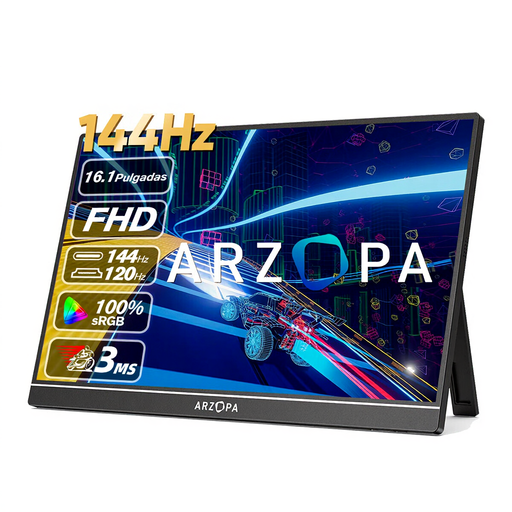 No image available
The built-in kickstand is useful if you want to set the monitor up on the table on its own.
Full HD IPS screen with a stated 178° viewing angle, two USB-C ports, mini-HDMI and a kickstand. The stated weight is 780 g.
No. For USB-C video on the Philips 16B1P3302D/00, Philips requires the connected device to have a USB-C connection with DP Alt Mode. Check the specifications for both your laptop or tablet and the monitor you’ve chosen, and check separately how the monitor gets its power.
Position the screen so participants can see the map from their seats, then adjust the angle. According to Philips, the stand on the Philips 16B1P3302D/00 tilts from 0° to 90°; the most practical angle will depend on the table, lighting and seating. When transporting the monitor, use the case supplied with your chosen model.
Not necessarily. According to the Government of the Netherlands, you have a statutory warranty when you buy a product, and the seller must provide a solution if something goes wrong. Before deciding, compare the terms of any extended warranty with the rights you already have.
For distance purchases, the seller must provide information about the product and the cooling-off period, among other things. According to the Government of the Netherlands, this period is usually 14 days. You can return a discarded electrical appliance to the shop or online retailer where you buy a new, similar appliance, take it to a collection point or drop it off at your local council recycling centre. These points don’t determine whether a monitor is technically suitable for your device.