What should you look for when choosing?
Start by checking your laptop’s connections and power capabilities, then consider how easy the screen is to read and where it will sit. Make separate arrangements to protect membership data.
| What to consider |
What to look for |
Who should give this more weight? |
| Visibility of personal data |
Consider the viewing angle, screen position and where it will sit on the table. Arrange access security separately from the monitor, as advised by the Dutch Data Protection Authority. |
If I’m handling membership data at a shared table, I want to prevent people nearby from looking at the screen; around 36% of consumers give the visibility of personal data their highest priority. |
| Connection and power |
Check which video mode and power delivery the laptop port supports. Lenovo specifies DP 1.2 Alt Mode and PD 2.0 for the ThinkVision M14; ASUS describes HDMI with USB-C power as an option for the ZenScreen MB169CK. |
I want to know in advance whether the screen will work with my laptop and which cables I’ll need; around 29% of consumers prioritise reliable connectivity and power. |
| Readability of lists and documents |
Check text at your usual scaling setting and viewing distance. Compare screen size and layout without assuming that a larger screen will automatically be easier to read. |
If I want to read long membership lists alongside documents, I need enough workspace without making text difficult to follow; around 21% of consumers put readability ahead of other reasons to buy. |
| Moving and setting up |
Measure the available table space and compare the screen size, stand and connections required for your workspace. |
I regularly take the screen with me and want to be able to set it up on a shared table; around 14% of consumers give portability and ease of set-up their highest priority. |
Portable monitors at Joybuy
This selection includes portable second screens for laptop use, with options for compact workspaces, extra room for documents and different connection requirements.
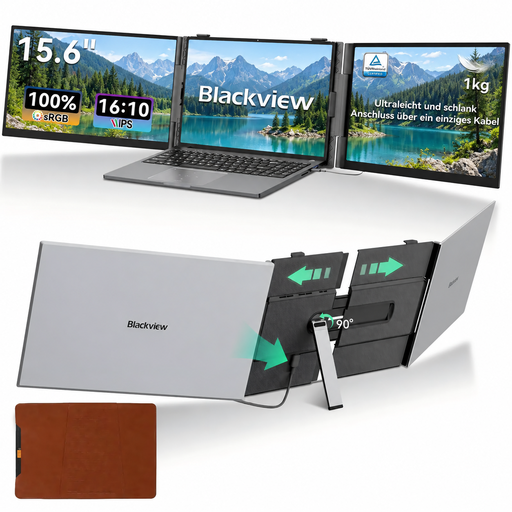 Image unavailable
Blackview DCM6 PRO portable monitor, 14 inches
An option if you want to use a portable second screen alongside a compatible laptop.
The product description lists Full HD 1920 × 1080 and single USB-C cable connectivity with compatible laptops. The title states compatibility with laptops from 13 to 17.3 inches.
View at Joybuy
 Image unavailable
TECLAST V16H portable monitor, 16 inches
A 16-inch option to compare if extra screen space for lists and documents is important.
The product title lists a 16:10 IPS screen, 144 Hz, two USB-C ports, mini-HDMI and a built-in stand. Check which connection and power supply are compatible with your laptop.
View at Joybuy
 Image unavailable
TECLAST V16Q portable monitor, 16 inches
A good option to compare if you’re looking for a larger second screen with a 16:10 aspect ratio and several listed connections.
The product description lists 2560 × 1600, 2.5K, 144 Hz and IPS. The title lists two USB-C ports and mini-HDMI.
View at Joybuy
 Image unavailable
PM14R portable monitor, 14 inches
A compact option to compare if you want to set up a 14-inch screen alongside your laptop.
The product title lists 1920 × 1200, IPS, 16:10, Type-C and mini-HDMI. The product description mentions an included protective case.
View at Joybuy
 Image unavailable
Lenovo L16 portable monitor, 16-inch WUXGA
A 16-inch option if you’re looking for a second screen with extra vertical workspace and your laptop meets the connection requirements.
The product description lists WUXGA 1920 × 1200, IPS, 16:10, two USB-C ports and up to 65 W Power Delivery. USB-C video and power are intended for compatible laptops; the description also mentions an adjustable stand and protective case.
View at Joybuy
Frequently asked questions
Can every USB-C connection on your laptop send video to a portable monitor?
No. Check which video mode and power supply the monitor requires, and whether your laptop port supports them. For example, Lenovo specifies DP 1.2 Alt Mode and PD 2.0 for the ThinkVision M14; ASUS also describes an HDMI connection with USB-C power for the ZenScreen MB169CK.
How should you use an extra screen for membership data at a shared table?
Make sure the screen isn’t casually facing people nearby, and follow your organisation’s access and security measures. The Dutch Data Protection Authority emphasises that organisations must decide for themselves which measures are needed to prevent unauthorised access to personal data; a monitor is no substitute for those measures.
What rules apply to employees who work on a laptop for extended periods?
Arboportaal states that if you work at a screen for more than 2 hours a day, the screen and keyboard must not be attached to each other. So assess your complete workstation, not just whether to buy a portable monitor.
Which connections and accessories should you check in advance?
Check that your laptop supports the monitor’s video mode and that the cable and power supply you need will work with your set-up. For HDMI use, ASUS also specifies USB-C power for the ZenScreen MB169CK; the HP E14 G4 product description mentions a sleeve.
Do you need a touchscreen to manage membership lists?
Only if direct touch control suits the way you work and the software you use. Lenovo lists touch functionality for the ThinkVision M14t Gen 2, but you don’t need a touchscreen to read lists or compare documents.


