
Administrator using different laptops
You want to connect a second screen quickly when working away from the office. Check in advance which laptop ports support video output and what cables and power supply you’ll need.


Start with your laptop: check whether its USB-C port supports video output, or choose a monitor with a compatible HDMI input and check separately how it is powered. Then match the screen size and power setup to your workspace. If membership details are visible, take steps to limit who can see them and access the system.
You want to connect a second screen quickly when working away from the office. Check in advance which laptop ports support video output and what cables and power supply you’ll need.
If visitors are standing nearby, screen placement and access to membership records are important considerations.
You move your workspace during the trip, so weigh up the monitor’s weight and stand against the power and workspace available.
First check your laptop’s video output and power setup. Then choose a screen size and arrangement to suit the place where you’ll be managing membership records.
| What to consider | What should you check? | Who should pay particular attention? |
|---|---|---|
| Connection and power | Check your laptop’s video output, the input on the exact monitor model, the cable supplied and the power source required. | If I work with different laptops, I want to know in advance how I’ll get video and power sorted. For around 31% of consumers, a working connection and suitable power supply are the top priorities. |
| Protecting membership details from view | Work out where people nearby might be able to see the screen and limit access to the system; only display the information you need. The Dutch Data Protection Authority stresses that organisations must prevent unauthorised access to personal data. | When visitors are standing nearby, I want to make sure they can’t see membership details. Around 25% of consumers say limiting visibility is their top priority. |
| Workspace for lists | Compare the screen size, resolution and aspect ratio with the space the monitor and stand will take up on the table. | I want to be able to use a membership list and entry form clearly, without taking up more table space than I have available. For around 25% of consumers, a readable workspace comes first. |
| Portability and power | Check the weight and stand of the exact model, and make sure the power setup suits the planned session. | If I don’t have a fixed socket during a trip, I want a setup I can move and power. Around 19% of consumers put working on the move without a fixed power supply first. |
The presence of a USB-C port doesn’t confirm that the laptop can output video through it. As a result, the screen might not work as intended.
Check the video output on both your laptop and the exact monitor model, and see which cables are included.
A monitor won’t automatically stop visitors from seeing the screen or accessing membership records. The Dutch Data Protection Authority reminds organisations to prevent unauthorised access to personal data.
Choose a working position that limits visibility and only display what’s needed. You should also manage access to the system you’re using.
A model’s battery and brightness specifications don’t automatically tell you how long it will work at your workspace or how easy the screen will be to read there.
Plan the power supply around your trip and test the setup in advance at the place where you’ll be working.
The ZenScreen range includes models with different connections and power setups.
The ThinkVision M14t Gen 2 is a 14-inch second screen with touch controls.
The PRO MP165 E6 is a 15.6-inch model with USB-C and HDMI video inputs.
The Dell Pro 14 Plus P1425 is a 14-inch option for a compact workspace.
The HP E14 G4 is a 14-inch portable monitor with a stand and soft case.
These models are designed as portable second screens for use with a laptop. Before buying, check that the connections and power supply suit your own setup.
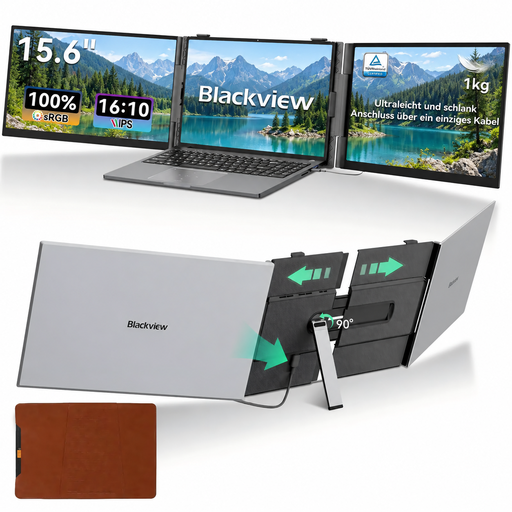 No image available
A portable second screen for a laptop; the title states that it’s compatible with 13–17.3-inch laptops.
Full HD resolution of 1920 × 1080 pixels. USB-C and HDMI cables are included.
 No image available
The larger screen and 16:10 aspect ratio are designed for anyone who wants extra screen space for lists and forms.
The title lists an IPS screen, 144 Hz, two USB-C ports, Mini HDMI and a built-in stand.
 No image available
A compact 14-inch option with a 16:10 aspect ratio for anyone who wants extra vertical screen space.
IPS screen with 1920 × 1200 pixels, Type-C and Mini HDMI. The stated weight is 1.18 kg.
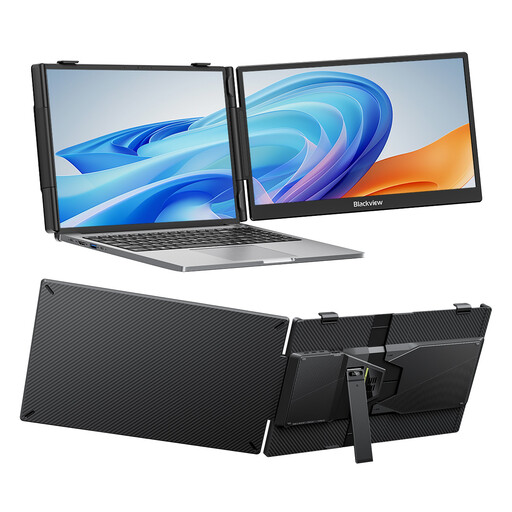 No image available
The adjustable stand can be useful when you work in different places; the title states that it’s compatible with 13–17.3-inch laptops.
FHD IPS screen with a stated thickness of 18.2 mm.
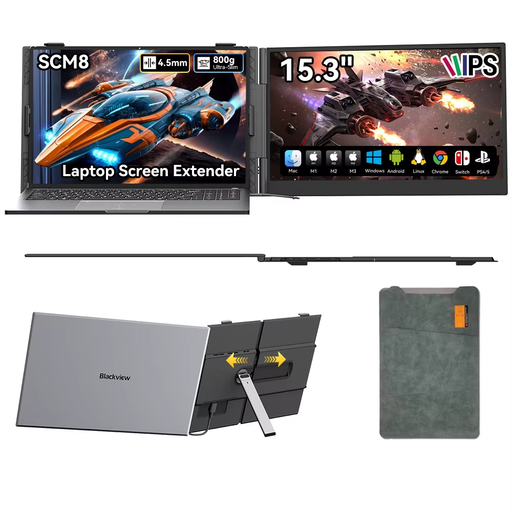 No image available
A portable second screen for a laptop; the product description lists an adjustable stand and protective case.
USB-C for video and power.
No. Check whether your laptop’s USB-C port supports video output and whether the connection and power supply suit the exact monitor model. An HDMI input may offer another way to connect video, but you’ll still need to check how the screen is powered.
After connecting it, check that your operating system extends the desktop rather than mirroring it. Put only the window you need on the second screen; position it so people nearby can’t see membership details, and manage access to the system.
A portable monitor needs a connected computer or another video source to display an image, so it won’t replace the computer you use to manage membership records. A built-in battery, as found in the ASUS ZenScreen Go MB16AHP, doesn’t change that.
Battery capacity alone doesn’t tell you how long a monitor will run in your setup. Plan the power supply around the length of the trip and test the complete setup in advance.
Limit both the visibility of the screen to people nearby and access to the membership system. The Dutch Data Protection Authority stresses that organisations must prevent unauthorised access to personal data; an extra monitor won’t provide that protection on its own.