What should you look for when buying?
Start with the connection from your laptop to the screen. Then compare the usable reading space and how you can position the screen on a shared table.
| What to consider |
What should you check? |
Who should pay particular attention? |
| Connection and power |
Check the video mode supported by your laptop port, the input on the exact monitor model, the cable and the power supply route. |
If I work with different laptops, I want to know in advance whether the chosen connections will provide both the picture and power. Around 36% of consumers prioritise connection and power. |
| Reading space |
Compare screen size, aspect ratio and resolution, and consider the text scaling you use. |
If I want to read minutes and meeting documents at the same time, the text needs to be easy to read at my chosen scaling. Around 29% of consumers prioritise reading space for documents. |
| Portability and set-up |
Check the screen’s size, the protection supplied and what you’ll need to carry every day. |
If I often change workspaces, I want to know how easy the screen is to carry and set up again. Around 21% of consumers prioritise portability and set-up. |
| Workspace set-up |
Check the tilt and height adjustment, and whether the stand fits on the available table space. |
At a shared table, I want to be able to position the screen to suit the space available. Around 14% of consumers prioritise the set-up. |
Portable monitors on Joybuy
This selection includes portable monitors for anyone who wants to edit minutes alongside meeting documents and use their screen in different workspaces.
 No image available
TECLAST V16H 16-inch portable monitor
The 16:10 aspect ratio may be useful if you want to view minutes and other documents on the same screen.
The product name lists FHD IPS, 144 Hz, two USB-C ports, mini-HDMI and a built-in stand.
Joybuy
 No image available
TECLAST V16Q portable monitor
The 16:10 aspect ratio is worth considering if you want to organise documents on one screen.
The product name lists a 2.5K IPS screen with 144 Hz, two USB-C ports, mini-HDMI and a kickstand.
Joybuy
 No image available
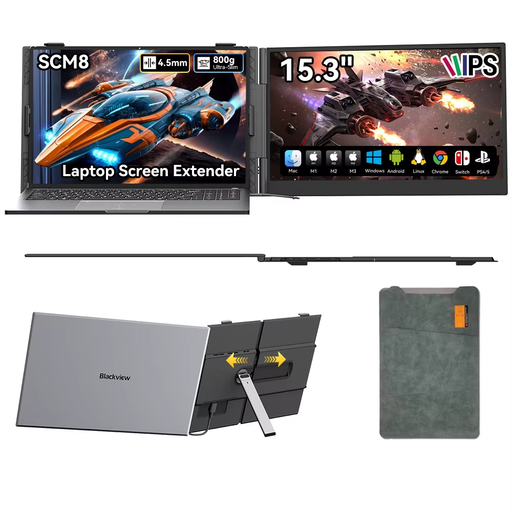
Blackview SCM8 15.3-inch portable monitor
The product name mentions a protective case and adjustable stand—useful features when carrying and setting up the screen again.
The product name lists USB-C and a stand that adjusts through 180°.
Joybuy
 No image available
Blackview TABLE 9 16-inch portable monitor
The stated 16:10 aspect ratio may be useful when viewing minutes and meeting documents on the same screen.
The product name lists a magnetic stand that extends and rotates, and support for 100 W reverse charging.
Joybuy
 No image available
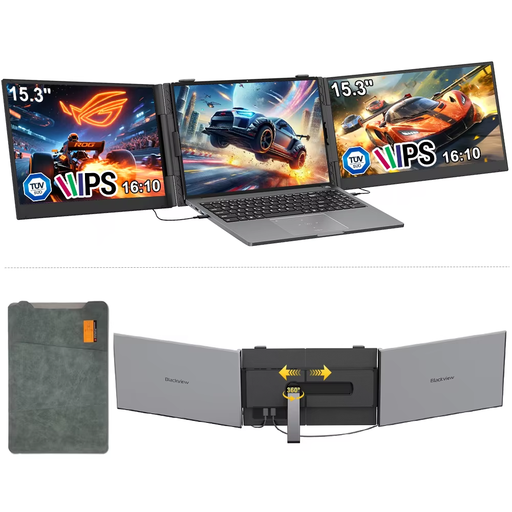
Blackview DCM8 15.3-inch portable monitor
The product name mentions a 16:10 aspect ratio for viewing minutes alongside other documents.
The product name lists IPS, 1920 × 1200 and 60 Hz.
Joybuy
Frequently asked questions
Is USB-C enough to use the monitor with a single cable?
Not always: the laptop port needs to support the video mode required by the monitor model. Also check whether the connection supplies enough power to the screen. ASUS specifies DP Alt Mode for the MB169CK; without that support, ASUS describes using HDMI for video and USB-C for power.
How do you set up an extra screen in a shared workspace?
Assess the workspace each time and check that the stand and available table space allow for a suitable set-up. Arboportaal advises positioning the screen directly in front of you, with the top just below eye level.
What are your rights if a monitor bought online is unsuitable or breaks?
For an online consumer purchase, you usually have a 14-day cooling-off period, according to ACM ConsuWijzer. Your statutory guarantee rights are separate from any manufacturer’s warranty: if a product does not meet the expectations you were entitled to have when used normally, ACM says the seller must put things right. The terms depend on the purchase and the circumstances.
Do Dutch health and safety rules apply when taking minutes on a laptop for long periods?
The conditions described by Arboportaal apply to employees. Under these rules, if you work at a screen for more than 2 hours a day, the screen and keyboard must not be attached to each other; when using a laptop, a separate screen or keyboard must be available. How the rules apply depends, among other things, on working hours and the workspace set-up.
Is a CE logo an independent safety certificate?
No. According to the European Commission, CE marking is the manufacturer’s declaration that the product complies with the applicable EU product rules; there is no central EU body that issues a general CE certificate. The rules that apply to a particular screen need to be established for that product.


