
Map and reference reader
You want to compare map details with websites, documents or notes without constantly switching between windows. Screen size, aspect ratio and scaling settings all affect readability.


Start by choosing a screen layout that lets you view your neighbourhood map and key reference materials at a readable scale. A single screen is a straightforward choice if you mainly want extra space alongside your laptop. Touch controls or two additional panels are only worthwhile if you’ll actually use these features and have the right connections, power supply and desk space.
You want to compare map details with websites, documents or notes without constantly switching between windows. Screen size, aspect ratio and scaling settings all affect readability.
You take the screen with you and set it up in different places. Weight, stand, connections and power supply all affect how practical your setup will be.
You want to point out locations or make notes on the extra screen. Check that touch controls, any stylus and your map or note-taking app are compatible.
Best for: keeping your map on your laptop while using the extra screen mainly for websites or documents.
Trade-off: you won’t get separate workspaces like you would with a model that has two panels.
Best for: pointing out locations or making notes with software that supports touch or a compatible stylus.
Trade-off: at the same viewing distance, a smaller physical screen may require more zooming. Check stylus and app support too.
Best for: studying away from a mains socket and not wanting to rely solely on power from your laptop.
Trade-off: the stated maximum battery life depends on the test conditions and doesn’t guarantee how long it will last during your study session.
Best for: giving your map, notes and reference materials their own workspaces, provided you have enough desk space.
Trade-off: two panels may take up more space and add weight. Check the connections and power requirements beforehand.
| What to consider | What to look for | Who is it important to? |
|---|---|---|
| Readable workspace | Try your usual map zoom and text scaling. Compare the screen layout with the number of windows you want to view at once. | If I want to compare map details with several reference materials, readability comes first. Around 36% of consumers say readable screen space is their top priority. |
| Video connection | Check that your laptop port outputs video and is compatible with an input on the exact monitor model. Also check which cable and power supply are needed. | If I want to connect the screen to my own laptop, I want to know in advance whether the video connection will work. Around 29% of consumers put this connection first. |
| Portability and setup | Compare the weight, stand, desk space required and power options with your usual study space. | If I often study in different places, weight and a stable setup matter a lot. For around 21% of consumers, portability is the top priority. |
| Annotating directly | Check touch controls, stylus support, what’s included with the version you’ve chosen and whether it works with your map or note-taking app. | If I want to point out locations or make notes on the extra screen, I’ll first check that my software supports it. Around 14% of consumers prioritise direct interaction. |
USB-C ports don’t all support the same video features. A compatible plug alone doesn’t mean your laptop can drive the screen over USB-C.
Before you choose, check the video capability of your laptop port, as well as the inputs and power options on the exact screen model.
Physical screen size and scaling settings still matter, even at a higher resolution. On a compact screen, you may still need to adjust the map zoom.
Check the map at your preferred viewing distance and scaling setting. Don’t choose on resolution alone.
A model with two panels needs desk space and may weigh more. The available connections and power options will also affect how you can set it up.
Plan where your laptop, map and reference materials will go, then check the connections and power supply you’ll need.
In the Netherlands, the statutory guarantee is separate from any additional commercial warranty. According to ACM ConsuWijzer, the retailer is responsible if a product doesn’t do what you could reasonably expect during normal use.
Check exactly what extra services or damage a paid warranty covers, and compare that cover with your statutory rights.
The ZenScreen models in this comparison range from a single portable screen to a foldable model with two panels.
The ThinkVision M14t Gen 2 is a compact 16:10 screen for anyone who wants to interact directly with maps or notes.
The E14 G4 is a 14-inch Full HD option for anyone looking for a single extra screen.
The Pro 14 Plus P1425 is a compact 16:10 screen for working with maps or documents without a touchscreen.
The 16T3EA is a portable 15.6-inch Full HD screen with a stand and orientation feature.
These portable screens are designed to give your laptop extra workspace, for example so you can view a map alongside reference materials or documents.
 No image available
An option for viewing your map and laptop content on separate screens.
14 inches; Full HD, 1920 × 1080 pixels; designed as an extension for 13–17.3-inch laptops, according to the product title.
 No image available
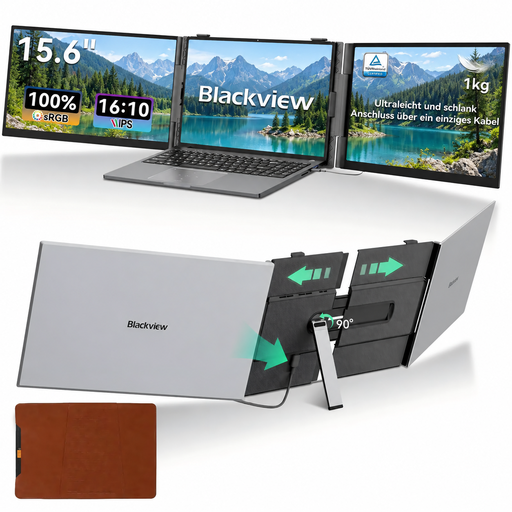
The larger screen setup may suit you if you want to arrange several windows alongside your laptop.
15.3 inches; 1920 × 1200 pixels; 16:10; stated weight 1.2 kg. The product title describes a single-cable USB-C setup.
 No image available
An option if you want to use a larger extra screen alongside your laptop.
16 inches; 16:10; Full HD IPS; 144 Hz. The product title lists two USB-C ports, mini-HDMI and a built-in stand.
 No image available
An option if you want to view map details and reference materials on an extra 16:10 screen.
16 inches; 16:10; 2.5K, 2560 × 1600 pixels; IPS. The product title lists two USB-C ports, mini-HDMI and a stand.
 No image available
A compact option for viewing your map and reference materials on a second screen.
14 inches; 1920 × 1200 pixels; IPS; 16:10. The product title lists Type-C and mini-HDMI.
No. Check that both your laptop port and the screen you’ve chosen support the required USB-C video feature. ASUS distinguishes between USB-C with DP Alt Mode and connections with other features. Also check the cable and power requirements for the exact model.
Arrange the map and reference materials in separate windows, then set them to a readable scale. Use a stable stand. Portrait orientation can be useful for long pages, but some models may require software for automatic rotation.
No, you don’t need an extended warranty to have statutory guarantee rights in the Netherlands. According to ACM ConsuWijzer, the retailer is responsible if a product doesn’t do what you could reasonably expect during normal use; the expected lifespan isn’t simply a fixed two years for every product. So compare paid warranties based on the additional cover they provide.
For a standard online monitor purchase, you generally have 14 days to change your mind after delivery. ACM ConsuWijzer lists exceptions for certain products or situations. Also check the returns policy for practical details on how to return it.
The European Commission states that computer monitors are covered by the energy-labelling rules for electronic displays, with some exceptions in the regulations. Check the product information sheet and energy label for the specific model; don’t assume the rules apply based on the product description alone.