
Student who wants to view a map and text side by side
Wants to keep a neighbourhood map open while viewing sources or notes on their laptop. A larger physical viewing area and a comfortable viewing position may be worth considering.


First, choose a portable monitor that can receive the video signal from your laptop. Then decide whether you mainly need a larger map view, less reliance on mains sockets or touchscreen controls. A larger screen gives you more physical viewing area, while a more compact screen with a higher resolution or a touchscreen caters to different priorities. Check the exact model’s video connection, power supply and any software requirements too.
Wants to keep a neighbourhood map open while viewing sources or notes on their laptop. A larger physical viewing area and a comfortable viewing position may be worth considering.
Takes their laptop and monitor with them, so weighs up size, set-up and power supply for different study locations.
May want to point out or draw on locations. Check that the screen, input device, laptop and software you use all work together.
Start by checking your laptop’s video output. Then decide how much screen space you need and whether portability or direct map interaction matters to you.
| What to consider | What should you check? | Who is this important for? |
|---|---|---|
| Map overview and readability | Compare screen size, resolution and aspect ratio. Also check how your map software handles zoom and text scaling. | If I want to keep a map open alongside study materials, I need enough physical screen space without the labels becoming hard to read. Around 36% of consumers say a clear map overview is their main priority. |
| Connecting to your laptop | Check that your laptop supports the required video output, such as USB-C with DP Alt Mode, and look at the cable and power supply you’ll need. | If I want to know before buying whether my current laptop can output video, I’ll focus on the exact capabilities of its ports. Around 29% of consumers name connection compatibility as their main priority. |
| Portability and power | Compare weights on a like-for-like basis, check the stand or case, and find out whether the screen draws power from your laptop, uses an adapter or has a built-in battery. | If I study in different places, I want a screen I can take with me, set up suitably and power wherever I am. Around 21% of consumers prioritise portability. |
| Interacting with or annotating a map | Check touchscreen and pen support for the exact model, as well as compatibility with your device and map software. | If I want to point out or draw on locations directly on a map, I need input features that are also supported by the software I use. Around 14% of consumers say direct map interaction is their main priority. |
A USB-C port on its own doesn’t mean that a laptop can send video to a monitor. For example, Philips specifies that the USB-C video connection on the 16B1P3302D/00 requires DP Alt Mode on the source device.
Before buying, compare the specifications of the exact laptop port, monitor connection and power supply.
The Philips 16B1P3302/00 specifies DisplayLink via USB-C to USB-A, while the 16B1P3302D/00 uses USB-C video via DP Alt Mode. These are different connection methods.
Check the full model number, including any letters and numbers after it, and make sure any required software and cable are compatible with your device.
ASUS’s stated battery life for the ZenScreen Go MB16AHP applies under a specified test condition; it isn’t a fixed duration for every study session.
Compare the stated conditions with how you plan to use it, and remember that the built-in battery will need recharging.
The ZenScreen range includes a 15.6-inch model with USB-C and mini-HDMI, as well as a model with a built-in battery.
The ThinkVision M14t Gen 2 is a compact option if you want to interact with map details using touch or a pen.
The 16B1P3302D/00 and 16B1P3302/00 portable monitors differ in their stated connection methods.
According to AOC, the 16T3EA is a 15.6-inch Full HD monitor with a folding stand and portrait orientation.
The E14 G4 is a 14-inch Full HD alternative to compare if brightness is one of your selection criteria.
These models are designed for portable dual-screen set-ups, so you can view a neighbourhood map alongside study materials or notes.
 No image available
The 16-inch screen is worth considering if you want to view a map and study materials on a larger physical display.
According to the product name: FHD IPS screen, 16:10, 144 Hz, two USB-C ports, Mini HDMI and a built-in stand. Check that your laptop can output video through your chosen connection and that the power supply suits your set-up.
 No image available
This model is worth considering if you’re looking for a 16-inch screen with a higher stated resolution for maps and study work.
According to the product name: 2.5K IPS screen, 16:10, 144 Hz, two USB-C ports, Mini HDMI and a stand. Check your laptop’s video output and power supply before choosing a connection.
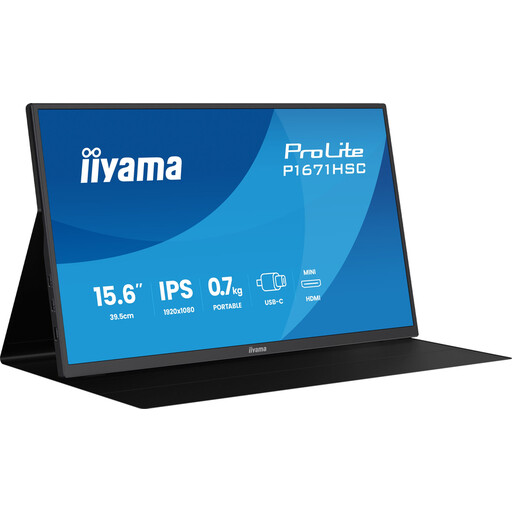 No image available
The 15.6-inch version could be a good fit if you’re looking for a portable screen to view a map alongside your laptop work.
According to the product name: Full HD, IPS and 60 Hz. Before buying, check which cable and power connection will work with your laptop and the exact monitor connection.
 No image available
The compact 14-inch size is an option if portability matters to you and you’re happy with a smaller physical map view.
According to the product name: IPS screen with a 16:10 aspect ratio, Type-C and Mini HDMI. Check the resolution in the product details, and make sure your laptop supports the video connection you choose.
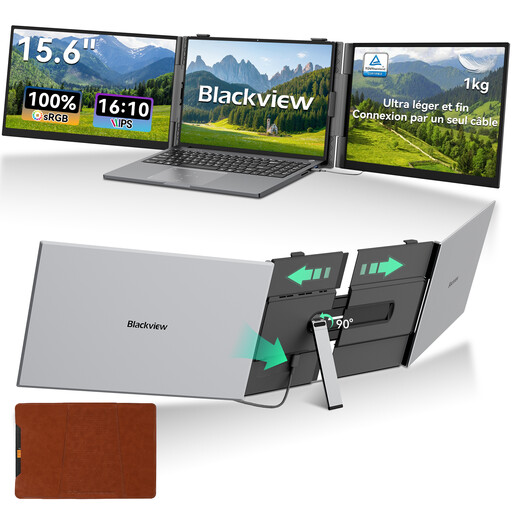 No image available
This portable 15.6-inch IPS model is designed for anyone who wants to view a map alongside work on their laptop.
According to the product name: 16:10 aspect ratio and 60 Hz. Check the exact resolution, connection and power requirements of the version you’re considering before pairing it with your laptop.
No, not every USB-C port supports video output. For USB-C video via DP Alt Mode, as used by the Philips 16B1P3302D/00, your laptop must support this feature; check the exact laptop model. For the 16B1P3302/00, Philips also specifies a separate DisplayLink connection via USB-C to USB-A.
Choose a monitor and set-up that support portrait orientation, and check your laptop settings. For automatic orientation, AOC says you need to activate the i-Menu software for the 16T3EA.
Use a suitable cable and power supply, and make sure the stand is stable. If the monitor has a battery, remember to recharge it. ASUS states a maximum of four hours for the MB16AHP under its specified test conditions; this isn’t guaranteed usage time for every study session.
When you buy from a business at a distance, you will often have a 14-day cooling-off period; exceptions and the precise circumstances matter. According to the Dutch government, there is no fixed statutory warranty period in the Netherlands. If a product doesn’t conform to the contract, the seller is your point of contact.
According to the European Commission, electronic displays, including computer monitors, are generally covered by energy-labelling rules. Check the label and any exceptions that apply to the specific model. CE marking applies to equipment where the relevant EU rules require it, and doesn’t prove that the monitor will work with your laptop.