Start with the connection: a monitor that uses a single USB-C cable is practical if your laptop port supports video and your laptop can meet the screen’s power requirements. Then compare the screen space with what will fit on your desk and in your bag. With HDMI, you’ll need to arrange a separate power supply. Dell warns that a USB-C port supporting data or power only won’t output a picture.
Who might find a portable monitor useful for studying maps?
Student with limited access to sockets
You want to keep a neighbourhood map open alongside your coursework and first check whether a single USB-C cable can provide both picture and power. ASUS lists DP Alt Mode for the MB166CR; Dell warns that USB-C without video support won’t output a picture.
Map reader who wants to compare details
You want to view street names, the legend and your notes side by side, and work out how much screen space you’ll need. Compare the screen size, resolution and aspect ratio of the exact model; Dell and Lenovo, for example, list different resolutions for their 14-inch models.
Student with an HDMI laptop
Your laptop may not have a USB-C video output. In that case, it’s important to choose a monitor with a suitable HDMI input and make sure you have a suitable power source too; ASUS lists mini-HDMI for the MB16AHV.
What should you look for?
First check whether your laptop connection can provide both picture and power. Then compare screen space and portability.
| What to consider |
What should you check? |
Who should consider this? |
| Picture and power via USB-C |
Check for DP Alt Mode or compatible Thunderbolt video on your laptop, as well as the screen’s power requirements. |
If I have limited access to sockets, I want to know whether my laptop and monitor can work with a single USB-C cable. Around 36% of consumers give top priority to picture and power through one connection. |
| Being able to read map details |
Compare the screen size, resolution and aspect ratio. Also check that the map is readable at your preferred zoom level. |
If I want to view street names, the legend and notes at the same time, I look at how much space the screen gives me. Around 29% of consumers prioritise being able to read map details clearly. |
| Carrying and positioning the monitor |
Compare its dimensions, weight and stand with your bag and available desk space. |
If I work at a small or changing study space, I want a screen that’s easy to position and carry. Around 21% of consumers give a compact study setup top priority. |
| HDMI as an alternative |
Check your laptop’s video output, the screen’s HDMI input and how you’ll power the screen. |
If my laptop doesn’t have a suitable USB-C video output, I look for a compatible HDMI connection and arrange power separately. Around 14% of consumers prioritise having HDMI as an alternative. |
Common mistakes when buying a portable monitor
-
Assuming USB-C guarantees picture through a single cable
A USB-C port that supports data or power only won’t output a picture to the monitor. Dell highlights this distinction in its monitor support information.
Before you buy, check the video specifications of your laptop port and the power requirements of the exact screen.
-
Assuming HDMI also provides power
HDMI can provide the video connection, but it doesn’t automatically meet a portable monitor’s power requirements.
Check the connections and plan the whole setup: laptop output, video cable, monitor and power source.
-
Automatically choosing more pixels or touch control
A higher stated resolution or a touchscreen doesn’t, by itself, tell you whether map text will be comfortable to read at your viewing distance or whether you’ll use touch control.
First decide on your preferred zoom level and controls, then compare the resolution, screen size and features of the exact model.
-
Taking a product listing as full confirmation of the model
Differences in technical descriptions can cause confusion about the specification or available connections. Any additional warranty is also separate from your statutory rights.
Compare the full model number and connections with the manufacturer’s information. If you’re considering an additional warranty, check its terms and what extra cover it provides.
Portable monitor brands to consider
ASUS
The ZenScreen MB166CR and MB16AHV offer different connection options. Compare the model’s connections and power requirements with your laptop.
- ASUS Netherlands lists a 15.6-inch Full HD IPS panel and USB-C with DP Alt Mode for the MB166CR.
- According to ASUS, the MB16AHV also has mini-HDMI.
- If you use HDMI, you’ll need to arrange power separately. Also check which cables are included with the version you choose.
Dell
The Pro 14 Plus P1425 is a 14-inch option for weighing up screen space against a compact setup.
- Dell lists a resolution of 1920 × 1200 and a 16:10 aspect ratio for the P1425.
- According to Dell, this model doesn’t have a touchscreen. Dell also warns that USB-C without DP Alt Mode or compatible Thunderbolt video won’t output a picture.
Lenovo
The ThinkVision M14t Gen 2 is a 14-inch option if you want to control the map directly on the screen.
- Lenovo lists a resolution of 2240 × 1400, a 16:10 aspect ratio, 10-point touch control and a weight of 700 g.
- Touch control is only useful if your device and workflow support it; if you use a mouse or trackpad, this feature may be unnecessary.
Philips
The Business Monitor 16B1P3302D/00 is a 15.6-inch portable option with two USB-C ports and an adjustable stand.
- Philips states that the stand is adjustable and that USB-C video requires DP Alt Mode on the source device.
- Having two ports doesn’t remove the requirements for video and power. Check that your laptop and the exact screen meet them.
Portable monitors at Joybuy
These product picks focus on portable second screens for viewing a neighbourhood map alongside study materials, with USB-C and HDMI connection options to compare for each laptop.
 No image available
TECLAST V16H 16-inch portable monitor
The 16-inch version may suit you if you want to view your map and study materials on a larger second screen.
The title lists Full HD IPS, 16:10 and 144 Hz. The product description mentions two USB-C ports for video and power, mini-HDMI and a built-in stand. Check that your laptop’s USB-C port supports video. With mini-HDMI, you’ll need to arrange power separately.
View at Joybuy
 No image available
PM14R 14-inch portable monitor
This compact option may suit you if you want to place a 14-inch screen beside your laptop.
The title lists an IPS screen with a resolution of 1920 × 1200 and a 16:10 aspect ratio. Type-C and mini-HDMI are listed as connections; using a single cable for picture and power depends on the support offered by the connected devices. With HDMI, you’ll need to arrange power separately.
View at Joybuy
 No image available
ASUS ZenScreen MB166CR 15.6-inch
This model may suit you if you want to use a portable 15.6-inch screen alongside your coursework.
ASUS lists a Full HD IPS panel and USB-C with DP Alt Mode for the MB166CR. Check that your laptop port supports video and that the power supply is sufficient for your setup.
View at Joybuy
 No image available
Arzopa A1S 14-inch FHD monitor
The built-in stand may come in handy if you want to position the screen beside your laptop at your study space.
The title lists a 14-inch screen and Full HD 1080p. The product description mentions an IPS screen, a weight of 600 g, two USB-C ports and mini-HDMI. If you use mini-HDMI, you’ll need to arrange power separately.
View at Joybuy
 No image available
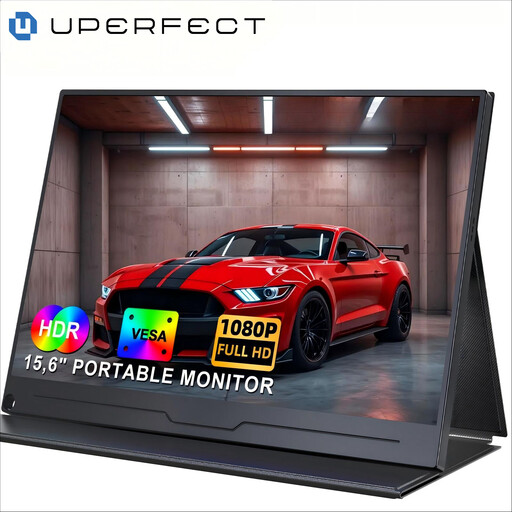
UPERFECT 15.6-inch 1920 × 1080 monitor
This version may suit you if you want to view your map on a portable 15.6-inch screen.
The title lists an IPS screen with a resolution of 1920 × 1080. The product description mentions USB-C for video and power, as well as a mini-HDMI input. Check that your laptop supports video via USB-C. With mini-HDMI, you’ll need to arrange power separately.
View at Joybuy
Frequently asked questions about portable monitors for studying maps
Will every USB-C port on your laptop output a picture to a portable monitor?
No. The port you use must support video, for example via DP Alt Mode or a compatible Thunderbolt connection. Dell states that a USB-C port providing data or power only won’t output a picture. Also check separately that the power supply is sufficient.
How do you set up a portable screen to compare a map with your notes?
Position the screen securely beside your laptop and connect it according to the instructions for the exact model. On your computer, choose an extended desktop if you want to display your map and notes on separate screens. Check that the stand gives you the viewing angle you want on your desk.
Will you need another socket when using HDMI?
HDMI provides the video connection, but it doesn’t automatically power a portable monitor. Check whether the model you choose needs a separate USB power supply and whether you have a suitable power source.
What are your rights when buying a monitor online in the Netherlands?
According to the Dutch government, online purchases generally come with a 14-day cooling-off period, subject to exceptions. You’re also entitled to a product that’s fit for purpose. The Netherlands has no fixed statutory warranty period; if a product is faulty, the retailer is your point of contact.
What is the energy label on a monitor for?
The European Commission states that electronic displays are covered by energy labelling rules. The label can help you compare energy use, but it doesn’t tell you whether your laptop can power the screen without an extra socket. Check the label or product information sheet for the exact model.


