
Laptop map reader
Wants to keep a neighbourhood map open alongside their notes, and is particularly interested in clear map details and the physical screen size.


Choose a portable monitor that can handle your laptop’s video signal and fits on your desk with its stand and cables. A larger screen displays the map at a physically larger size, while a compact model takes up less space. Extra resolution is most useful for fine details, and touch is handy if you want to work directly on the map. Before buying, check the video connection, power requirements, stand and included cables for the exact model.
Wants to keep a neighbourhood map open alongside their notes, and is particularly interested in clear map details and the physical screen size.
Wants to put the second screen away after studying, and weighs up the screen size, stand and connections against the available workspace.
Wants to tap or draw directly on the map, so checks the touchscreen function and whether it works with their device.
First check whether your laptop can send a picture to the screen and whether the setup will fit. Then consider how easy the map is to read and whether touch would be useful.
| What to consider | What should you check? | Who is this important for? |
|---|---|---|
| Reading map details | Compare the diagonal size, resolution and aspect ratio of the exact model. Check whether labels are comfortable to read from your usual viewing distance. | If I want to distinguish streets and map labels alongside my notes, I look at both the pixel count and the physical screen size. Around 33% of consumers give map readability top priority. |
| Video and power | Compare the video specifications of your laptop’s port with the screen’s requirements. Also check the power needed and which cables are included. | If you want to connect the screen to your existing laptop, you’ll need to know whether it can provide the right video signals and power. Around 27% of consumers put a working laptop connection first. |
| Desk space | Measure the available width and depth, including room for the stand and cables. Also compare the weight and how the screen can be stored away. | On a small desk, I want to be able to set up the screen and put it away again after studying. Around 27% of consumers give available desk space top priority. |
| Working directly on the map | Check whether the exact model has a touchscreen and whether your laptop, software and required connections support touch controls. | If I want to tap or annotate the map, touch needs to work with my own setup. Around 13% of consumers put direct map interaction first. |
A matching connector doesn’t guarantee that your laptop provides the required video signal. Lenovo specifies USB-C with DP 1.2 Alt Mode and PD 2.0 for the ThinkVision M14; check the requirements of the model you’re considering.
Compare the exact specifications of your laptop’s port with those of the screen before choosing how to connect them.
Verbatim states that the LIGHT Series 32401 also needs power when used with HDMI. Video and power may therefore require separate connections.
Check separately which video cable and power connection your setup needs, and which items are included.
The ASUS ZenScreen Duo MB14FCD has two 14-inch panels. On a small desk, the space needed to set it up may matter more than the extra screen area.
Consider whether you’ll really use the additional workspace alongside the map, and measure the available space before choosing a dual-screen setup.
A manufacturer’s warranty is not the same as your statutory rights. According to the Dutch government, the seller must provide a solution if a product is faulty.
Read the terms of any additional warranty and compare them with the protection that already applies to your purchase.
The product ranges listed here vary in size, touch functionality and connection requirements, so always assess the exact model.
The ZenScreen range includes both a single 15.6-inch screen and the dual-screen 14-inch MB14FCD.
ThinkVision offers a range of compact 14-inch models, with and without touch.
The LIGHT Series includes 15.6-inch models with and without touch.
The Pro 14 Plus P1425 is a 14-inch model without touch.
The E14 G4 is a 14-inch portable monitor.
This selection includes portable screens for a larger view of your map, a compact desk setup and, for some models, touch controls. For your laptop, pay particular attention to the video connection and power requirements.
 No image available
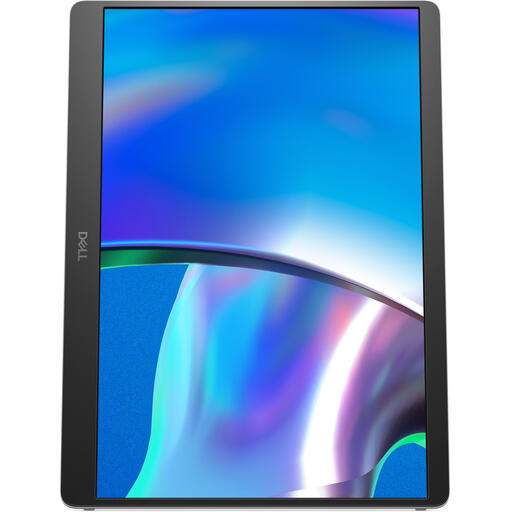
The 16-inch diagonal may suit you if you want a larger physical view of your map and have room for the setup.
The product title lists an FHD IPS screen with 144 Hz, a 16:10 aspect ratio, two USB-C ports, mini-HDMI and a built-in kickstand. Check whether your laptop’s USB-C port supports video.
 No image available
This model may suit you if you’re looking for a larger second screen and an adjustable setup.
The product information lists a 16-inch IPS screen with 1920 × 1200 pixels, two USB-C ports with DisplayPort Alt Mode and up to 65 W USB Power Delivery. The stand is adjustable, but has limited height adjustment; a protective sleeve is also listed.
 No image available
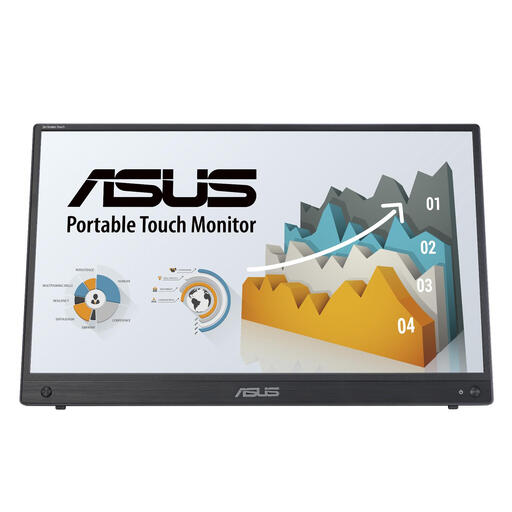
Touch controls may be useful if you want to tap or annotate the map directly on the second screen.
The product title lists a 15.6-inch Full HD touchscreen with 1920 × 1080 pixels. The product information lists HDMI, USB-C and a monitor stand; check compatibility with your laptop and software.
 No image available
The 14-inch size may suit a desk where space is at a premium.
The product information lists an IPS screen with 1920 × 1200 pixels, USB-C for video and power, and an adjustable stand. A protective sleeve is also mentioned.
 No image available
The 14-inch size and built-in kickstand may suit a smaller workspace.
The product information lists an IPS screen with 1920 × 1080 pixels and a weight of 600 g. The title lists two USB-C ports, mini-HDMI and built-in speakers; check the video signals required by your laptop.
Not necessarily. Check the video and power requirements of the specific screen against your laptop’s port specifications. Lenovo lists USB-C with DP 1.2 Alt Mode and PD 2.0 for the ThinkVision M14; Verbatim lists USB-C with DisplayPort Alt Mode for the LIGHT Series 32401.
Yes, if the connections on both devices are compatible and you can also provide power. Verbatim lists mini-HDMI for the LIGHT Series 32401 and states that HDMI use requires power, so check the video cable and power connection separately.
Disconnect it and store the screen, stand and cables in a way that avoids putting pressure on the panel. Follow the instructions for your model when cleaning it; Verbatim lists a protective sleeve as included with the LIGHT Series 32401.
According to ACM ConsuWijzer, most standard online purchases have a statutory cooling-off period of up to 14 days after delivery, although exceptions may apply. You’re also entitled to a product that is fit for purpose: according to the Dutch government, the seller must provide a solution if a product is faulty. The Netherlands has no fixed statutory warranty period.