Start with your setup: position the screen so that window light doesn’t fall directly on the panel, then choose an anti-glare model with suitable brightness, resolution and connections. A higher stated brightness doesn’t guarantee readability in direct sunlight. For small map labels or annotations, resolution or touch control may matter more.
Who is this choice relevant to?
Map reader beside a bright window
You regularly look at a digital neighbourhood map at a bright table and want to read street names without distracting reflections. Your setup and lighting matter just as much as the panel specifications. Arboportaal advises on the viewing direction in relation to the window; ASUS and HP describe their anti-glare screens in their product specifications.
Detail spotter and map annotator
You zoom in on small labels or make notes on the map. Resolution, scaling settings and, potentially, touch control are all worth considering. Lenovo lists a resolution of 2240 × 1400 pixels and 10-point touch control for the ThinkVision M14t Gen 2.
User with changing devices or workspaces
You move your setup around or connect different devices. Check that your device can output video through the connection you choose and that the power supply is suitable. ASUS and Philips describe different connection and power options for their portable monitors.
What should you look for?
First decide whether readability in window light, map detail, a working connection or portability matters most to you.
| What to consider |
What should you check? |
Who is this important to? |
| Readability by the window |
Check whether the panel is anti-glare, compare the stated brightness using the same unit, and consider whether you can position the screen out of direct light. |
If I want to read street names beside a bright window, I focus mainly on reflections and where to put the screen. Around 36% of consumers rank readability in window light as their top priority. |
| Small map labels |
Compare the screen size and resolution, check the text scaling you need, and consider whether you want to annotate the map directly. |
If you want to view small labels or make notes on the map, focus on detail and ease of use. Around 29% of consumers put map detail first. |
| Video and power |
Check whether your device’s USB-C port supports video via DisplayPort Alternate Mode and whether the cable, power supply or HDMI connection is suitable. |
If I want to connect different devices, I want to know in advance whether they can send video to the monitor and how the screen is powered. A working connection is the main priority for around 21% of consumers. |
| Portability and working on the move |
Consider how the screen is supported, what power is available and the conditions under which any stated battery life applies. |
If you move your monitor often or work without a fixed power supply, consider the practical setup and whether it has a battery. Around 14% of consumers prioritise portability. |
Common buying mistakes
-
Assuming a high brightness figure will prevent window reflections
A stated brightness describes the panel, not the angle at which sunlight enters your room. Even an anti-glare screen doesn’t guarantee readability in direct sunlight.
Compare the stated brightness and screen surface, but first see whether you can reposition the screen or use a window blind.
-
Assuming USB-C always carries both video and power
Video over USB-C may depend on whether the connected device supports DisplayPort Alternate Mode. The connection alone doesn’t confirm that it does.
Check the specifications of your device and monitor, and look at the power requirements too. A suitable HDMI input may be an alternative if your device supports that connection.
-
Confusing more pixels with larger street names
A higher resolution on a 14-inch screen doesn’t automatically make text physically larger. Screen size and the map or system scaling you use also play a part.
View the map at the screen size you intend to use and check the zoom and scaling settings.
Brands to consider
ASUS
According to ASUS, the ZenScreen MB16FC combines a 16-inch anti-glare screen with 1920 × 1200 pixels and USB-C plus mini-HDMI. The ZenScreen Go MB16AHP is a different model, with a built-in battery.
- ASUS lists a typical brightness of 350 cd/m² for the MB16FC.
- The stated battery life of the MB16AHP depends on usage conditions. The specifications for these models don’t automatically apply to other ZenScreen versions.
HP
The HP E14 G4 is a 14-inch portable monitor. HP lists an anti-glare panel, Full HD and USB-C.
- HP gives this model a brightness of 400 nits.
- The brightness specification isn’t an independent test in direct light from a window. Check whether your device provides the required video signal via USB-C.
Lenovo
The ThinkVision M14t Gen 2 is designed for map detail and annotation. Lenovo lists a 14-inch screen, 2240 × 1400 pixels and 10-point touch control.
- The resolution and touch control are useful specifications if you want to view small map labels or work directly on the screen.
- Lenovo lists 300 nits. Check that your device supports the touch function and connection you need; the features of this model don’t automatically apply to other ThinkVision screens.
Philips
According to Philips, the 16B1P3302D/00 Business Monitor has a 15.6-inch Full HD screen, two USB-C ports and a tilting stand.
- Two USB-C ports give you an extra connection option for a suitable setup.
- Philips requires a source device with DP Alt Mode for video over USB-C. The stated features don’t establish how the screen performs in strong direct sunlight.
Portable monitors at Joybuy
These portable monitors are designed for viewing maps on a screen you can move around. Compare the stated screen size, resolution and connections for each model, and check that the screen suits your workspace.
 No image available
TECLAST V16H 16-inch portable monitor
A portable screen for viewing maps, with several listed connections.
16 inches; FHD IPS; 16:10 aspect ratio; two USB-C ports and mini-HDMI.
View at Joybuy
 No image available
TECLAST V16Q portable 2.5K monitor
An option for viewing map details on a portable screen.
2.5K IPS; 16:10 aspect ratio; two USB-C ports and mini-HDMI.
View at Joybuy
 No image available
UPERFECT 15.6-inch touchscreen monitor
A portable touchscreen for anyone who wants to interact with the map directly.
15.6 inches; Full HD (1080p); USB-C and mini-HDMI.
Check that your device can output video through the connection you choose.
View at Joybuy
 No image available
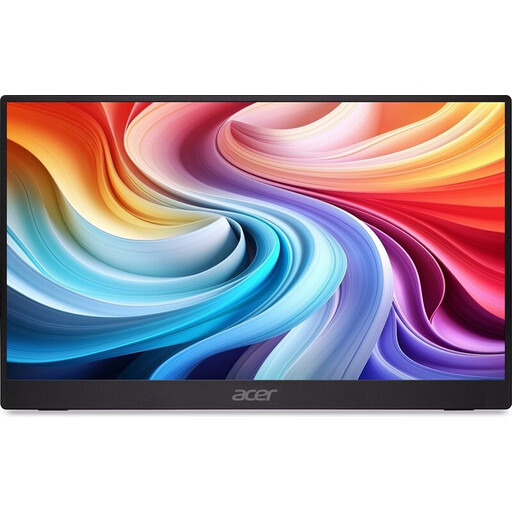
Acer PM161QB1 portable monitor
A 15.6-inch portable screen for viewing a map on a monitor you can move around.
15.6 inches; 60 Hz.
The charger isn’t included and must be purchased separately.
View at Joybuy
 No image available
UPERFECT 16-inch 2K monitor
An option for combining map detail with a portable screen.
2560 × 1600 pixels; 16:10 aspect ratio; QLED; mini-HDMI and Type-C.
The product specifications list 450 nits and an anti-glare panel; these features don’t guarantee readability in direct sunlight.
View at Joybuy
Frequently asked questions
Can an anti-glare screen deal with direct sunlight by a window?
Not reliably. Arboportaal advises changing your viewing direction in relation to the window or using a blind if you’re experiencing reflections. A manufacturer’s claim that a panel is anti-glare doesn’t replace checking it in your workspace.
Does every USB-C port on your laptop send video to a portable monitor?
No. Check whether your device’s USB-C port supports video via DisplayPort Alternate Mode. Philips lists this support as a requirement for video over USB-C on the 16B1P3302D/00; also check the power requirements of the monitor you choose.
How should you position a portable monitor to view a neighbourhood map?
Try a position and viewing direction that keep window light from falling directly on the screen. Arboportaal highlights a viewing direction parallel to the window and suitable blinds as considerations when working with a screen.
Is the stated battery life of a portable monitor guaranteed?
No. Stated battery life can depend on usage conditions. ASUS lists up to four hours for the ZenScreen Go MB16AHP, based on use in DP Alt Mode with brightness set to 100%; battery life may therefore vary with a different setup.
What cooling-off period and warranty apply to an online purchase in the Netherlands?
For an online purchase from a business, you’ll often have a 14-day cooling-off period, according to the Rijksoverheid. This is separate from your statutory rights if a product doesn’t do what you could reasonably expect under normal use; ACM ConsuWijzer explains that the seller is responsible for providing a solution in that case.


