
Reader with a crowded desk
You want to keep a digital manual open next to your equipment, but have little room for the screen and stand. Lenovo Netherlands and Arboportaal outline considerations around screen space and setting up your workstation.


On a small desk, a portable monitor is a practical choice if the screen, stand and cables all fit within the space available. Then consider whether you need more room for documents, a compatible video connection or a more adjustable viewing position. A high resolution or USB-C connection alone won’t tell you whether your PDF will be easy to read or whether one cable will be enough.
You want to keep a digital manual open next to your equipment, but have little room for the screen and stand. Lenovo Netherlands and Arboportaal outline considerations around screen space and setting up your workstation.
Before buying, you want to check whether your laptop or other source device can send a picture to the extra screen and power your chosen setup. ASUS and Philips Netherlands describe model-specific connection requirements.
You switch between small text, tables and drawings, and want to weigh screen space and magnification against the room the screen takes up. For the ThinkVision M14t Gen 2, Lenovo Netherlands specifies a 16:10 aspect ratio and 2240 × 1400 pixels.
| Consideration | What to look for | Who should bear this in mind? |
|---|---|---|
| Space on a small desk | Measure the available width and depth, including the stand when unfolded and the cables. | If I use equipment and possibly a laptop on the same small desk, I want to know whether the stand will fit too. Available desk space is the top priority for around 29% of consumers. |
| Video connection and power | Check the exact source port, monitor connection, cable and power requirements. | I want to know in advance whether my source device can output video and power my chosen setup. Around 29% of consumers prioritise a working connection and suitable power supply. |
| Text, tables and diagrams | Compare screen size, resolution and aspect ratio; if possible, try a representative PDF at the magnification you want to use. | When I need to read small text and diagrams, I want to see how they appear at my preferred magnification. Document detail is the top priority for around 24% of consumers. |
| Viewing position during prolonged use | See how the screen can be tilted or positioned in other ways, and assess your whole workstation. | If I often or for long periods refer to manuals, I want to be able to adjust my screen position properly. An adjustable working posture is the top priority for around 18% of consumers. |
A USB-C connector alone doesn’t confirm that the source port outputs video or can power the monitor in your chosen setup. For video over USB-C on the 16B1P3302/01, Philips requires support for DP Alt Mode.
Check the source port, monitor port, cable and power supply as one complete setup. If you’re considering a different connection method, check the requirements for that specific setup too.
The stand and space for cables also affect how much room the complete setup takes up.
Measure the available width and depth with the screen in the position you plan to use. Also check whether an alternative placement, such as a suitable tripod setup, will work with your desk.
Resolution alone doesn’t tell you how large text in your PDF will appear with your screen size, viewing distance and magnification.
Compare these features together and, if possible, try a manual with small text and diagrams at your preferred magnification.
The Dutch government distinguishes between an additional warranty and the rights you have if a product is faulty or doesn’t meet expectations. According to the Dutch government, there is no fixed statutory warranty period for all products in the Netherlands.
Check what additional rights a warranty actually provides. If there’s a fault, contact the seller.
The features mentioned apply to the specific models below; they aren’t recommendations for every product from these brands.
The ZenScreen MB16AHV is a 15.6-inch portable screen with a fold-out stand, USB-C and mini-HDMI.
The ThinkVision M14t Gen 2 is a 14-inch option with a 16:10 aspect ratio and touch controls.
The Business Monitor 16B1P3302/01 is a 15.6-inch alternative with a tilt-adjustable stand and a DisplayLink connection option described by Philips.
The TD1655 is a portable touchscreen monitor for anyone who also wants to operate the second screen directly.
The E14 G4 is a 14-inch portable monitor with a stand and USB-C connection.
These portable monitors are options to compare when reading manuals in a limited workspace. Measure the space needed for the screen, stand and cables, and check which video connections your source device supports.
 Image unavailable
Worth considering if you have room for a 16-inch screen; also measure the space taken up by the stand and cables.
The product name lists 144 Hz, FHD, IPS, 16:10, FreeSync, HDR, two USB-C connections and mini-HDMI. The product description mentions an adjustable stand.
 Image unavailable
A 14-inch option to compare if you want to place a smaller screen next to your equipment.
The product name lists 1920 × 1200 pixels, a 16:10 aspect ratio, IPS, Type-C and mini-HDMI. The product description also mentions a protective case. Check that your source device supports video and power for your chosen USB-C setup.
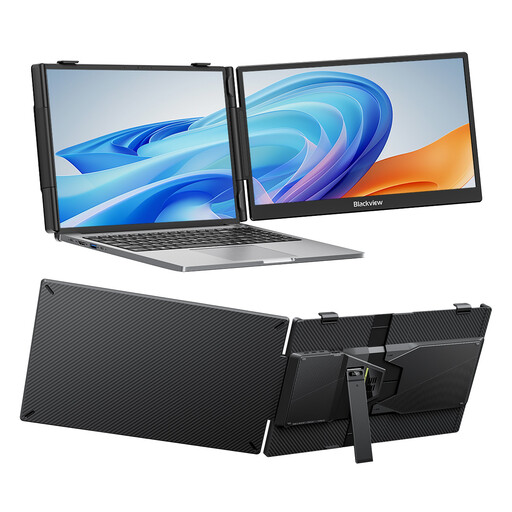 Image unavailable
Worth comparing if you’re looking for a 14-inch screen and need the stand to fit within your available desk space too.
The product information lists FHD, IPS, an adjustable stand and compatibility with laptops from 13 to 17.3 inches. It specifies a minimum distance of 15 cm from medical implants; please bear this warning in mind.
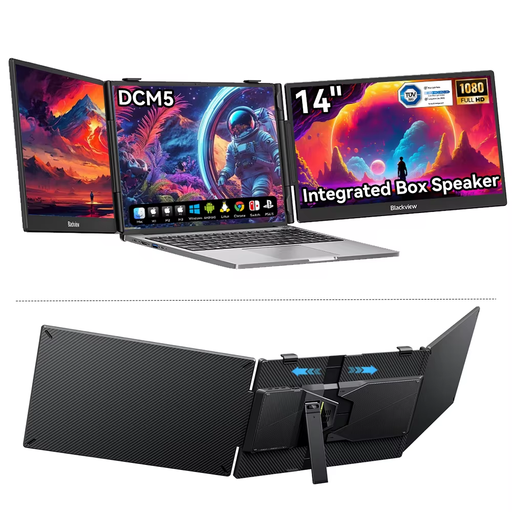 Image unavailable
A 14-inch option to consider if you want to use the monitor alongside a laptop; check the connections and the space needed for the stand.
The product information lists an IPS LCD screen with a 16:9 aspect ratio and compatibility with Windows and Mac laptops and mobile devices. It specifies a minimum distance of 15 cm from medical implants; please bear this warning in mind.
 Image unavailable
Worth considering if a 14-inch screen with a built-in stand suits the space available on your desk.
The product name lists FHD 1080p, IPS, two USB-C connections and mini-HDMI. The product description mentions a built-in stand and included cables.
No. Check whether your source device’s port outputs video and whether your chosen setup provides enough power. For video over USB-C on the 16B1P3302/01, Philips specifies DP Alt Mode as a requirement.
Not always. For the ZenScreen MB16AHV, ASUS lists a tripod socket as well as a fold-out stand. Check that a suitable mount and the space it needs work with your setup.
Assess your whole workstation and, wherever possible, prioritise a viewing position you can adjust properly. Arboportaal’s information on working with display screens is about healthy working practices and, where legal duties are discussed, employers; it doesn’t prescribe a specific monitor model for individual buyers.
According to the Dutch government, in many cases you have 14 days to change your mind when buying remotely from a business. If a product doesn’t meet expectations, you can assert your statutory rights with the seller. The Dutch government states that there is no fixed statutory warranty period for all products in the Netherlands.