Choose a monitor with its own battery if you don’t have access to a power socket on site and want to save your laptop’s battery. A monitor powered by your laptop via USB-C may be suitable if the specific laptop port supports video and you can spare the power; also check the connections, reading space and setup.
Who is a portable monitor for manuals suitable for?
Tradesperson without access to a power socket
Reads manuals on site and wants to know whether the extra screen has its own battery or draws power from the laptop. ASUS describes the ZenScreen MB16AHP as a model with a built-in battery; check the power requirements of the model you choose.
Laptop user with digital manuals
Wants to connect a second screen and needs to check whether the laptop’s specific USB-C port outputs video. Lenovo lists DisplayPort over USB-C for the ThinkVision M14t Gen 2; this doesn’t automatically apply to other laptops.
Reader of diagrams and long pages
Wants to display text and diagrams clearly and position the screen at a suitable angle. Lenovo lists an adjustable stand and a 16:10 aspect ratio for the ThinkVision M14t Gen 2.
What should you look for in a portable monitor without access to a power socket?
Start by checking the power supply, then make sure the video connection, reading space and portability suit the way you work.
Monitor with a built-in battery
Choose this if: you regularly work without access to a power socket and don’t want to use your laptop battery to power the screen.
Bear in mind: the screen’s battery needs charging; battery capacity alone doesn’t tell you how long your complete setup will run.
Monitor powered via USB-C
Choose this if: your laptop can output video through the right USB-C port and you can also use its battery to power the screen.
Bear in mind: powering the monitor from your laptop uses the laptop’s battery, and not every USB-C port supports video.
Monitor with USB-C and HDMI
Choose this if: you also want to connect a source device with a compatible HDMI video output; according to ASUS, the ZenScreen MB16AHV has USB-C and mini-HDMI.
Bear in mind: HDMI handles the video connection, but it doesn’t determine how the monitor is powered; check the required power supply and cables separately.
| What to consider |
What to look for |
Who is this important for? |
| Power without a power socket |
Check whether the model has a built-in battery or needs power from another device, and consider the power requirements of your entire setup. |
When I’m working on site, I want to know where the screen gets its power from; around 36% of consumers rank power supply as their top purchasing priority. |
| A working video connection |
Check that the exact laptop port supports video output, then match the screen’s video input, cable and power supply accordingly. |
When I connect my laptop to a second screen, I want to know in advance that they’ll work together; around 29% of consumers prioritise compatibility. |
| Reading space and screen position |
Compare dimensions, aspect ratio, resolution and anti-glare properties; also check that you can position the screen as you want. |
When I’m looking at long pages, tables or diagrams, I want to be able to view them comfortably; around 21% of consumers give reading space top priority. |
| Carrying and positioning |
Compare the weight of the complete setup and check that the stand suits the place where you work. |
When I take the screen to different workspaces, I want it to fit in my bag and be practical to use there; around 14% of consumers focus mainly on portability. |
Common mistakes when choosing a portable monitor
-
Assuming every USB-C port outputs video
USB-C also refers to the connector shape; your laptop must support video through that specific port.
Check the specifications for the exact laptop port before choosing a USB-C monitor.
If the connection isn’t compatible with your source device, you may need a different cable or connection method.
-
Confusing a battery with power pass-through
A screen with a built-in battery and one that draws power from a laptop via USB-C use different power solutions.
Check whether the model you choose stores power itself or needs a laptop or another power source while in use.
At a location without a power socket, you may need an extra power source if the screen doesn’t have its own battery.
-
Comparing only the screen’s weight
For some models, the listed weight of the screen alone differs from the weight of the screen with its stand.
Compare the weight and dimensions of the complete setup you plan to carry.
Relevant brands to compare
ASUS
ZenScreen models offer different combinations of power options and connections.
- ASUS lists a built-in 7800 mAh battery and a weight of 0.86 kg for the MB16AHP. According to ASUS, the MB16AHV has USB-C and mini-HDMI.
- Don’t assume other models have the same battery; check the power requirements and cables for each version.
Lenovo
The ThinkVision M14t Gen 2 is a 14-inch monitor for documents, provided your source device outputs compatible video via USB-C.
- Lenovo lists a resolution of 2240 × 1400, a 16:10 aspect ratio, an adjustable stand and a weight of 700 g.
- USB-C power pass-through doesn’t mean the screen has a built-in battery; also check your laptop’s video output.
Philips
According to Philips, the Business Monitor 16B1P3302D/00 is designed for a portable work setup with dual USB-C functionality.
- Philips lists dual USB-C functionality for the monitor.
- That feature alone doesn’t confirm that your source device is compatible or that the monitor runs independently on a battery.
Acer
The PM161Q B is a 15.6-inch Full HD monitor worth comparing for its screen area.
- For this version, Acer lists an anti-glare surface and a screen weight of around 670 g.
- With the stand, Acer lists a weight of around 1.09 kg; these specifications apply to the version named.
HP
The E14 G4 is a 14-inch USB-C option for anyone looking for a second screen for their laptop.
- HP lists a single USB-C cable connection and an anti-glare screen with 400 nits of brightness.
- These are HP’s specifications, not an independent readability test or proof of compatibility with every laptop.
Portable monitors for manuals on Joybuy
This selection includes portable monitors for viewing manuals from a connected device, with USB-C and mini-HDMI versions. For the specific product, check the applicable CE marking and WEEE marking, the crossed-out wheeled bin symbol.
 No image available
Blackview DCM6 PRO 14-inch Full HD monitor
A second screen for digital manuals available on a connected laptop.
The product name specifies a 14-inch Full HD monitor and compatibility with 13–17.3-inch laptops; the description mentions USB-C.
Joybuy
 No image available
TECLAST V16H 16-inch Full HD monitor
The 16:10 aspect ratio and built-in stand may suit long pages you want to view on site.
The product name specifies Full HD, 16:10, USB-C and mini-HDMI; check which connections and power supply your source device and screen require.
Joybuy
 No image available
TECLAST V16Q 2.5K 16:10 monitor
The stated 16:10 aspect ratio and stand may be useful if you want to position the screen to view diagrams.
The product name specifies 2.5K, USB-C, mini-HDMI and a kickstand; check the required power supply and video connection.
Joybuy
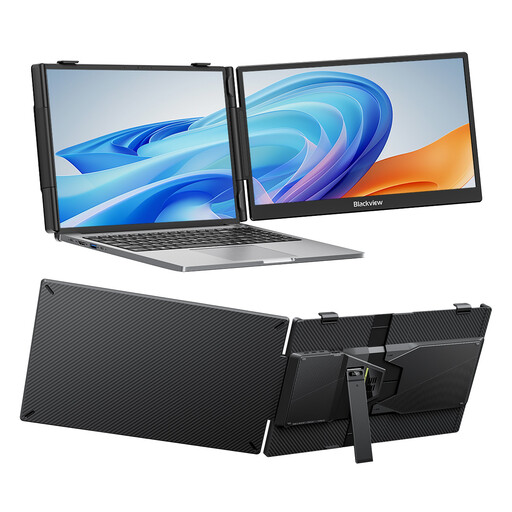 No image available
Blackview SCM5 14-inch Full HD IPS monitor
An adjustable stand can be useful if you want to set up the monitor on site to view a manual.
The product name specifies a 14-inch Full HD IPS screen and compatibility with 13–17.3-inch laptops.
Joybuy
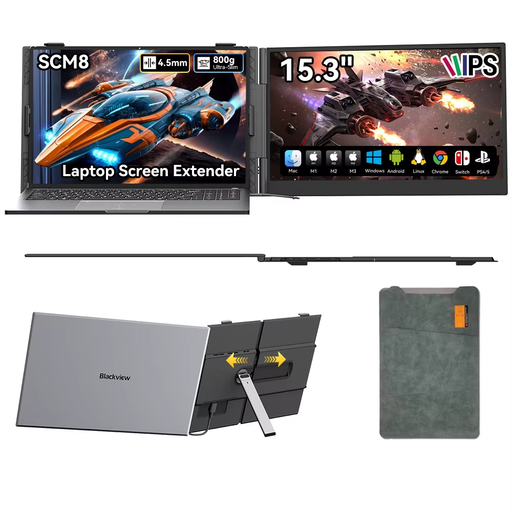 No image available
Blackview SCM8 15.3-inch USB-C monitor
An adjustable stand is useful if you want to consult digital manuals at a fixed workstation.
The product name specifies USB-C, a stand that adjusts through 180° and a protective case; check the video and power compatibility of your setup.
Joybuy
Frequently asked questions
Is a USB-C connection on my laptop enough?
No, not on its own. Check the laptop specifications to see whether the relevant USB-C port supports video, and make sure the cable and power supply are also compatible with the monitor.
Can a portable monitor open a PDF manual by itself?
No, the portable monitors described display content from a connected device. Make sure the manual is available on that source device.
What should I do if my monitor develops a fault after purchase?
For a consumer purchase in the Netherlands, the product must conform to the contract. According to the Dutch government, you should contact the seller if there’s a problem; a manufacturer’s guarantee doesn’t replace your statutory rights.
Which markings are relevant for a monitor on the Dutch market?
For products covered by applicable EU rules, the CE marking is the manufacturer’s declaration of conformity, not a certificate from a central EU body. The European Union also explicitly lists monitors in relation to the WEEE marking, the crossed-out wheeled bin symbol; check the applicable markings on the specific product.


