
Laptop users watching live streams
You want to keep the live stream visible alongside appointments or other windows. First, check whether your laptop can send video to an external screen through the port you plan to use.


First, check whether your laptop, phone or other streaming source can send video to the monitor through its input. A USB-C connector alone doesn’t guarantee a video signal, while HDMI may be an alternative if both devices have the right connections. Then choose according to where you’ll watch and how you’ll power the screen: a monitor with a battery can be useful when there’s no mains socket, while a compact single screen is easier to carry. A higher stated brightness may also be useful in a bright workspace. The features mentioned are manufacturer specifications, not the results of a practical live-streaming test.
You want to keep the live stream visible alongside appointments or other windows. First, check whether your laptop can send video to an external screen through the port you plan to use.
You’re waiting between customer visits at different locations and want to know whether the monitor can power itself, or whether you’ll still need to rely on your laptop or another power source.
You carry the screen around regularly and need to balance the space it takes up in your bag and how easy it is to set up against the screen space you need to watch a stream alongside other information.
Start by checking the video output on your streaming source. Then work out how the screen will be powered, and compare its size and stated brightness with where you’ll be watching.
| What to consider | What should you look for? | Who is this important for? |
|---|---|---|
| Connection to your streaming source | Check whether the source supports USB-C video using the required mode, or has a compatible HDMI output. Also check the monitor’s input and which cable you’ll need. | If you want to watch the stream on your existing laptop or phone, first make sure it can send an image to the monitor. Around 33% of consumers weighing up these options give connectivity the highest priority. |
| Power between appointments | Check whether the monitor has a battery and how both the monitor and streaming source are powered. If a battery life is stated, check the conditions under which it was measured. | If you can’t always rely on a mains socket, you’ll want to know how long the monitor works without external power and whether your source will stay charged too. For around 27% of consumers, power is the main priority. |
| Screen visibility where you’ll watch | Compare the stated brightness and screen area of the exact model. Consider whether you’ll mainly watch indoors, by a window or outside. | If you need to follow a live stream in a bright workspace, brightness and screen area will affect your choice. Around 20% of consumers in this comparison put screen visibility first. |
| Portability and set-up | Compare the size and stated weight, and check whether the stand or case is designed to prop up the screen. Only choose a larger screen if you’ll make use of the extra space. | If you often carry the monitor between locations, you’ll want to weigh the extra screen space against the room it takes up in your bag and how easy it is to set up. Around 20% of consumers give portability the highest priority. |
USB-C describes the connector, but the source also needs to support the video mode required by the monitor.
Look up the video specifications for the exact port and compare them with the monitor’s required input.
The monitor’s battery life doesn’t tell you how long your laptop or phone, or your internet connection, will remain available.
Plan how to power both the screen and the streaming source, and check the connection at the places where you want to watch. ASUS states that the ZenScreen Go MB16AHP can provide up to four hours of power under the test conditions specified by ASUS.
For a purchase by a consumer in the Netherlands, statutory rights apply alongside any commercial warranty offered by the retailer or manufacturer.
Check what any additional warranty offer covers, and remember your statutory rights. ACM ConsuWijzer notes that the retailer is responsible for the statutory warranty.
ZenScreen models offer a range of set-ups: the MB16AHV has USB-C and mini-HDMI, the Go MB16AHP has a battery, and the Duo MB14FCD has two panels.
According to Lenovo, the ThinkVision M14t Gen 2 is a portable 14-inch 16:10 screen with a resolution of 2240 × 1400 and touch controls.
Dell describes the Pro 14 Plus P1425 as a portable 14-inch 16:10 screen for a compact set-up alongside a laptop.
HP lists the E14 G4 as having a 14-inch screen with a USB-C connection, a stated brightness of 400 nits and an anti-glare surface.
According to AOC, the AOC 16T20E2 has a 15.6-inch Full HD screen with USB-C DisplayPort Alt Mode and mini-HDMI.
These portable monitors are designed to work with a streaming source such as a laptop or another device with a compatible video output. Check the connection and power requirements for each model to make sure they suit your set-up.
 No image available
For anyone who wants to watch a live stream alongside other laptop windows, with extra screen space.
Full HD; listed as compatible with laptops from 13–17,3 inches. This stated compatibility applies to those laptop sizes.
 No image available
A 16-inch 16:10 screen could be a good fit if you want to watch a live stream alongside other information.
Full HD IPS, 144Hz, USB-C and mini-HDMI; the product title also mentions a built-in stand. Check that your source’s video output is compatible with the connection you choose.
 No image available
For anyone who wants to watch a live stream using a compatible external video source and is looking for a 16:10 screen.
2.5K IPS, 144Hz and 16:10; the product listing mentions USB-C for video, mini-HDMI and a stand. Check your source’s video function and the power required.
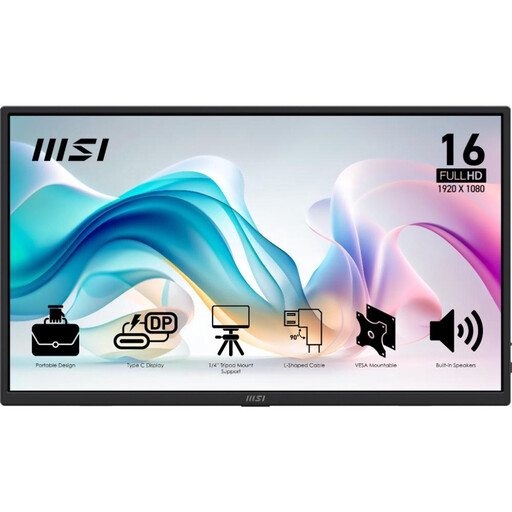 No image available
An option for watching a live stream on a portable screen when your source has a compatible USB-C video or HDMI output.
Full HD; the product information lists USB-C with DisplayPort Alt Mode, HDMI, a weight of 0,78 kg and a stand that tilts up to 90°.
 No image available
Suited to a set-up where you want to watch a live stream from a laptop or another compatible source and use a built-in stand.
2.5K IPS, 2560 × 1600; the product information lists USB-C, HDMI, a built-in stand and a weight of 810 g. Check that the connections are compatible with your streaming source.
For the monitors mentioned, assume you’ll need an existing streaming source to provide the video, such as a compatible laptop or a device with HDMI video output. The connections show how video can be sent to the monitor; they don’t mean it has its own streaming app or internet connection.
No. The source needs to support the video mode required by the monitor you choose. Check the specifications for the exact port. For example, ASUS lists USB-C DisplayPort Alternate Mode for the MB16AHP, which requires a compatible source.
Place the monitor on a stable surface using the stand or case designed for that model, connect the right video cable and arrange the required power supply. AOC describes the 16T20E2 as having a folding case that doubles as a stand. When you buy, check which accessories are included with the exact version.
For a consumer purchase in the Netherlands, statutory warranty applies alongside any commercial warranty. According to ACM ConsuWijzer, the retailer is responsible. Different contract terms may apply to business purchases, so check these separately.
According to ACM ConsuWijzer, online consumer purchases generally come with a cooling-off period of up to 14 days after delivery, subject to exceptions that you should check for your order. Don’t assume the same applies to business purchases. The Dutch government states that electronic devices on the EU market must have a CE marking. That marking alone doesn’t confirm that your streaming source and monitor are compatible.