What should you look for when choosing one?
Start by checking your laptop’s ports and power supply. Then decide how many documents you need to see at once, and finally make sure the monitor will fit in your bag and workspace.
| Consideration |
What should you check? |
Who is this most important for? |
| Video connection and power |
Check your laptop’s video output and the power requirements of the monitor and cable. For example, USB-C video on the Philips 16B1P3302D/00 requires DP Alt Mode on the laptop. |
If I want to get started straight away at the library, my laptop needs to be able to provide the monitor with both a picture and power. Around 36% of consumers prioritise a working connection and power supply. |
| Room for documents |
Decide whether one additional panel is enough or whether you want to view several documents at once; then compare the dimensions and resolution of the exact models you’re considering. |
If I want to refer to my application, grant rules and budget side by side, I focus on the screen layout and available viewing space. Around 29% of consumers put being able to view documents simultaneously first. |
| Portability and table space |
Compare the overall dimensions, including the stand and case, with your bag and the space available on the table. The screen diagonal alone doesn’t tell you how much room the set-up will take. |
If I’m taking my laptop and monitor to a small study table, I want to make sure the complete set-up will fit. Around 21% of consumers prioritise portability and table space. |
| Power without a socket |
Check whether the monitor has its own battery, the conditions under which the stated battery life applies, and how you can recharge it. |
If I don’t want to rely on a power socket, I look for a power option that will suit my session. Around 14% of consumers prioritise a monitor with its own battery. |
Portable monitors on Joybuy
This selection includes portable monitors and laptop screen extenders that give you extra space for writing and referring to documents. For each model, check that the connections and power requirements are compatible with your laptop.
 No image available
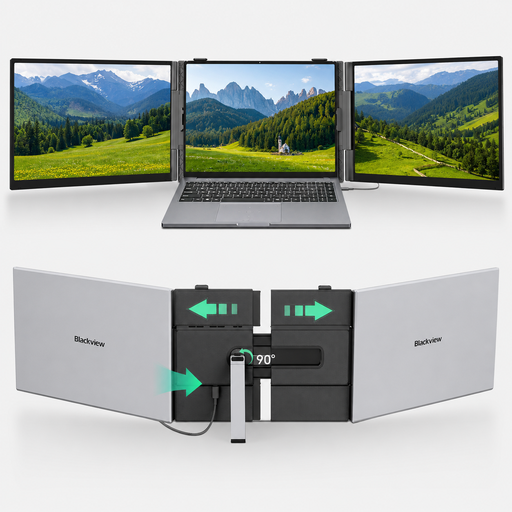
Blackview DCM6 PRO 14-inch dual-screen laptop extender
The dual-screen set-up could suit anyone who wants to view application text and source documents side by side.
The product name lists a 14-inch Full HD display and compatibility with laptops from 13–17.3 inches.
View on Joybuy
 No image available
Blackview DCM8 Pro 15.3-inch dual-screen monitor
This larger dual-screen model could be a good option if you want extra workspace and have enough room for the set-up.
The product name lists a 15.3-inch Full HD display, USB-C and a weight of 1.2 kg.
View on Joybuy
 No image available
TECLAST V16H 16-inch portable monitor
The 16-inch size could suit anyone who wants a larger extra screen and has enough table space for it.
The product name lists an IPS panel, Full HD, 16:10, 144 Hz, two USB-C ports, mini-HDMI and a built-in stand.
View on Joybuy
 No image available
PM14R 14-inch portable monitor
A 14-inch model could suit anyone looking for a compact extra screen for an application and its attachments.
The product name lists IPS, 1920 × 1200 pixels, 16:10, Type-C and mini-HDMI.
View on Joybuy
 No image available
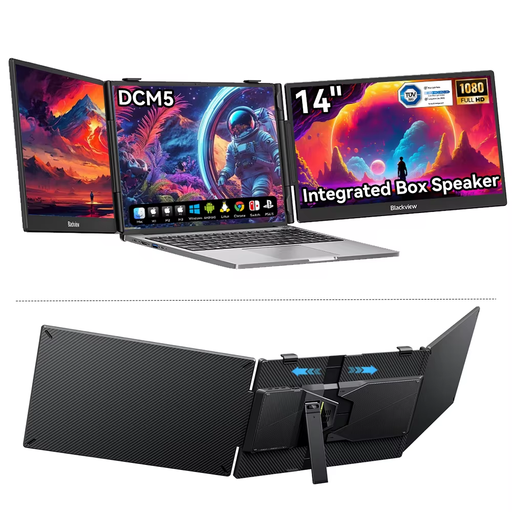
Blackview DCM5 14-inch laptop monitor
This compact single-screen model could suit anyone who wants one extra document window and a space-saving set-up.
The product name lists a 14-inch screen and compatibility with laptops from 13 to 17 inches. The product description mentions an IPS panel and a 16:9 aspect ratio.
View on Joybuy
Frequently asked questions
Will any USB-C port on a laptop work with a portable monitor?
No. Check that the port supports video output. Philips requires USB-C with DP Alt Mode for video on the Philips 16B1P3302D/00; USB-C power requirements also apply for power or charging. Check your laptop manual and the specifications for the exact monitor.
How can I keep a monitor with its own battery going during a long writing session?
Charge the monitor beforehand and plan an alternative power option if needed. ASUS lists up to four hours of screen power for the MB16AHP when using DP Alt Mode at 100% brightness. This is a manufacturer’s figure under those conditions, not a guaranteed duration for your session.
Where can I set up and connect my monitor in the library?
This varies by branch and workspace. OBA lists workspaces without computers, and Utrecht Library publishes its own house rules. This information doesn’t guarantee that your particular space will have a power socket or room for your set-up. If in doubt, check with the branch.
Do I need to change any settings after connecting the monitor?
Choose your preferred screen layout on your laptop, such as extending rather than mirroring the display, and check the text scaling and orientation before you start. ASUS says the MB16AHV supports automatic rotation through DisplayWidget Center; don’t assume this will work on every device without the relevant software.
What are my rights if the monitor arrives damaged or doesn’t work properly?
If you buy as a consumer in the Netherlands, you’re entitled to a product that meets the terms of the agreement. According to the Dutch government, there’s no fixed statutory guarantee period. If a product is faulty, the retailer is your point of contact, and a manufacturer’s guarantee is in addition to your statutory rights. Check separately which terms apply if you’re buying on behalf of an organisation.


