
Timetable organisers working with several documents
If you want to view availability, messages and the club timetable side by side, look for a screen layout that suits the windows you keep open while working.


First, check that your laptop can send a video signal to the exact monitor model you’re considering; a USB-C connector alone doesn’t guarantee this. Then choose a screen with enough space for your timetable and reference materials, while still fitting on a library table and in your bag. A battery, touch controls or an extra panel is only worth considering if you really need that feature.
If you want to view availability, messages and the club timetable side by side, look for a screen layout that suits the windows you keep open while working.
If you regularly take your screen with you and use it in a limited workspace, consider both the screen’s dimensions and how much room its stand takes up.
If you want to know in advance whether your laptop can power the screen, compare its power requirements with a model that has its own battery.
First, check the video connection between your laptop and the screen. Then decide how much workspace you need and what will fit on your table and in your bag. Finally, check whether the power options suit your visits to the library.
| What to consider | What should you look for? | Who will this matter most to? |
|---|---|---|
| Laptop connection | Check that your laptop’s USB-C port supports video and matches the input on the exact screen. If you’re using HDMI, also check how the screen is powered. | If I want to use my laptop and screen without connection issues, I first check the video output and the connection required. For around 31% of consumers, a reliable connection comes first. |
| Workspace for your timetable | Compare the screen size and resolution with the number of windows you want to keep readable at once. ASUS lists the MB16AHV as 15.6 inches with a resolution of 1920 × 1080 pixels; Lenovo lists the M14t Gen 2 as 14 inches with a resolution of 2240 × 1400 pixels. | If I want to see timetable information and reference materials at the same time, I look for a layout that keeps both easy to use. Around 31% of consumers value having a clear overview while creating timetables most. |
| Taking it with you and setting it up | Check the overall dimensions, weight and how much table space the stand takes up. Lenovo lists the ThinkVision M14t Gen 2 as weighing 700 g; according to ASUS, the MB16AHV has no height adjustment. | When I regularly take the screen with me and set it up on a small table, it needs to fit both my bag and my workspace. Around 23% of consumers prioritise portability and table space. |
| Power supply | Check whether the chosen connection can power the screen or whether you’ll need a separate power source. ASUS lists a 7800 mAh battery for the MB16AHP, with up to four hours’ battery life under the stated test conditions. | If I don’t want to rely on a mains socket or my laptop’s power while working, I compare the power options and the conditions attached to the stated battery life. For around 15% of consumers, independent power is the main priority. |
USB-C ports can support different functions. Philips states that the connected device must support USB-C with DP Alt Mode for video with the 16B1P3302D/00.
Before you buy, compare your laptop’s port specifications with those of the exact screen and check which cable you’ll need. You may need a different connection or power solution.
AOC states that the automatic orientation feature on the 16T3EA requires the accompanying software; other models may also have their own requirements.
Check whether you can and want to use the required software on your laptop. Also assess the screen based on the features you actually need without additional software.
An optional extended warranty doesn’t replace your statutory right to a product that is of satisfactory quality.
Check what the extra cover includes and contact the retailer if something goes wrong.
The ZenScreen range includes single-screen models, a model with a battery and a model with two panels.
The ThinkVision M14t Gen 2 is a 14-inch portable touchscreen.
The 16B1P3302D/00 is a 15.6-inch portable screen with two USB-C connections and an adjustable stand.
The 16T3EA is a 15.6-inch portable Full HD screen with USB-C power and an integrated stand.
The E14 G4 is a 14-inch portable Full HD screen with USB-C and an anti-glare finish.
This selection focuses on portable single-screen monitors for anyone who wants to view a club timetable alongside reference materials. Check each model’s connection, any software requirements and how much space the screen takes up.
 No image available
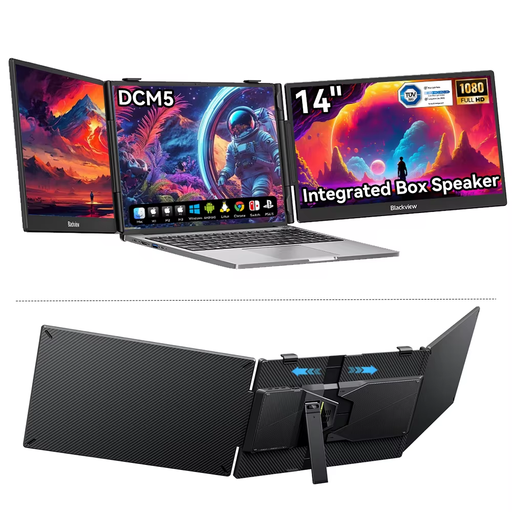
A 14-inch screen for anyone who wants to use a portable second screen alongside a laptop.
IPS LCD; 16:9 aspect ratio. The product title states that it is compatible with 13 to 17-inch laptops.
The safety instructions specify a minimum distance of 15 cm from medical implants.
 No image available
A portable Full HD screen for anyone who wants to view a timetable and reference materials side by side.
15.6 inches; 1920 × 1080 pixels; Full HD LCD.
The product description mentions DisplayWidget Center software for setting the screen orientation.
 No image available
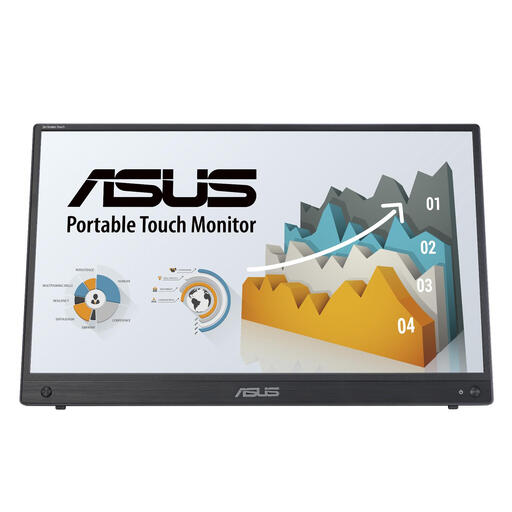
A portable touchscreen for anyone who wants to interact directly with their timetable on a second screen.
15.6 inches; 1920 × 1080 pixels; Full HD.
 No image available
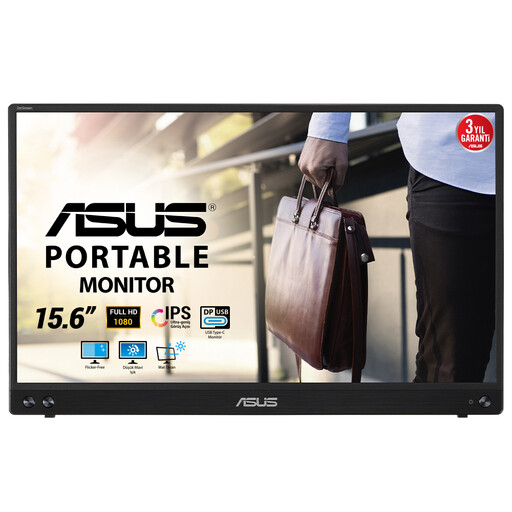
A portable Full HD screen for anyone who wants a second workspace while creating timetables.
15.6 inches; 1920 × 1080 pixels; Full HD LED.
The product description states that a USB-A connection requires a driver.
 No image available
A portable second screen for anyone looking for a compact model with a stand for timetable work.
14 inches; Full HD, 1080p.
The description says that video and power can be supplied through one USB-C cable when connected to a compatible device.
No. Check that your laptop’s USB-C port supports video according to the requirements of the screen you’ve chosen. Philips specifically lists DP Alt Mode for the 16B1P3302D/00; a port that only supplies power isn’t enough to transmit video.
Not always for a basic connection, but specific features may require software. AOC lists software as a requirement for the 16T3EA’s automatic orientation feature. Check the manual for the exact model and whether you can use the required software on your laptop.
Set the screen up securely and check that the stand and cables fit within the available table space. Also check that your laptop supports the display and power combination you’ve chosen; rules on using equipment may vary between libraries.
For eligible online purchases from a business, consumers generally have a 14-day cooling-off period; terms and exceptions may apply. The Dutch Government also states that there is no standard statutory warranty period for the legal right to a product that is of satisfactory quality. Contact the retailer if something is faulty.