First, choose a portable monitor with video connectivity and power requirements that work with your laptop. A USB-C port alone doesn’t guarantee video output. For long documents, a 14-inch screen with a 16:10 aspect ratio may be a good fit, while a 15.6-inch screen offers more physical space but takes up more room in your bag and on the table. Check the stand and the cables required for the exact model too: for example, Philips specifies DP Alt Mode as a requirement for video over USB-C on the 16B1P3302D/00.
Who is a portable monitor suitable for?
Readers who want to view sources and notes side by side
If you want to keep an article or textbook open alongside your own notes, consider the screen space and aspect ratio. Lenovo lists these features for the ThinkVision M14d, while Dell publishes specifications for the P1425.
Students who often move between study spaces
If you take your laptop and monitor to different spots in the library, consider the weight, bag size and how the screen will sit on the table. ASUS and Lenovo provide product specifications, including the weight and adjustability of the models mentioned.
Students who want to check their connection in advance
If you want to connect the screen to your laptop easily, check that your laptop supports video output through the port you plan to use and provides enough power. Philips specifies DP Alt Mode as a requirement for video over USB-C on the 16B1P3302D/00.
What should you look for when choosing one?
Start by making sure it connects to your laptop. Then compare the space for reading, the weight you’ll be carrying and how you can position the screen securely.
| What to consider |
What to check before buying |
Who should prioritise this? |
| Connection to your laptop |
Check whether your laptop supports video output over USB-C, for example with DP Alt Mode, and whether the connection works with the exact monitor model. Philips specifies DP Alt Mode as a requirement for video over USB-C on the 16B1P3302D/00. |
If I want to use the screen with my laptop without any hassle, I want to know in advance that the connection I choose really carries video. Around 33% of consumers give connectivity top priority. |
| Room for sources and notes |
Compare the screen size and aspect ratio with your documents and the space available on the library table. |
If I want to read a source and my notes at the same time, I’m looking for a screen layout that suits this. Around 27% of consumers put reading space at the top of their list. |
| Taking it between study spaces |
Compare the weight and dimensions, and check whether the model comes with a suitable stand and, if needed, a case. |
If I often carry the screen with my laptop, I don’t want to take more size or weight with me than my study space requires. Around 20% of consumers prioritise portability. |
| Power and positioning |
Check what power the monitor needs and whether the stand offers the viewing angle you want. |
If I’m studying at a library table, I want the screen to stay powered and stable throughout my study session. Around 20% of consumers prioritise power and positioning. |
Common mistakes when choosing
-
Assuming every USB-C port supports video output
A compatible connector doesn’t guarantee that your laptop sends video through that port. For the 16B1P3302D/00, Philips requires DP Alt Mode for video over USB-C.
Check your laptop’s video output and compare it with the connections and power requirements of the exact monitor.
-
Comparing screen size alone
Screen size on its own doesn’t tell you how much room you’ll have for documents. Lenovo lists the ThinkVision M14d as a 14-inch model with a 16:10 aspect ratio and 2240 × 1400 resolution; ASUS lists the ZenScreen MB16AHV as a 15.6-inch model with a 16:9 aspect ratio and 1920 × 1080 resolution.
For your documents, compare the aspect ratio and resolution as well as the screen size and how much space the monitor takes up.
-
Assuming every model has the same features as its brand or range
Specifications can vary between models. Lenovo describes the M14d and M14t Gen 2 as separate models; for example, touch control is available on the M14t Gen 2 mentioned here, but not necessarily on every ThinkVision screen.
Check the full model number, connections and included accessories for the exact version you’re considering.
Brands to compare
ASUS
The ZenScreen MB16AHV is a 15.6-inch option with USB-C and mini-HDMI, giving you different connection options to compare.
- ASUS lists 1920 × 1080 resolution, two USB-C ports with DP Alt Mode, mini-HDMI and a net weight of 0.9 kg.
- According to the same specifications, this model has no built-in speaker or height adjustment. Accessories may vary by region.
Lenovo
The ThinkVision M14d is designed for a compact document setup. The M14t Gen 2 is a separate model for those who want touch control.
- Lenovo lists the M14d as a 14-inch model with 2240 × 1400 resolution, a 16:10 aspect ratio and a weight of 600 g. For the M14t Gen 2, Lenovo specifies ten-point touch and a weight of 700 g.
- These features apply to the models mentioned; don’t assume they’re available on every ThinkVision screen.
Dell
The Pro 14 Plus P1425 is a 14-inch model worth comparing if you’re looking for a screen for documents.
- Dell lists 1920 × 1200 resolution, IPS and a tilting stand for the P1425.
- These specifications alone don’t confirm that your laptop can drive the screen or provide enough power.
Philips
The Business Monitor 16B1P3302D/00 is a 15.6-inch USB-C model with an adjustable stand.
- Philips lists 1920 × 1080 resolution, two USB-C ports and a stand that adjusts from 0 to 90 degrees.
- For video over USB-C, Philips requires DP Alt Mode on the connected device. Check the power options too.
HP
The E14 G4 is a 14-inch USB-C alternative to compare with other portable models.
- HP lists 1920 × 1080 resolution and USB-C for the E14 G4.
- Check whether this version is available, and base your comparison on the model specifications rather than general claims about the HP E Series.
Portable monitors at Joybuy
These portable monitors are intended for people who want to view study materials alongside content on their laptop. Compare the screen layout, connections and positioning for each model, and check in advance that your laptop can drive the monitor you choose.
 No image available
Blackview DCM6 PRO, 14 inch
The product information mentions studying; check your laptop’s connection and video output before relying on this monitor.
14 inch; Full HD, 1920 × 1080; the product title says it’s designed for laptops from 13 to 17.3 inch.
View at Joybuy
 No image available
TECLAST V16H, 16 inch
The 16:10 aspect ratio may be useful if you want to view documents alongside notes. Bear in mind that the larger screen needs more space.
16 inch; FHD; 16:10; IPS; 144 Hz; two USB-C ports, Mini HDMI and a built-in stand, according to the product title.
View at Joybuy
 No image available
TECLAST V16Q, 16 inch
According to the product title, this model has a 16:10 screen. Compare its dimensions with the space available where you study.
16 inch; 2.5K; 16:10; IPS; 144 Hz; two USB-C ports and Mini HDMI, according to the product title. The product description mentions a built-in stand.
View at Joybuy
 No image available
PM14R, 14 inch
The 16:10 aspect ratio may suit long documents. Its stated weight is worth considering if you’ll be carrying it around often.
14 inch; 1920 × 1200; 16:10; IPS; Type-C and Mini HDMI, according to the product title. The product description lists a weight of 1.18 kg.
View at Joybuy
 No image available
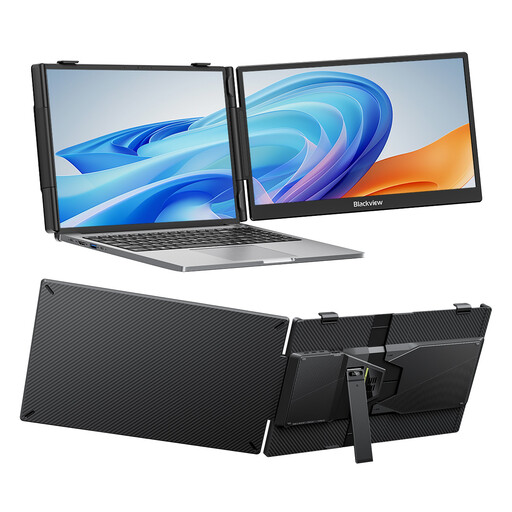
Blackview SCM5, 14 inch
The product title mentions an adjustable stand, which may be useful if you want to change the viewing angle at a library table.
14 inch; FHD; IPS; adjustable stand; compatible with laptops from 13 to 17.3 inch, according to the product title.
View at Joybuy
Frequently asked questions
Will a portable USB-C monitor work with any USB-C port on my laptop?
No. Philips specifies that DP Alt Mode is needed for video over USB-C on the 16B1P3302D/00. Check your laptop’s video output and power supply, as well as the requirements of the exact screen. Don’t assume the same requirement applies to every model.
How should I set up an extra screen on a library table?
Position the screen securely and choose a viewing angle that lets you work without holding a strained posture for long periods. Arboportaal recommends a well-adjusted workspace and changing your posture. This is practical advice, not a specific legal requirement for students studying in the library.
Do online purchases in the Netherlands always come with exactly two years’ warranty?
No. ACM ConsuWijzer explains that your statutory guarantee depends on what you could reasonably expect from the product; there isn’t one fixed two-year period that applies to every monitor. If a product is faulty, contact the seller.
Can I return a monitor bought online if it isn’t compatible with my laptop?
For a standard online consumer purchase, ACM ConsuWijzer says you generally have a statutory cooling-off period of up to 14 days after delivery, subject to legal exceptions. Check in advance what the seller says about any return costs. Handle a fault or an inaccurate product description separately under the statutory guarantee rules.


