What should you look for when buying?
First, check that your laptop can connect to and power the screen. Then compare the space available for text, and finally make sure the monitor will fit in your bag and on the desk.
| What to consider |
What should you check? |
Who is this important for? |
| Connection and power |
Check whether your laptop port supports video, what power the exact monitor model needs and which cables are included. |
If you want to get straight to work at a library desk, you’ll want to make sure your laptop and monitor can provide both a picture and power. Around 33% of consumers say working connectivity and power are their main buying concerns. |
| Space for text |
Compare screen size and resolution, and consider whether your preferred text size and screen layout will be comfortable to use. |
If you want to keep book text, notes or quotations open alongside your review, usable space for text matters more than a high pixel count alone. Around 27% of consumers give the space for source material and their review top priority. |
| Portability and setup |
Compare the weight, dimensions, stand and included protective features with what you plan to carry and the space available on the desk. |
If you often move between libraries or workspaces, you’ll want to carry the screen easily and set it up on different desks. Around 20% of consumers prioritise portability and positioning. |
| Viewing comfort and lighting |
Check the screen finish and adjustability, and see whether lights or windows cause reflections in your setup. |
If reflections bother you while reading, you’ll want to be able to adjust the viewing angle or position. Around 20% of consumers say comfortable use under library lighting is their main buying concern. |
Manufacturers including ASUS for the ZenScreen MB166C and Philips for the 16B1P3302D/00 specify DisplayPort Alt Mode as a requirement for video over USB-C. ViewSonic also lists HDMI for the VG1655, but if you use this connection, check separately how the screen will be powered. A higher resolution alone doesn’t guarantee more comfortable-to-read text.
Portable monitors at Joybuy
These portable monitors are designed to be used as a second screen with a laptop, so you can view source material alongside your review. Check what connection and power your laptop needs for each model.
 No image available
Blackview DCM6 PRO 14-inch Full HD monitor
A 14-inch portable second screen to use alongside a laptop; check in advance that its connections are compatible with your laptop.
The product name lists Full HD and compatibility with laptops from 13–17.3 inches.
Joybuy
 No image available
TECLAST V16H 16-inch portable monitor
A 16-inch option if you want to view source material and your review side by side; check in advance whether your laptop can connect via USB-C or mini-HDMI.
The product name lists FHD, IPS, 16:10, 144 Hz, two USB-C ports, mini-HDMI and a built-in stand.
Joybuy
 No image available
TECLAST V16Q 16-inch portable monitor
A portable second screen for viewing source material alongside your review; check which video input is compatible with your laptop.
The product name lists 2.5K, 144 Hz, IPS, 16:10, two USB-C ports and mini-HDMI.
Joybuy
 No image available
PM14R 14-inch portable monitor
A compact second screen to use alongside your laptop; before buying, check which video connection your laptop supports.
The product name lists 1920 × 1200, IPS, 16:10, Type-C and mini-HDMI.
Joybuy
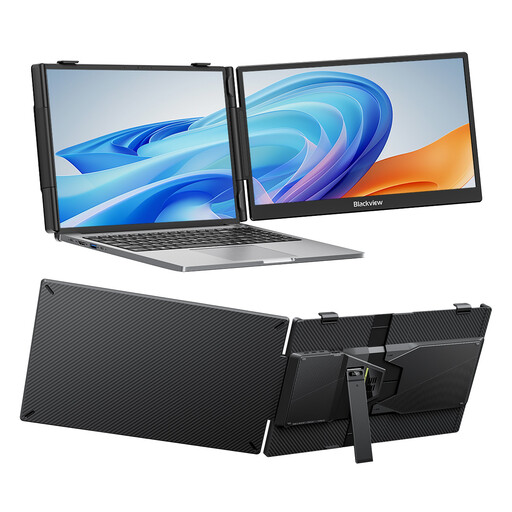 No image available
Blackview SCM5 14-inch FHD IPS monitor
A 14-inch second screen with an adjustable stand for use alongside a laptop; check that its connection is compatible with your device.
The product name lists FHD, IPS, an adjustable stand and compatibility with laptops from 13–17.3 inches.
Joybuy
Frequently asked questions
Can any USB-C port be used with a portable monitor?
No, the USB-C port must also support the right video output. For video on the ASUS MB166C and Philips 16B1P3302D/00, the manufacturers specify DisplayPort Alt Mode as a requirement. Also check the screen’s power requirements and your laptop’s capabilities.
How do I put my source material and review on separate screens?
First, connect a compatible video output, then choose ‘extend’ rather than ‘duplicate’ in your laptop’s display settings. You can then move the windows to the screens you want. For the ASUS MB166C, ASUS says that automatic rotation requires software and only works on Windows.
How can I reduce glare while writing?
Try positioning your screen so you’re looking parallel to a window, and adjust the screen angle or your seat if needed. Arboportaal recommends this positioning to reduce reflections; a matte finish won’t automatically eliminate the effects of poor lighting.
What are my rights if a monitor I bought online doesn’t fit or is faulty?
According to ACM ConsuWijzer, online purchases usually come with a 14-day cooling-off period from delivery, subject to exceptions. This is separate from your rights if a product doesn’t perform as you could reasonably expect when used normally: in that case, ACM ConsuWijzer says the seller must provide an appropriate solution free of charge. The cooling-off period for a purchase that doesn’t fit and a remedy for a faulty product are therefore two different things.
What do the CE marking and energy label mean for a monitor?
According to the European Commission, computer monitors generally fall under the rules for electronic displays; the energy label indicates, among other things, the efficiency class. EU guidance says the CE marking is the manufacturer’s declaration that the product meets applicable EU requirements, not an independent quality or ergonomic test.


