First, check that the computer at the library workstation supports the monitor’s required video output and power supply. Then choose a model based on the screen space you need and how you can position it. If you handle membership records at a public-facing desk, the library and its staff should also assess suitable security measures. A portable screen is no substitute for a well-adjustable workstation when you work for long periods.
Who is a portable monitor suitable for?
Staff who move between workstations
A second screen can be useful if you need to view membership records at different locations. Check that the connection and power supply are compatible with your chosen model at each computer. Lenovo and ASUS specify USB-C requirements for their respective models.
Staff who work with long membership lists
If you want to read records and input fields side by side, compare screen size, resolution and positioning options. Arboportaal emphasises that your choice of workstation depends on where you work, and recommends a well-adjustable setup.
Staff at a public-facing desk
If visitors can see your screen from the desk, the library should assess appropriate measures to protect personal data. The Dutch Data Protection Authority emphasises that security measures should be suited to the processing involved and the risks.
What should you look for when buying?
Portable 15.6-inch Full HD screen
Choose this if: you move between workstations and want to display a membership list alongside your main screen.
Trade-off: this size takes up more space than the 14-inch models mentioned; check the connection and power requirements for each model.
Compact 14-inch USB-C screen
Choose this if: you carry the screen around regularly and have confirmed that your computer supports the required USB-C video mode and power supply.
Trade-off: the smaller physical screen area is the downside of a more compact size; a USB-C connector alone does not confirm compatibility.
Compact 14-inch screen with 16:10 resolution
Choose this if: you want to compare the vertical resolution of a compact screen for long records or forms.
Trade-off: 1920 × 1200 pixels is a specification, not proof of time savings; the screen is still physically 14 inches.
Fixed, adjustable workstation
Choose this if: you usually work in the same place for long periods and can’t position a portable screen comfortably.
Trade-off: a fixed setup is less convenient to move between workstations and needs to be compatible with your existing equipment.
| What to consider |
What should you look for? |
Who is this important for? |
| Connection and power supply |
Check the video mode, power supply, cable and connection requirements for both the computer and monitor. |
If I want to connect the screen to a library computer, I want to know in advance whether the available connection will provide both the picture and power. Around 31% of consumers put compatibility first. |
| Reading space and positioning |
Compare screen size, resolution, aspect ratio, adjustability and the space available at your workstation. |
When working with long records, I want to read text alongside other windows and position the screen comfortably. Around 25% of consumers consider reading space and positioning their main priorities. |
| Privacy at the desk |
Work with the library to assess viewing angles, any physical barriers, and suitable access and workstation measures. |
When visitors are close to my workstation, I want to prevent them from seeing membership records. Around 25% of consumers put shielding at the desk first. |
| Moving between workstations |
Compare weight, dimensions, stand, case and connection options at each workstation. |
If I need to move the screen regularly, portability matters more to me than extra screen space. Around 19% of consumers make portability between workstations their top priority. |
Common buying mistakes
-
Assuming every USB-C port provides video and enough power
A monitor may require specific video and power modes. For the ThinkVision M14, Lenovo specifies DP 1.2 Alt Mode and PD 2.0 on the notebook as requirements for a one-port connection.
Before buying, check the port, cable and power requirements for both the computer and the screen you’ve chosen.
-
Positioning a second screen displaying membership records where visitors can see it
A second screen could expose personal data to people who should not have access to it. The Dutch Data Protection Authority says that security measures should be tailored to the situation.
Agree viewing angles, any physical barriers and working procedures with the library.
-
Seeing a portable screen as a complete solution for your working posture
A screen that can be moved around doesn’t automatically make for a well-adjustable workstation, especially if you work in one location for long periods.
For longer tasks, also consider whether a fixed, adjustable setup would be more suitable. Arboportaal recommends a well-adjustable workstation.
Brands to consider
ASUS
The ZenScreen MB16ACV is a 15.6-inch option for a portable second work window.
- For the MB16ACV, ASUS specifies a matt 1920 × 1080 IPS panel and one USB-C port with DP Alt Mode.
- This model does not have height adjustment. These features do not automatically apply to other ZenScreen models.
Lenovo
The ThinkVision M14 is a compact alternative for computers with the required USB-C capabilities.
- Lenovo lists a weight of 598 g, two USB-C ports and a case for this model.
- For a one-port connection, Lenovo specifies DP 1.2 Alt Mode and PD 2.0 as requirements for the notebook.
Dell
The Pro 14 Plus P1425 is a 14-inch option for comparing vertical resolution when working with long records.
- For the P1425, Dell specifies an IPS panel with a 16:10 aspect ratio and 1920 × 1200 pixels, plus tilt adjustment.
- The resolution specification alone does not prove a measured productivity benefit.
AOC
The 16T3EA is a 15.6-inch option with portrait orientation, allowing you to compare how lists fit on screen.
- AOC specifies 1920 × 1080 resolution, a foldable stand and automatic rotation.
- According to AOC, i-Menu software must be enabled for automatic rotation.
Portable monitors at Joybuy
These portable monitors are for anyone who wants to use a second screen for membership records at a library workstation; check the connection and positioning options for the computer you’ll actually be using.
 No image available
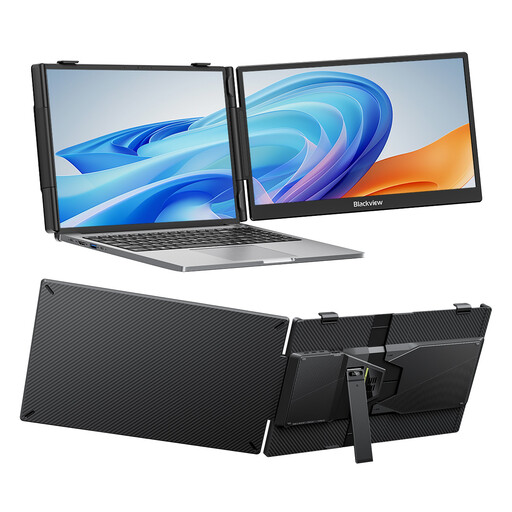
Blackview DCM6 PRO 14-inch Full HD monitor
A compact screen for viewing records alongside other windows; check that the library computer supports the required connection and power supply.
The product name specifies a 14-inch Full HD screen and compatibility with 13–17.3-inch laptops.
Joybuy
 No image available
TECLAST V16H 16-inch 16:10 monitor
The larger size may suit you if you want to display a list alongside your main screen; check in advance how the monitor can be positioned at your intended workstation.
The product name specifies a 16-inch FHD IPS screen with a 16:10 aspect ratio, two USB-C ports, mini-HDMI and a built-in stand.
Joybuy
 No image available
TECLAST V16Q 16:10 monitor with 2.5K resolution
This option is for anyone who wants to compare the resolution of a portable second screen for reading records.
The product name specifies a 2.5K IPS screen with a 16:10 aspect ratio, two USB-C ports and mini-HDMI.
Joybuy
 No image available
Portable Monitor PM14R 14-inch 1920 × 1200 IPS monitor
A compact screen to consider if you want to view long records on a portable monitor; check that your computer supports the connection you’ve chosen.
The product name specifies a 14-inch IPS screen with 1920 × 1200 pixels, a 16:10 aspect ratio, Type-C and mini-HDMI.
Joybuy
 No image available
Blackview SCM5 14-inch FHD IPS monitor
The adjustable stand may be useful if you want to position the screen at different workstations; check its position at each workstation.
The product name specifies a 14-inch FHD IPS screen, a thickness of 18.2 mm and compatibility with 13–17.3-inch laptops.
Joybuy
Frequently asked questions
Will every USB-C port work with a portable monitor?
No. The shape of the connector alone is not enough to confirm compatibility. For the ThinkVision M14, Lenovo specifies DP 1.2 Alt Mode and PD 2.0 on the notebook as requirements for a one-port connection. Check the requirements of your chosen screen and the specifications of the library computer.
How should you position a second screen for long periods of data entry?
Choose a setup you can adjust properly at your workstation, so you can look straight at the screen. Arboportaal recommends a well-adjustable workstation; a portable screen doesn’t automatically make a workstation suitable.
Is a privacy filter compulsory for membership administration?
The Dutch Data Protection Authority’s guidance we consulted does not specifically require you to buy a privacy filter. However, the organisation must protect personal data appropriately. The physical and organisational measures needed depend on the processing involved and the risks at the workstation.
What warranty rights apply when buying for a library?
Don’t automatically assume that consumer rights apply to a business purchase for a library. The Netherlands Authority for Consumers and Markets describes the statutory guarantee for sales to consumers and notes that consumer protection does not apply when a contract is used mainly or exclusively for business purposes. Check who the seller is and which terms apply to the purchase.


