
Lesson planner working with lots of source material
You want to keep instructions, resources or a timetable visible while writing a lesson plan on your laptop. Focus on reading space and a screen set-up that fits your workspace.


First, choose a portable monitor that is confirmed to receive a video signal from your laptop. Then decide whether you mainly want to read documents side by side, travel light or annotate on screen. More screen space can take up more room in your bag and on your table, while a built-in battery reduces your reliance on a socket but doesn’t replace checking the video connection.
You want to keep instructions, resources or a timetable visible while writing a lesson plan on your laptop. Focus on reading space and a screen set-up that fits your workspace.
You often move between locations and want the screen, stand, cables and power supply to fit in your usual bag and on a small table.
You want to write or add notes on the external screen. Check both the screen’s input capabilities and whether your lesson-planning software supports them.
First decide whether you need one extra screen or several. Then consider whether touch, annotation or a built-in battery really suits the way you work.
| What to consider | What should you check? | Who should pay extra attention? |
|---|---|---|
| Reading space | Compare the diagonal size, resolution and aspect ratio. Also check whether you can use the monitor in your preferred landscape or portrait position. | If you want to read resources and your lesson plan at the same time while writing, the available document space matters. Around 36% of consumers prioritise reading space. |
| Video connection | Check whether the exact laptop port outputs video and is compatible with the monitor. If USB-C video isn’t available, look at HDMI and power separately. | If you need the monitor to work with your laptop between appointments, find out which video connection your device supports before buying. Around 29% of consumers put a working connection first. |
| Portability and power | Compare the dimensions and weight of the complete set-up, and check how the monitor is powered in your set-up. | If you need to take the monitor, stand, cables and power supply to different locations, bag space and power supply both affect how practical the set-up is. Around 21% of consumers prioritise portability and power. |
| Annotation | Check the touch and pen capabilities of the exact model, and whether your operating system and lesson-planning software support them. | If you want to write directly on teaching materials or add notes, the right screen input and software support are important. Around 14% of consumers put on-screen input first. |
A USB-C port on your laptop doesn’t, by itself, mean that it can send a video signal to the monitor.
Check the specifications for the exact laptop port and the monitor. If USB-C video isn’t available, look at the HDMI connection and power supply separately.
You may need a different cable, an adapter or a separate power set-up.
The monitor is only part of what you’ll be carrying between appointments; a case, cables and any power supply add to the load too.
Measure the bag and table you usually use, and compare the weight and dimensions of the complete set-up, not just the screen.
A case, cables and power supply take up extra space in your bag.
A model with two extra panels calls for a different balance of portability and workspace than a monitor with one extra screen. ASUS lists two panels and a net weight of 1.2 kg for the ZenScreen Duo MB14FCD.
Choose two extra screens only if you need them at the same time and your laptop and workspace support the set-up.
In a shared space, others may be able to see pupil or customer information. The Dutch Data Protection Authority says that organisations processing personal data must take appropriate security measures.
Limit the visibility of personal data and follow your organisation’s applicable policy when working on site.
The ZenScreen range offers a variety of configurations. Compare the exact model rather than relying on the product range alone.
The ThinkVision M14t Gen 2 is a compact option worth considering if you want to annotate on the external screen.
The Pro 14 Plus P1425 is a 14-inch option for anyone looking for extra document space on the go.
The Business Monitor 16B1P3302D/00 is a 15.6-inch model with two USB-C ports.
The E14 G4 is a 14-inch portable USB-C monitor to compare if you’re looking for a compact second screen.
These Joybuy picks are portable laptop extensions for extra screen space on the go, ranging from one extra document screen to models with two additional screens.
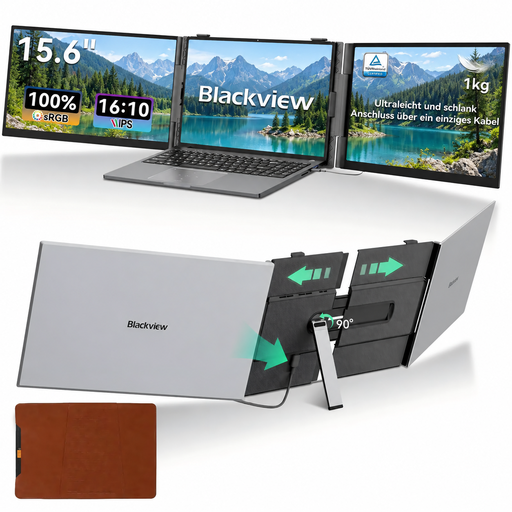 No image available
Suitable for a set-up where you want to use two extra screens alongside your laptop.
The product title lists Full HD and compatibility with 13–17.3-inch laptops. Check that your laptop and software support the screen set-up you want.
 No image available
Worth comparing if you want to take one extra screen for documents with you.
The product information lists a 16:10 aspect ratio and 1920 × 1200 pixels. The title mentions USB-C, mini-HDMI and a built-in stand. Check that your laptop’s USB-C port supports video.
 No image available
An option to compare if you’re looking for a separate extra screen for your laptop.
The product information lists 1920 × 1200 pixels and a 16:10 aspect ratio. Type-C and mini-HDMI are listed as connections; check your laptop’s video output.
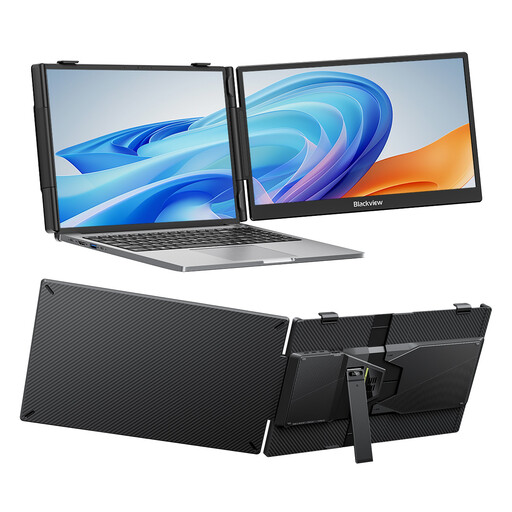 No image available
Suited to anyone looking for one extra document screen and wanting to compare monitors with an adjustable stand.
The product title lists an FHD IPS screen, an adjustable stand and compatibility with 13–17.3-inch laptops.
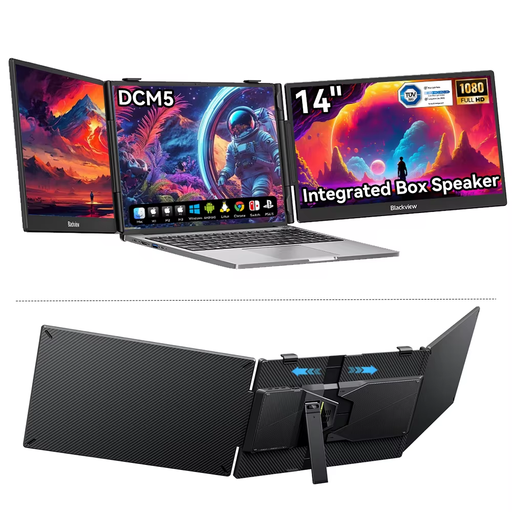 No image available
An option to consider if you want to use one extra portable screen with your laptop.
The product title lists a 14-inch IPS LCD screen with a 16:9 aspect ratio. The product information mentions support for Windows and Mac systems.
No. Check whether the USB-C port on your laptop model supports video and whether it supplies enough power to the monitor. For USB-C video on the Philips 16B1P3302D/00, Philips requires DisplayPort Alt Mode on the source device.
Check that the stand sits securely on the table you usually use and that the monitor supports your preferred portrait or landscape position. ASUS describes the MB16AHV as having a stand for both positions; check which software and settings are needed for automatic rotation.
Check the cable and connection for damage, and store the screen somewhere protected. Before buying, check which case and cables are included with the model you’ve chosen; Lenovo lists accessories for the ThinkVision M14t Gen 2.
No. According to ACM ConsuWijzer, there is no fixed term for the statutory guarantee in the Netherlands. If a product breaks during normal use sooner than you could reasonably expect, contact the seller. Check any commercial guarantee separately; different terms may apply to business purchases.
Using a second screen doesn’t remove your privacy obligations. The Dutch Data Protection Authority says that organisations processing personal data must take appropriate security measures based on the risks; schools also have accountability obligations. What’s appropriate depends on the data, the working environment and the policies of the organisation responsible.