What should you look for when choosing one?
For reading lecture notes at the kitchen table, the key considerations are your laptop’s connection, document readability, table space and power supply.
| What to consider |
What should you check? |
Who is this important for? |
| Video and power connections |
Check the video capabilities of your exact laptop port, the cable you need and how the monitor gets power. |
I want to be sure before buying that my laptop can output video through the chosen port and that the monitor will receive power. Around 36% of consumers put connection compatibility first. |
| Readability of notes |
Compare screen size, resolution and aspect ratio, and check whether text is displayed at a comfortable scale. |
When reading long notes, I want the text to be easy to read and the documents to be clear. Around 29% of consumers prioritise readability. |
| Setting it up on the table |
Measure the space available next to your laptop and check that the stand and viewing angle suit the table. |
If my laptop, notebook and other belongings have to share the kitchen table, I want the screen to fit and stand securely. Around 21% of consumers prioritise a setup that fits their table. |
| Power and portability |
Check the weight, the power required and whether your intended study space has a suitable power source. |
When I study in different places, I want to be able to take the screen with me and know how to power it. Around 14% of consumers make this a priority. |
Portable monitors at Joybuy
These portable monitors are designed to be used alongside a laptop. The selection includes a range of screen sizes, connections and stands for reading notes at the table.
 No image available
TECLAST V16H 16-inch portable monitor
The 16-inch screen may suit you if you want to display notes on a larger second screen and have space on your table.
- 16:10 aspect ratio and 2560 × 1600 resolution, according to the product description.
- Two USB-C connections, Mini HDMI and built-in stand, according to the product description.
Check that your laptop can output video through the USB-C connection you choose; the connector shape alone doesn’t guarantee this.
View at Joybuy
 No image available
Lenovo L16 16-inch WUXGA portable monitor
This 16-inch model may suit you if you want a second screen for lecture notes alongside your laptop.
- 1920 × 1200 resolution and 16:10 aspect ratio, according to the product description.
- Two USB-C ports with DisplayPort Alt Mode and an adjustable stand, according to the product description.
- 65W Power Delivery is listed in the product name.
USB-C video requires a laptop and cable that support the necessary video function.
View at Joybuy
 No image available
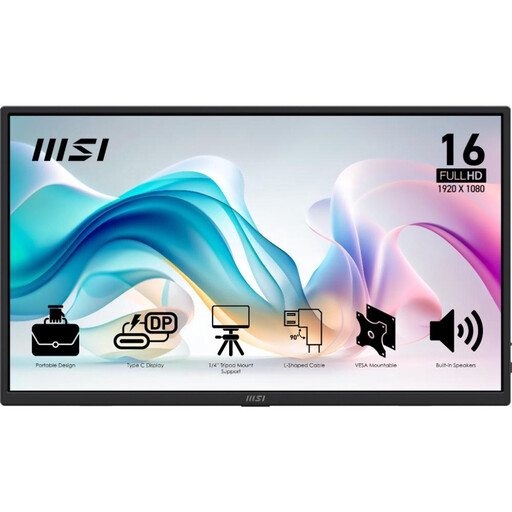
MSI PRO MP165 E6 15.6-inch portable monitor
The 15.6-inch screen is an option if you want to read notes on a second screen but don’t necessarily need a 16-inch model.
- 1920 × 1080 resolution and anti-glare coating, according to the product description.
- USB-C with DisplayPort Alt Mode, HDMI and integrated stand, according to the product description.
- Weight: 0.78 kg, according to the product description.
Check that your laptop can output video through the connection you choose, and find out what power supply is needed.
View at Joybuy
 No image available
ARZOPA Z1RC 16-inch portable monitor
The 16-inch diagonal and 16:10 aspect ratio may suit you if you want to display long notes on a larger second screen.
- 2560 × 1600 resolution, according to the product description.
- IPS screen, USB-C, HDMI and built-in stand, according to the product description.
- Weight: 810 g, according to the product description.
Check that your laptop supports video through the USB-C or HDMI connection you choose, and find out how the monitor is powered.
View at Joybuy
 No image available
ARZOPA A1S 14-inch portable monitor
The 14-inch size may suit you if there’s little table space available next to your laptop.
- 1920 × 1080 resolution and 16:9 aspect ratio, according to the product description.
- USB-C, Mini HDMI and built-in stand, according to the product description.
- Weight: 600 g, according to the product description.
Check that your laptop can output video through the USB-C or HDMI connection you choose. With HDMI, you’ll also need to arrange the required power supply.
View at Joybuy
Frequently asked questions
Will any USB-C port on my laptop work with a portable monitor?
No. Check the video capabilities of your exact laptop port and cable. If a monitor uses DP Alt Mode, the connector’s shape alone doesn’t prove that your laptop can output video. Also check how the monitor gets power.
How do I put my lecture notes on the second screen?
Connect the screen and select an extended display in your display settings if you want your notes to appear separately from your main screen. Microsoft Support explains how to detect and arrange displays in Windows. For a Mac, check which external displays your exact model supports, as Apple Support recommends.
What should I consider when setting up the monitor?
Make sure the monitor is stable and adjust the viewing angle to suit your workspace. Change your posture during long periods of work. ARZOPA’s safety information also advises keeping the screen away from water and heat sources.
What costs and warranty rights should I check before buying?
Check whether the required video and power cables are included. In the Netherlands, statutory guarantees apply alongside any manufacturer’s warranty. According to ACM ConsuWijzer, the seller must resolve the issue if a product breaks too soon under normal use. Most online product purchases also come with a statutory 14-day cooling-off period after delivery, with some exceptions.


