Start with your laptop’s video output. For a picture over USB-C, the relevant port must support DisplayPort Alt Mode. For HDMI, you’ll need a compatible HDMI input and, depending on the monitor, a power supply too. Then choose a screen size and stand that fit your table, and only pay for extras such as touch or power pass-through if you’ll use them. A second screen on its own doesn’t make a workspace fully ergonomic.
Who is a portable monitor suitable for?
Home worker with limited table space
Wants to keep documents or meeting windows open alongside their laptop, then put the screen away after work. Consider the stand, size and cable routing, as the setup options for the ASUS ZenScreen MB166CR also illustrate.
Laptop user unsure about their USB-C port
Wants to avoid connecting a monitor only to find that there’s no picture. Philips and ASUS recommend checking your laptop port’s video specifications. HDMI may be an alternative if both your laptop and monitor support it.
Reader of long documents
Wants to view text or spreadsheets alongside their main screen, so compares resolution, aspect ratio, anti-glare finish and positioning. Lenovo and ASUS list different screen sizes and resolutions; a higher pixel count alone doesn’t tell you how easy a screen is to read from your viewing distance.
What should you look for when choosing one?
USB-C for video
Choose this option: if your laptop’s USB-C port supports video via DisplayPort Alt Mode and the monitor’s power requirements are met.
Keep in mind: a USB-C connection on its own doesn’t guarantee a video signal; check the exact laptop port and monitor.
HDMI with a power supply
Choose this option: if your laptop has a compatible HDMI output and USB-C video isn’t confirmed.
Keep in mind: HDMI may mean extra cables and a separate power connection. Verbatim lists a power supply as a requirement for HDMI use with the LIGHT Series #32402.
First compare the video connection and power requirements, then consider the available table space and screen size. Extra features only matter if you’ll actually use them.
| Concern |
What to look for when buying |
Who is this important for? |
| Working video and power connections |
Check for DisplayPort Alt Mode on the laptop port, the monitor’s video input and any power requirements. |
If I want to find out first whether my laptop can actually output a picture, I’ll check the exact port and monitor connection. Around 36% of consumers say compatibility is their top priority. |
| Setting up on a small table |
Measure the available space and compare the screen width, stand depth and adjustability. |
If you use your laptop alongside documents or other items on the same table, you’ll want to know in advance whether the screen will fit securely. Around 29% of consumers put table space first. |
| An extra desktop that’s easy to read |
Compare the screen size, resolution, aspect ratio and finish. Once connected, adjust the text scaling and layout to suit your viewing distance. |
If I want to read long documents alongside my laptop, I’ll consider both text clarity and positioning, not just the number of pixels. Around 21% of consumers say readability is their most important consideration. |
| Easy to put away |
Check the weight, dimensions, protective case, and which cables or power supplies are included. |
If you clear the kitchen table after work, you’ll want to be able to put the monitor away easily. Around 14% of consumers prioritise tidying away and portability. |
Common pitfalls
-
Confusing USB-C with USB-C video
A USB-C connector doesn’t automatically mean your laptop port can output a video signal. Check the specifications for the exact port before relying on a single cable for video.
Look for DisplayPort Alt Mode in your laptop documentation and compare this requirement with the monitor’s connection requirements.
An alternative connection method may require extra cables or equipment, so check what your laptop and monitor need in advance.
-
Assuming HDMI also powers the monitor
According to the manufacturer, the Verbatim LIGHT Series #32402 requires a power supply when used with HDMI. Without the necessary connection, your chosen setup may not work as intended.
Check the power requirements and see which cables and power supply are included with the exact model.
As well as the video cable, an HDMI setup may need a separate power connection and a suitable cable or power supply.
-
Assuming a second screen makes your workspace ergonomic
An extra screen doesn’t automatically determine how the screen, keyboard and rest of your workspace are positioned. Additional workplace rules may apply to employees who work at a screen for extended periods.
Assess your whole setup and, if necessary, discuss prolonged work-related screen use with your employer.
Brands to consider
ASUS
The ZenScreen MB166CR is a 15.6-inch Full HD monitor with an anti-glare screen and a separate stand.
- ASUS says that video and power can run through a single USB-C connection, and that the screen can stand on a table using its stand.
- The laptop port must support video. These features apply to the MB166CR and not automatically to every ZenScreen model.
Philips
The Business Monitor 16B1P3302D/00 is a 15.6-inch Full HD model with two USB-C connections.
- Philips lists a stand with a tilt range of 0–90 degrees.
- USB-C video requires DP Alt Mode on the connected device; charging depends on USB-C power support.
Lenovo
The ThinkVision M14t Gen 2, part number 63FDUAT6WL, has a 14-inch 16:10 touchscreen with 2240 × 1400 pixels.
- Lenovo lists two USB-C ports and 65 W power pass-through.
- Check the power and video requirements of your laptop and charger. Touch and the higher resolution aren’t essential if all you need is to open a document window.
Verbatim
The LIGHT Series #32402 is a 15.6-inch Full HD touchscreen with USB-C and mini-HDMI.
- Verbatim lists 10-point touch and an included case.
- The manufacturer states that HDMI use requires a power supply; this model is listed as weighing 973.2 g.
HP
The HP E14 G4, model 1B065AA#ABB, has a 14-inch Full HD screen.
- HP lists an anti-glare screen, a protective case, a weight of 640 g and 65 W power pass-through.
- These are manufacturer specifications for this model; check compatibility with your laptop and power supply.
Portable monitors at Joybuy
These portable monitors are designed to provide an extra screen alongside a laptop. Compare each model’s connections, stand and screen specifications with your workspace.
 No image available
Blackview DCM6 PRO 14-inch portable monitor
A good fit if you want a second screen for a laptop within the stated size range.
The product information lists 1920 × 1080 pixels, a single-cable USB-C connection and compatibility with 13–17.3-inch laptops.
View at Joybuy
 No image available
TECLAST V16H 16-inch portable monitor
A good fit if you want to compare a built-in stand and a choice of USB-C or mini-HDMI for use at the table.
The title lists 144 Hz, FHD, 16:10, two USB-C ports, mini-HDMI and a built-in kickstand. The product description states that USB-C supports video and power.
View at Joybuy
 No image available
TECLAST V16Q portable monitor
A good fit if you want to use a 16:10 screen with the stated resolution alongside a laptop.
The product information lists 2560 × 1600 pixels, 16:10, 144 Hz, two USB-C ports, mini-HDMI and a kickstand. The description states that USB-C supports video and power.
View at Joybuy
 No image available
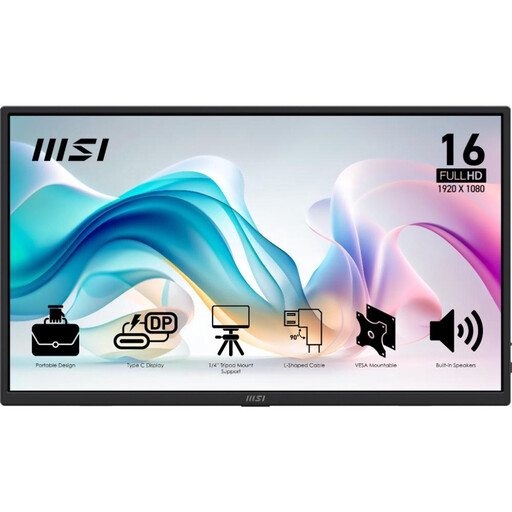
MSI PRO MP165 E6 15.6-inch monitor
A good fit if you want to compare an adjustable stand with both USB-C video and HDMI.
The product information lists Full HD, an anti-glare finish and a stand that tilts up to 90 degrees. Connections include two USB-C ports with DP Alt Mode and HDMI; a protective case and cables are also listed.
View at Joybuy
 No image available
UPERFECT 16-inch portable monitor
A good fit if you want to use a 16:10 screen with the stated resolution as an extra laptop display.
The product information lists 2560 × 1600 pixels, 16:10, mini-HDMI and Type C. Before buying, check the video and power requirements for the exact connections.
View at Joybuy
Frequently asked questions
Can every USB-C port on my laptop send a picture to a portable monitor?
No, not every USB-C port outputs video. For the USB-C video connections described here, your laptop port must support DisplayPort Alt Mode. Check your laptop documentation and the requirements for the monitor model.
How do I use the second screen as an extension rather than a duplicate?
Choose the extended desktop setting in Windows display settings. Identify the screens and arrange them to match their actual positions. Microsoft also explains how to detect a connected screen.
Do I need a separate power supply for an HDMI monitor?
That depends on the model and connection. Verbatim states that the HDMI connection on the LIGHT Series #32402 requires a power supply, so check the requirements and included cables for the version you’re considering.
What are my rights when buying online in the Netherlands?
For online consumer purchases, you generally have a 14-day cooling-off period after delivery; check which exceptions apply. ACM ConsuWijzer also distinguishes between this cooling-off period and the statutory guarantee: if a product doesn’t do what you could reasonably expect under normal use, the seller is responsible for putting things right.
Is an extra screen enough to create a good workspace at the kitchen table?
No, an extra screen doesn’t automatically make the whole workspace suitable. Arboportaal states that for employees who work at a screen for more than two hours a day, the screen and keyboard must not be attached to each other. Buying a separate monitor alone doesn’t prove that all workplace requirements have been met.


