First, check whether your laptop’s USB-C port supports video output, or choose a monitor with a video input that matches your laptop. Then compare the screen size with the space available on a library table and check how the monitor is powered. Once connected, set your desktop to extend rather than mirror the display.
Who is a portable monitor suitable for?
Laptop user with connection questions
Wants to use an extended desktop in the library and needs to check whether their laptop port supports video, which cable is suitable and how to set up the second screen. ASUS Support, Microsoft Support and Apple Support explain the relevant connection and display settings.
Someone who often takes their screen with them
When carrying a laptop and monitor, weighs up the screen size and stated weight against the space available on the table. Specifications from Lenovo, Dell and ASUS show that portable screens are available in different sizes.
Reader or writer working with several documents
Wants to view references, notes and writing side by side, so compares screen size, resolution and aspect ratio. Lenovo and Dell publish these specifications for their portable monitors; Microsoft also explains how to change the scaling setting in Windows.
What should you look for when buying?
Compact 14-inch screen
Choose this if: you often take your monitor with you or have limited table space. The Dell P1425 is 14 inches; the Lenovo ThinkVision M14t Gen 2 combines that size with a touchscreen.
Bear in mind: it has less physical screen space than a 15,6-inch model. The touchscreen is most useful if it suits the way you work.
15,6-inch screen
Choose this if: you want more physical screen space at a library table, for example to view documents alongside your laptop display. ASUS lists the MB16ACV as having an anti-glare 15,6-inch Full HD screen.
Bear in mind: according to ASUS, the MB16ACV has one USB-C port and no HDMI input. Check your laptop’s video output and how the monitor is powered.
Alternative video input
Choose this if: your laptop has a suitable HDMI output and you want to use it. According to ASUS, the ASUS MB16AHV has a mini-HDMI input as well as USB-C.
Bear in mind: HDMI does not power the screen by itself. Check whether you also need a power connection and the right cable or adapter.
| Point to consider |
What should you check? |
Who is this important for? |
| Working video connection |
Check your laptop’s specifications to see whether USB-C supports video, or compare the laptop’s HDMI output with the input on the exact monitor model. ASUS Support explains the USB-C video function. |
If I need an extended desktop straight away in the library, I want to know in advance whether my laptop and monitor support video through the same connection. Around 31% of consumers put a working video connection first. |
| Portability and table space |
Compare the diagonal screen size, stated weight, dimensions and stand of the exact model. |
When I carry my laptop and screen together and work at a small table, the balance between a compact size and enough screen space matters to me. Around 25% of consumers prioritise portability and table space. |
| Readable workspace |
Compare the diagonal screen size, aspect ratio and resolution; adjust the scaling setting if needed once connected. Microsoft Support explains the scaling setting in Windows. |
If I want to read references and writing side by side, I look for a layout that suits my documents and displays text comfortably. Around 25% of consumers prioritise space for reading documents. |
| Power supply |
Check how the exact monitor is powered, which accessories are included and whether your laptop can charge at the same time in the setup you have in mind. |
When I want to work at a library table without any hassle, I want to know whether I need an extra power source or cable. Around 19% of consumers make the power setup their main purchasing concern. |
Common pitfalls
-
Assuming every USB-C port supports video
A USB-C connector alone does not confirm that your laptop can output video through that port. ASUS Support distinguishes between USB-C ports with the required video function and other connection options.
Check the specifications for both your laptop and the exact monitor model before choosing a cable or screen.
A different video connection may require a different cable or adapter.
-
Thinking an HDMI cable also supplies power
On the ASUS MB16AHV, mini-HDMI is a video input; its presence does not mean the monitor is powered via HDMI.
Check how the monitor is powered and whether your setup needs an additional power connection or adapter.
A separate power connection may mean extra cables and a spare port.
-
Confusing a paid extended warranty with your statutory rights
According to ACM ConsuWijzer, your statutory rights are separate from any additional warranty or paid service contract.
Read what extra cover the contract provides and consider it separately from your statutory rights.
Relevant brands to consider
ASUS
The ZenScreen MB16ACV and MB16AHV models offer different connection options; check which one suits your laptop.
- According to ASUS, the MB16ACV has an anti-glare 15,6-inch Full HD IPS panel.
- The MB16ACV has one hybrid USB-C port and no HDMI input. The MB16AHV has USB-C and mini-HDMI; the features of one model do not automatically apply to the other.
Lenovo
The ThinkVision M14t Gen 2 is a 14-inch option for anyone looking to make use of its higher stated resolution and touchscreen controls.
- Lenovo specifies a resolution of 2240 × 1400, a 16:10 aspect ratio, two USB-C ports and 10-point touch for the M14t Gen 2.
- Consider whether the resolution and touchscreen suit your documents and how you work; this does not automatically tell you anything about other ThinkVision models.
Dell
The Pro 14 Plus P1425 is a compact, non-touch 14-inch monitor.
- Dell specifies that the P1425 has an IPS screen with a 1920 × 1200 resolution and adjustable tilt.
- Do not confuse the P1425 with the P1424H: Dell says the P1424H is currently unavailable on its Dutch product page.
HP
The E14 G4 is a 14-inch Full HD option where the power setup is an important consideration.
- HP lists the E14 G4 as weighing 640 g and having 65 W power pass-through.
- These are manufacturer specifications, not measured battery life or a guarantee that it will work with every laptop using one cable. Check that the connection is suitable for your laptop.
Portable monitors for working on a laptop
These Joybuy picks are portable second screens for working on a laptop. They have USB-C, and several models also have an HDMI or mini-HDMI input. Before buying, check your laptop’s video output and how the model you choose is powered.
 Image unavailable
TECLAST V16H 16-inch portable monitor
An option for anyone looking for a larger second screen with USB-C and mini-HDMI; check that your laptop output and the required cable are compatible with your setup.
The product title lists a 16-inch IPS screen, Full HD, 16:10, 144 Hz and a built-in stand.
View at Joybuy
 Image unavailable
TECLAST V16Q portable monitor
A good fit if you’re considering a second screen with mini-HDMI; also check your laptop’s video output and the power supply required.
The product title lists a 2.5K IPS screen, 144 Hz, a 16:10 aspect ratio, two USB-C ports and mini-HDMI.
View at Joybuy
 Image unavailable
Lenovo L16 portable monitor
An option to consider if you want to compare documents on a 16:10 screen and are looking at a USB-C setup; check compatibility with your laptop.
The product information lists a 16-inch WUXGA (1920 × 1200) IPS screen, USB-C with DisplayPort Alt Mode and up to 65 W Power Delivery for compatible laptops. It also lists a weight of under 1 kg and an adjustable stand.
View at Joybuy
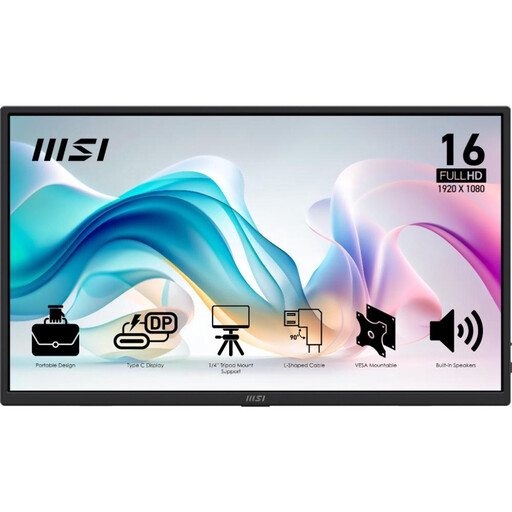 Image unavailable
MSI PRO MP165 E6 portable monitor
An option for anyone comparing HDMI with USB-C as a video connection; check which connection your laptop supports and how the screen is powered.
The product information lists a 15,6-inch Full HD IPS screen, two USB-C ports with DP Alt Mode and HDMI 2.0b. It also lists a weight of 0,78 kg, a tilting stand and a protective case.
View at Joybuy
 Image unavailable
UPERFECT 16-inch portable monitor
A second screen to compare if you’re looking for a larger display and mini-HDMI; check that your laptop and the cables you need are compatible with the connections.
The product title lists 2560 × 1600, a 16:10 aspect ratio, a QLED screen, 144 Hz, mini-HDMI and Type-C.
View at Joybuy
Frequently asked questions
Can every USB-C port carry video over a single cable?
No. For direct USB-C video, your laptop’s port needs to support the required video function. ASUS Support distinguishes between USB-C with DP Alt Mode and connections that require a DisplayLink driver for video. Also check the connection on the exact monitor model and the cable you plan to use.
How do I use my portable monitor as an extended desktop?
Once connected, select the extend display option in your display settings and arrange the screens. Microsoft Support explains how to arrange displays in Windows; Apple Support distinguishes between an extended desktop and screen mirroring on a Mac.
What should I check for transport and accessories?
Check whether a case is included with the exact model and how its stand works. ASUS lists a case with the MB16ACV and HP with the E14 G4; this does not mean other models come with the same accessories.
What are my rights if a monitor I bought online doesn’t suit me or develops a fault?
For a standard online consumer purchase, you generally have a 14-day statutory cancellation period from delivery, subject to legal exceptions. ACM ConsuWijzer also states that your statutory rights are separate from the manufacturer’s warranty: if a product does not perform as you could reasonably expect under normal use, the seller must offer an appropriate solution. In the Netherlands, there is no single fixed statutory warranty period for all monitors.


