
Planner with a laptop and lots of open windows
You want to view the schedule, registrations and messages side by side at a temporary workspace. Check which video output and power your laptop can provide for a second screen.


For planning an event in a hotel room, a portable monitor is most suitable when its video connection and power supply are compatible with your laptop. Choose a single screen for extra workspace, and consider a different setup if you want to view it with someone else, don’t have a suitable power socket or want to work directly on the screen. The Netherlands Food and Consumer Product Safety Authority says CE marking is mandatory for electrical consumer products placed on the market in the Netherlands; check the specific product.
You want to view the schedule, registrations and messages side by side at a temporary workspace. Check which video output and power your laptop can provide for a second screen.
You discuss plans with one or a few others around a table. Think about more than just extra workspace: consider the viewing angle and how you can position the screen.
You move your equipment around or don’t always have access to a suitable power socket. So, as well as screen size, consider the weight, case, stand and whether it has a battery.
Start by checking your laptop’s connections and the monitor’s power requirements. Then decide whether you mainly need extra workspace, want to view the screen with others or need a feature such as touch functionality.
When to choose it If you want to view documents side by side and may also need an HDMI connection. ASUS lists USB-C with DP Alt Mode and mini-HDMI for the ZenScreen MB16AHV.
What to consider A USB-C port alone doesn’t guarantee a video signal; check your laptop, cable and power supply.
When to choose it If you want to point things out or make notes directly on the extra screen while planning. Lenovo lists touch functionality for the ThinkVision M14t Gen 2.
What to consider Check that the connection and touch functionality work with your computer; the Lenovo specifications listed don’t include an HDMI connection.
When to choose it If you don’t want to rely on a power socket for the monitor. ASUS lists a built-in battery for the ZenScreen Go MB16AHP.
What to consider The stated battery life depends on ASUS’s test conditions; also plan how you’ll recharge the monitor.
When to choose it If you want to use several planning windows at once or show mirrored content on both sides. ASUS describes the ZenScreen Duo MB14FCD as having two panels and a tent mode.
What to consider Check that you have enough table space and that the screen mode you want is compatible with your laptop.
| What to consider | What to look for when buying | Who should prioritise this? |
|---|---|---|
| Connection and power | Check for video via USB-C with DP Alt Mode or a suitable HDMI output, as well as the cables and power supply required. | If I want to use my existing laptop, the connection needs to work straight away. That’s why around 36% of consumers put a working connection first. |
| Viewing together | Consider how many people will be watching, where they’ll sit and whether you need mirrored content or a screen that can be viewed from both sides. | If I’m discussing plans around a table, I want the setup to suit the viewing angle. Around 29% of consumers give viewing together top priority. |
| Portability and power | Check the weight, case, stand and power requirements; if you choose a model with a battery, check its usage conditions too. | If I can’t rely on a power socket at a temporary workspace, I consider portability and power. Around 21% of consumers prioritise this need. |
| Touch and notes | Check the touch functionality, computer compatibility and which accessories are included with the exact model. | If I want to point things out on a floor plan or timeline directly on the screen, touch functionality matters to me. Around 14% of consumers prioritise touch or note-taking. |
A USB-C plug doesn’t guarantee that your laptop can send a video signal through that port. Philips says that USB-C video on the Philips 16B1P3302D/00 requires DP Alt Mode on the connected device; power also depends on the equipment in question.
Check the specifications of both your laptop and monitor for the connection you plan to use, and find out which cable and power supply you’ll need.
A screen beside your laptop and a setup for several people don’t meet the same viewing needs. The positioning and distance from the other planners can make all the difference.
Decide in advance how many people need to view the screen at once and where they’ll sit. For a larger group, also check what display equipment is available in the hotel room itself.
ASUS’s claim of up to four hours for the MB16AHP is based on use via DP Alt Mode with the brightness set to 100%.
Compare your planned session length with those conditions and, if necessary, plan how to power the monitor.
The ZenScreen range includes single-screen models, a model with a battery and a version with two panels. These features are found on different models.
The ThinkVision M14t Gen 2 is a compact touchscreen option for anyone who wants to work directly on the screen.
The E14 G4 is a compact single-screen option for use with a laptop.
The Business Monitor 16B1P3302D/00 is a 15.6-inch Full HD screen with a tilting stand.
The 16T20E2 is a portable 15.6-inch Full HD option with USB-C and mini-HDMI.
Below are portable screens and laptop extensions for creating an extra workspace. Check your laptop’s video connection and power requirements, as well as the CE marking required for the specific product. The Netherlands Food and Consumer Product Safety Authority says CE marking is mandatory for electrical consumer products placed on the market in the Netherlands.
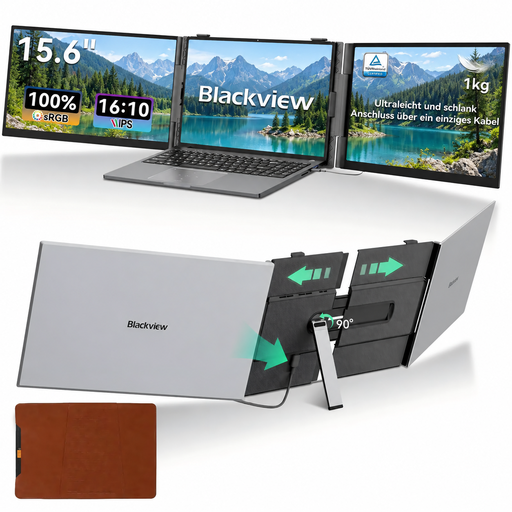 Image unavailable
An option if you’re looking for a portable laptop extension with two screen areas.
Screen size: 14 inches.
Resolution: Full HD.
The product name states that it’s compatible with laptops from 13 to 17.3 inches; check that your laptop meets this requirement.
 Image unavailable
A portable option if you’re looking for an extra screen to use alongside your laptop.
Screen size: 15.3 inches.
Resolution: FHD.
The product name lists a one-cable USB-C setup.
 Image unavailable
An option if you want to use a larger portable screen with a built-in stand in your hotel room.
Screen: FHD IPS, 16:10 and 144 Hz.
Connections: two USB-C ports and mini-HDMI.
The product name lists a built-in stand.
 Image unavailable
An option if you’re looking for a portable screen with a 16:10 aspect ratio for planning windows.
Screen: 2.5K IPS, 16:10 and 144 Hz.
Connections: two USB-C ports and mini-HDMI.
The product name lists a built-in stand.
 Image unavailable
A portable option for viewing documents and planning windows alongside your laptop.
Screen: 14-inch IPS, 1920 × 1200 pixels and 16:10.
Connections: Type-C and mini-HDMI.
No. First check whether your laptop supports video over USB-C. Philips requires DP Alt Mode on the 16B1P3302D/00 for video via USB-C; also check whether the connection can provide the power required.
First decide whether you need to see the same image. ASUS describes a tent mode with mirrored images on both sides for the ZenScreen Duo MB14FCD; with a single screen, positioning depends on the space available on the table and the viewing angle.
No. Take the conditions behind the stated battery life into account. ASUS lists up to four hours for the MB16AHP when using DP Alt Mode at 100% brightness; compare those conditions with your planned session and arrange a power supply if needed.
The Netherlands Food and Consumer Product Safety Authority says CE marking is mandatory for electrical consumer products placed on the market in the Netherlands. Check the marking on the specific product.
Make sure unauthorised people can’t view the list, and don’t leave it visible. The Dutch Data Protection Authority says organisations must keep personal data secure; the appropriate measures depend on how the data is processed and the risks involved.