
Detail-focused plan reader
Wants to view drawings while keeping file lists, legends or notes open, and values usable screen space and a readable scale.


For viewing harbour and landscape plans alongside local files, choose a portable monitor whose size, resolution and connections suit your laptop and workflow. A compact 16:10 display can provide extra vertical pixels, while a larger screen, built-in battery or touchscreen may be more useful if you need a wider view, want to work without a mains socket or need to annotate plans. Before buying, check your laptop’s video output and power supply, software support and the documentation for the exact monitor version.
Wants to view drawings while keeping file lists, legends or notes open, and values usable screen space and a readable scale.
Takes a second screen to different study spaces and weighs up connections, set-up, weight and power supply.
Wants to point things out or make notes directly on screen, so checks whether their computer and software support this input.
Start by considering how easy your plans are to read and how your laptop connects for video and power. Then see whether portability, colour comparison or direct annotation is especially important to you.
| Point to consider | What should you check? | Who is this important for? |
|---|---|---|
| Readability and workspace | Compare screen size, aspect ratio and resolution together. More pixels do not automatically make text larger. | If I want to view a plan alongside legends, notes or file lists, I look at the scale at which details remain readable. Around 26% of consumers make this their top priority. |
| Video and power | Check whether your laptop’s port supports video and how the monitor gets its power. USB-C alone does not guarantee a video signal. | If you mainly want to make sure the screen works with your laptop, check both its video output and power supply. Around 26% of consumers consider this their main point to check. |
| Carrying and set-up | Consider the weight of the screen, any stand and the power supply in relation to the space available in your bag and on your desk. | If you often move between study spaces, consider how easy the screen is to carry and set up securely. Around 21% of consumers prioritise portability and set-up. |
| Colour reproduction | Treat any stated colour gamut figures as manufacturer specifications; they do not prove how colour-accurate an individual screen is. | If I compare colour-coded plans and legends, I look at the stated colour coverage without treating it as an independent measurement. Around 16% of consumers put colour comparison first. |
| Annotating on screen | Check whether your computer, operating system and plan or PDF software support the touch or pen input you want to use. | If you want to write or point directly on a plan, you need not only a suitable screen but also compatible software. Around 11% of consumers give direct screen input the highest priority. |
A USB-C connection does not automatically mean your laptop can output video through that port. ASUS states that the connected device must support DisplayPort Alt Mode for the MB16AHP.
Check the port specifications for your laptop and the exact monitor version before choosing.
Depending on your laptop and monitor, you may need a different connection or a separate power supply.
When viewing detailed plans, usable screen space and readability depend on the physical size, aspect ratio and resolution. You may still need to zoom in, even with more pixels.
Compare these features together and consider whether you can read the legends at your preferred scale.
Screen input does not prove that every application used for local project files supports touch or pen input.
Check that the pen, computer and software you want to use all support the input you need.
The features below apply to the models and product ranges listed; they are not a general assessment of an entire brand.
The ZenScreen range includes several portable displays, a model with a built-in battery and a foldable dual-screen model.
The ThinkVision M14t Gen 2 is a compact 16:10 display with touch and pen capabilities.
The Pro 14 Plus P1425 is a 14-inch portable 16:10 display for anyone looking for extra screen space.
The E14 G4 is a 14-inch portable monitor with USB-C.
These portable monitors are designed to work as a second screen alongside files stored on a laptop. For the exact version, check the video and power connections, whether the features are supported by your software, and the accompanying product documentation.
 Image unavailable
A 16-inch second screen with a 16:10 aspect ratio, for viewing plans alongside laptop windows.
The product title lists FHD resolution, two USB-C ports, mini-HDMI and a built-in stand.
 Image unavailable
A 16-inch 16:10 display for anyone who values a higher stated resolution when viewing plans alongside other files.
The product title lists 2.5K, 144 Hz, 100% sRGB, two USB-C ports and mini-HDMI.
 Image unavailable
A 16-inch second screen with a 16:10 aspect ratio and an adjustable stand for different set-ups.
The product information lists 1920 × 1200 pixels and a weight of 650 g without the stand. The title mentions support for 100 W reverse charging.
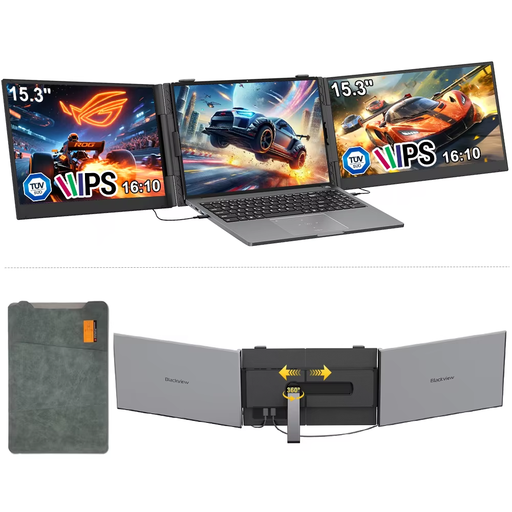 Image unavailable
A 15.3-inch IPS display with a 16:10 aspect ratio, providing a second viewing area alongside files on your laptop.
The product title lists 1920 × 1200 pixels and 60 Hz, with compatibility for Windows, Mac, Chrome OS and mobile devices.
 Image unavailable
A portable touchscreen for anyone who wants to point things out directly on their plans.
The product title lists 1080p. The product description mentions USB-C, mini-HDMI and an adjustable stand; check whether your software supports touch input.
The models discussed here are designed to be external displays; the files and software remain on the connected computer. In Windows, you can set the screen to extend your desktop and drag windows to the position you want.
No. Check whether your laptop’s USB-C port supports video. ASUS lists DisplayPort Alt Mode as a requirement for video over USB-C on the MB16AHP; also check how the monitor you choose gets its power.
Not necessarily: readability also depends on the physical screen size and the scaling settings. Compare resolution, aspect ratio and size together, and check whether you can read legends at your preferred scale.
That also depends on your computer and the software you use. Before buying, check whether your plan or PDF application supports the touch or pen input you want to use.
For electrical devices sold in the Netherlands, Ondernemersplein describes the applicable EU product requirements, CE marking and EU declaration of conformity. This general guidance does not confirm that a specific version meets them; check the documentation for the exact model.