First, check that your laptop can actually output video through the connection you plan to use, and find out how the monitor is powered. A USB-C connector alone doesn’t guarantee a video signal. Then choose a screen size and layout to suit your bag, workspace and documents; a larger or dual-screen monitor needs more room to set up. Before buying, check that your specific laptop, cable and monitor will work together.
Who is a portable monitor suitable for?
Home worker in different locations
If you want to view documents side by side without a permanent workspace, check your laptop’s video output, cable and power requirements first. Dell Support points out that a USB-C port which supports data or power only may not output video.
Traveller without access to a mains socket
If you’re taking both your laptop and monitor with you, it’s important to know whether the monitor draws power from your laptop, an adapter or a built-in battery. ASUS says the ZenScreen Go MB16AHP has a built-in battery offering up to four hours of power. This is the manufacturer’s estimate, not a guaranteed runtime at every setting.
Field worker with lots of documents
Extra screen space and readability can be useful when working with text, spreadsheets and multiple windows. Compare the screen size with the space available on your table, and remember that a larger or dual-screen monitor also needs to fit in your bag.
What should you look for when choosing one?
First, check that your laptop supports the video connection and screen layout you want. Then consider power, portability and how easy the screen will be to read in the places where you work.
| What to consider |
What should you check? |
Who is this important for? |
| Working video connection |
Check the video specifications for your exact laptop port, monitor input and cable. Dell Support and Apple Support point out that the port and laptop configuration determine which external displays will work. |
If I want to extend my laptop desktop while travelling, I want to know in advance that the connection I choose will carry a video signal. Around 36% of consumers in this buying context prioritise laptop compatibility. |
| Portability and power |
Compare the weight and included accessories for the exact model, and check how the monitor works when there’s no mains socket available. |
If you’re carrying your laptop and screen together, you’ll want to know whether the size and power source suit your journey and working hours. Around 29% of consumers prioritise portability and power when working away from home. |
| Readability and screen size |
Compare the screen diagonal, resolution, aspect ratio and stated brightness. A brightness specification doesn’t guarantee that a screen will be easy to read in direct sunlight. |
If I work with documents and spreadsheets on location, I want enough usable screen space without carrying a monitor that won’t fit my workspace. Around 21% of consumers prioritise document readability. |
| Purchase and service |
Check what’s included in the box, and consider any service plan separately from your statutory rights if a product is faulty. |
If you want to know exactly what accessories are included and what help is available if something goes wrong, compare the contents and service terms. Around 14% of consumers prioritise a complete purchase and support. |
Common buying mistakes
-
Assuming every USB-C port carries video
A USB-C port may support data or power only. If your laptop’s port doesn’t support the required video function, you won’t get a picture through that connection.
Before buying, check the specifications for your exact laptop port, monitor input and cable.
-
Assuming HDMI provides a complete one-cable setup
An HDMI connection can carry video, but it doesn’t tell you how the monitor is powered.
For your chosen connection, check the power requirements too, along with which cables or adapters are included with the model.
-
Choosing a dual-screen monitor without checking your workspace
Two extra panels need a compatible screen configuration and enough physical space to set them up.
Check how many external displays your laptop supports, and consider whether the layout you want will fit your workspace.
-
Confusing an extended warranty with your statutory rights
A service plan isn’t the same as your statutory rights if a product breaks too soon under normal use.
ACM ConsuWijzer advises contacting the seller if a product is faulty under the terms of the statutory guarantee. Compare a paid plan with those rights before you decide.
Brands to compare
ASUS
The ZenScreen models reviewed range from a single-screen option with USB-C and mini-HDMI to a model with a built-in battery and a foldable dual screen.
- ASUS’s Dutch specifications list USB-C and mini-HDMI for the MB16AHV. ASUS says the MB16AHP has a built-in battery offering up to four hours of power.
- Connections and features vary by model. The stated battery life is the manufacturer’s estimate, not an independent real-world test.
Lenovo
Lenovo describes the ThinkVision M14t Gen 2 as a 14-inch portable monitor with touchscreen functionality and USB-C.
- Lenovo lists a resolution of 2240 × 1400 pixels and power delivery of up to 65 W for this model.
- These specifications apply to the M14t Gen 2 and don’t automatically apply to other ThinkVision models. Check that your laptop supports the video connection and screen configuration you want.
HP
According to HP’s Dutch product information, the HP E14 G4 is a 14-inch portable monitor with USB-C and an adjustable stand.
- HP lists a brightness of 400 nits and power delivery of up to 65 W for this model.
- The claim that the screen remains sharp in direct sunlight comes from HP and isn’t based on an independent field test.
Portable monitors on Joybuy
These portable monitors are designed for using a laptop away from home and offer USB-C, HDMI or both. Check the video and power requirements for your laptop against those of each model.
 No image available
TECLAST V16H 16-inch portable monitor
An option for anyone looking for a portable laptop screen with a built-in stand for working on the go.
The product title lists a 16-inch IPS screen, FHD, a 16:10 aspect ratio and a 144 Hz refresh rate.
The product information lists two USB-C ports and a mini-HDMI input.
Joybuy
 No image available
TECLAST V16Q portable monitor
This portable monitor is designed for laptop use and working on location. Check in advance which video connection is compatible with your laptop.
The product title lists a 2.5K IPS screen, a 16:10 aspect ratio and a 144 Hz refresh rate; the product description gives a resolution of 2560 × 1600 pixels.
The product information lists two USB-C ports and a mini-HDMI input.
Joybuy
 No image available
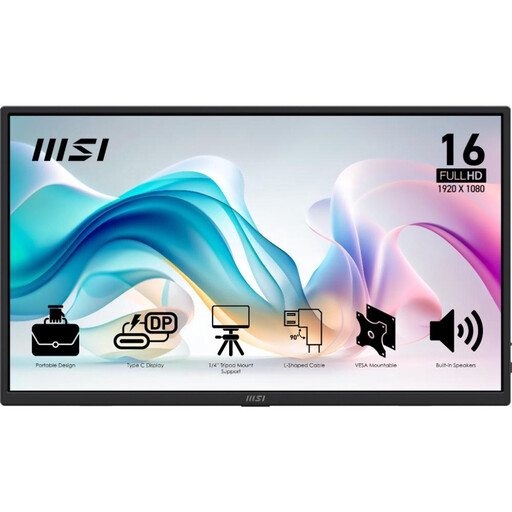
MSI PRO MP165 E6 portable monitor
A portable monitor for anyone who wants to choose between a USB-C video connection and HDMI when working on location.
The product description lists a 15.6-inch Full HD IPS screen, an anti-glare coating and a stated weight of 0.78 kg.
For video, the product information lists USB-C with DP Alt Mode and an HDMI 2.0b input. The description also mentions an integrated stand and an included protective case and cables.
Joybuy
 No image available
ARZOPA Z1RC 16-inch portable monitor
This portable monitor is designed as an extra screen for your laptop. Check that your laptop supports the connection you want to use.
The product information lists a 16-inch IPS screen with a resolution of 2560 × 1600 pixels and a stated weight of 810 g.
The product title lists USB-C, HDMI and a built-in stand.
Joybuy
 No image available
ASUS ZenScreen MB166CR 15.6-inch monitor
A portable extra screen for anyone looking for a USB-C setup with an adjustable stand.
The product information lists a 15.6-inch Full HD IPS screen with an anti-glare surface and USB-C video.
The description mentions a 360° stand. Check in advance whether your laptop’s USB-C port supports video.
Joybuy
Frequently asked questions
Why doesn’t a USB-C connection always display a picture?
The laptop port you use must support the video function required by the monitor. A USB-C port that only carries data or power isn’t enough; check the specifications for your exact laptop and monitor.
How do I set the extra screen to extend my display rather than mirror it?
Once connected, select the extended display option in your display settings and arrange the screens. Windows offers settings for multiple displays; on a Mac, you can choose the display you want under Displays. Also check that your laptop supports the number of external displays connected.
Do I always need a monitor with a built-in battery if there’s no mains socket?
No. Some monitors can draw power from your laptop, while others use a built-in battery. Decide which power source will be available for the length of time you need to work. ASUS states that the MB16AHP offers up to four hours under the conditions described by ASUS; this isn’t a guaranteed runtime at every setting.
What can I do if the monitor breaks too soon under normal use?
According to ACM ConsuWijzer, if a product is faulty under the terms of the statutory guarantee, the seller must put it right free of charge, for example by repairing or replacing it. Buying an extended warranty, or having the manufacturer’s warranty expire, doesn’t automatically remove your statutory rights.


