First, check that your laptop’s video output works with the monitor; a USB-C port alone doesn’t guarantee that it can transmit a picture. For viewing scans alongside your notes, a 15.6-inch screen gives you more physical viewing area, while a 14-inch model takes up less space on the table and in your bag. If you choose a more compact screen, check that scans are easy to read at your preferred scaling setting, and find out how the monitor is powered.
Who is a portable monitor suitable for?
Researchers comparing scans
You want to keep an archive scan visible while noting names, dates and source references on your laptop. The CBG’s overview of sources for family research provides useful context; choose a screen layout that works for your scans and notes.
Researchers with limited desk space
You take your laptop and monitor to the library and need to consider the size, stand and space in your bag. Lenovo and Dell’s 14-inch models are examples worth comparing; check the dimensions of the complete setup.
Researchers with connection questions
You want to know in advance whether your laptop, cable and monitor can work together to transmit a picture, and how the monitor is powered. ASUS lists USB-C and mini-HDMI for the MB16AHV; check the exact ports and requirements for each monitor.
What should you look for?
| What to consider |
What should you check? |
Who is this important for? |
| Scan readability |
Compare screen size, resolution, aspect ratio and anti-glare properties. Also check how scans and text look at your preferred scaling setting. |
If I want to keep a scan alongside my notes, both the physical viewing area and readability at my settings matter. Around 28% of consumers rank readability as their top priority. |
| Connecting to your laptop |
Check whether the exact port on your laptop supports video, and compare it with the monitor’s connections, such as DP Alt Mode or mini-HDMI. |
If you want to be sure your laptop can output a picture, you can’t rely on the shape of the connector alone. Around 28% of consumers put connectivity at the top of their list. |
| Portability and desk space |
Compare the dimensions including the stand, the weight of the exact model and the space taken up by the cables and case. |
If I take my laptop and screen to the library, I want to be able to carry the setup and fit it on a small table. Around 17% of consumers rank portability as their top priority. |
| Power during use |
Check how the chosen connection supplies power to the monitor and what the manufacturer recommends. ASUS lists typical power consumption of 6.64 W for the MB16ACV; this figure is not a battery-life measurement. |
If I’m not sure there’ll be a power socket, I want to know in advance what power my laptop and screen combination needs. Around 16% of consumers rank power as their top priority. |
| Features and aftercare |
Check which features you’ll actually use and read the terms for the warranty and support if something goes wrong. Touch controls aren’t essential for viewing scans alongside notes. |
If you want to weigh up the features and aftercare you need, you can compare the extra options with the way you work. Around 11% of consumers rank cost and aftercare as their top priority. |
Common pitfalls
-
Assuming every USB-C port can transmit video
A USB-C monitor won’t automatically work with every USB-C port. ASUS specifies video via DP Alt Mode for the MB16ACV; your laptop must also support the chosen connection.
Check the specifications for your exact laptop and monitor, then choose a suitable cable and power supply if needed.
-
Confusing resolution with larger text
A higher stated resolution doesn’t automatically mean that text will appear larger. Screen scaling affects how scans and text are displayed.
Consider screen size, resolution and your scaling setting together before choosing a size.
-
Assuming extra cover gives you complete protection
A manufacturer’s warranty or paid warranty package is not the same as your statutory rights. According to the Dutch Government, there is no fixed statutory warranty period in the Netherlands; if a product is faulty, contact the seller.
Read the terms of any additional cover and compare them with your statutory rights.
Brands to compare
ASUS
The ZenScreen MB16AHV and MB16ACV offer different connection options for portable use.
- ASUS lists USB-C and mini-HDMI for the MB16AHV. For the MB16ACV, ASUS lists USB-C with DP Alt Mode.
- ASUS also describes a USB-A option with driver support for the MB16ACV. Check the required software, compatibility and power supply for your laptop.
Lenovo
The ThinkVision M14t Gen 2 is a 14-inch model with touch controls, worth comparing if you’re looking for a compact screen.
- Lenovo lists a resolution of 2240 × 1400, 10-point touch and a weight of 700 g for this model.
- How useful touch controls are depends on the way you work; also check compatibility with your device and readability at your chosen screen scaling.
Dell
The Dell Pro 14 Plus P1425 is a 14-inch model with a 16:10 aspect ratio, suited to anyone who wants to view documents on a compact screen.
- Dell lists an IPS screen with 1920 × 1200 pixels for this model.
- Dell doesn’t list a touchscreen for this model. Check that its connection matches your laptop’s video output.
HP
The HP E14 G4 is a 14-inch Full HD USB-C model to compare with other compact screens.
- HP describes an anti-glare screen and a setup using a single USB-C cable.
- Check whether your laptop’s USB-C port supports video and what power supply your chosen setup needs.
Portable monitors at Joybuy
These portable monitors are designed to give your laptop an extra screen, so you can view scans and research notes side by side. Check that the connections and power supply for each model are compatible with your laptop.
 No image available
Blackview DCM6 PRO 14-inch portable monitor
An extra 14-inch screen for viewing scans alongside your research notes; check that the connection is compatible with your laptop.
14 inch; Full HD; suitable for laptops from 13–17.3 inches according to the product title.
View at Joybuy
 No image available
TECLAST V16H 16-inch portable monitor
The 16-inch screen may suit you if you want more physical viewing area for scans and notes; bear in mind how much space it takes up.
FHD IPS; 16:10; 144 Hz; two USB-C ports and mini-HDMI; built-in stand.
View at Joybuy
 No image available
PM14R 14-inch portable monitor
A compact 14-inch screen to compare if space on your table and in your bag is a consideration.
IPS; 1920 × 1200; 16:10; USB-C and mini-HDMI; stated weight 1.18 kg.
View at Joybuy
 No image available
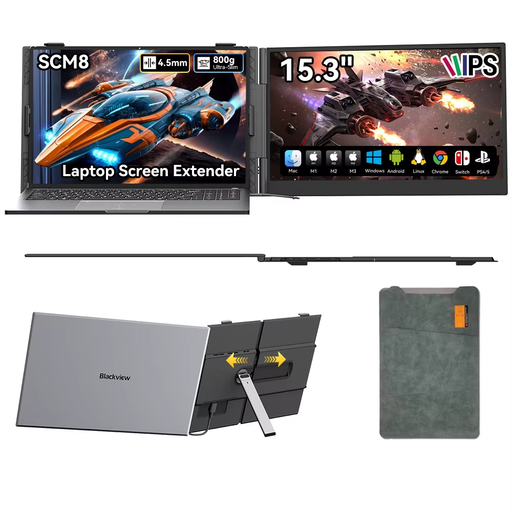
Blackview SCM8 15.3-inch portable monitor
A larger portable screen to consider if you want to view scans alongside notes; check whether your laptop’s USB-C port supports video.
15.3 inch; USB-C for video and power according to the product description; stand adjusts up to 180°; protective case included.
View at Joybuy
 No image available
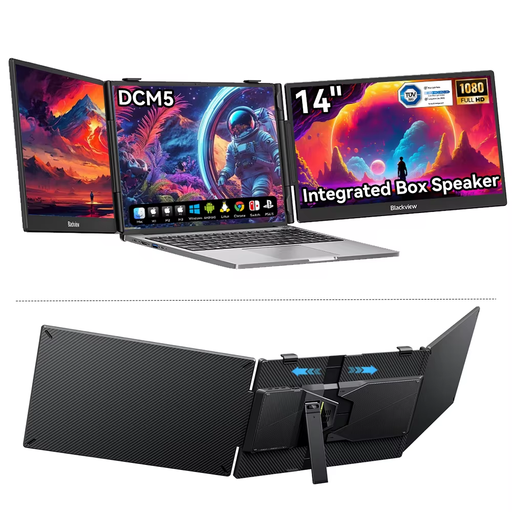
Blackview DCM5 14-inch portable monitor
A 14-inch second screen to use alongside your laptop; check laptop compatibility and the connection you’ll need before buying.
16:9; suitable for laptops from 13–17 inches according to the product title.
View at Joybuy
Frequently asked questions
Will any USB-C port on my laptop work with a portable monitor?
No. The laptop port must support video and be compatible with the monitor connection you choose. ASUS specifies USB-C with DP Alt Mode for the MB16ACV and also describes a separate USB-A option with driver support.
How should I set up two screens for genealogy research?
You can display an archive scan on the portable monitor and keep your notes open on your laptop. Adjust the screen scaling to suit your readability needs, and check that the stand is stable and fits within the space available on the table.
Should I buy extra warranty cover for a portable monitor?
Not necessarily. According to the Dutch Government, there is no fixed statutory warranty period in the Netherlands; if a product is faulty, contact the seller. Check whether additional cover gives you anything beyond your existing rights, and read the terms and conditions.
Can I share archive material and family information online?
Having a monitor doesn’t in itself give you permission to distribute material or make personal data public. According to the Dutch Government, a copyright-protected copy for personal use cannot simply be distributed or made public. Privacy rules also apply to the personal data of other living people; the Dutch Data Protection Authority describes a limited exception for use solely for personal or household purposes, not for general public sharing.
Which product regulations are relevant when buying in the Netherlands?
CE marking is only mandatory when specific harmonised EU rules require it for the product. The European Union therefore advises checking the conformity information for the exact monitor and any adapter supplied with it.


