
On-site report reader
You want to read long draft pages alongside your laptop work, so you’re mainly looking at reading space, screen position and reflections.


Start with your laptop: check whether the port you plan to use supports video output, and how both the laptop and portable monitor will be powered. Then choose based on the space you need for long report pages, your preferred setup and whether you really want to annotate on the screen. A monitor with its own battery can help when there’s no mains socket available, but it won’t replace your laptop battery.
You want to read long draft pages alongside your laptop work, so you’re mainly looking at reading space, screen position and reflections.
You move between workspaces and want to know in advance whether your laptop can power the monitor, or whether a monitor with its own battery would better suit your power plan.
You want to add comments on screen. Check the difference between touch controls and navigation, writing with a compatible pen, and support from your document app.
First check your laptop and monitor’s video connections and power requirements. Then compare the screen layout, portability and any touch controls.
| What to consider | What should you check? | Who is this important for? |
|---|---|---|
| Reading space for draft reports | Compare the screen size, resolution, aspect ratio, portrait mode and stand with the report pages you want to view. | If I want to read long draft reports alongside my laptop work, usable document space comes first. Around 36% of consumers put reading space at the top of their list. |
| Connections and power | Check that the specific laptop port supports video output, and that the cable, monitor input and power supply are compatible. | Before setting off, I want to know whether my laptop, cable and monitor will work together, and how each device will be powered. Around 29% of consumers give connections and power top priority. |
| Portability and visibility at your workspace | Compare the weight, case, stand and available table space, as well as the stated brightness. Check the viewing position where you’ll be working. | When I move between workspaces often, portability, stability and visibility all matter. Around 21% of consumers prioritise portability and their workspace. |
| Annotating on screen | Check touch functionality, pen support, included accessories and compatibility with your document app. | If I want to add comments directly on the second screen, the input method needs to work with my pen and software. Around 14% of consumers choose annotation as their main consideration. |
A USB-C connection alone doesn’t prove that your laptop can send video to a portable monitor. ASUS says the ZenScreen Go MB16AHP requires a device that supports USB-C DisplayPort Alternate Mode.
Check the specifications for the exact laptop port and test the combination before setting off.
You may need a different connection method or a compatible cable.
An HDMI connection carries the picture, but it doesn’t remove the monitor’s separate power requirement. C’t explains that HDMI use requires a separate power connection.
Get the necessary video and power cables ready before buying and setting off.
Allow for an extra power connection or a suitable power source.
According to Lenovo, the ThinkVision M14t Gen 2 supports an active stylus, while Lenovo lists a passive pen as an included accessory. Touch controls and the pen in the box don’t confirm that you’ll get the active pen functionality you want.
Decide whether you want to navigate or write precisely, then check which pen and document software are suitable.
You may need to buy a separate compatible active pen to get the pen functionality you want.
The ZenScreen models discussed offer different connection and power options for portable report work.
The ThinkVision M14t Gen 2 is worth considering if touch or annotation is part of the way you work.
The Dell Pro 14 Plus P1425 is a 14-inch screen to compare if you’re looking for a compact document setup.
The HP E14 G4 is a 14-inch USB-C model to compare for workspaces with changing light conditions.
These portable monitors are designed for viewing report pages alongside laptop work, with options for different screen sizes, connections and touch controls.
 Image unavailable
The 16-inch size, 16:10 aspect ratio and built-in stand could work well for viewing report pages side by side. Listed specifications include IPS, 144 Hz, two USB-C ports and mini-HDMI. Check that your laptop supports video output through the port you plan to use, and how the screen will be powered.
 Image unavailable
This 16-inch screen with a 16:10 aspect ratio could suit anyone who wants to view report pages on a larger second screen. Listed features include 2560 × 1600 pixels, an IPS screen, 144 Hz, two USB-C ports and mini-HDMI. Check the video output and power supply for your own setup.
 Image unavailable
The 14-inch size and 16:10 aspect ratio are worth considering if you’re comparing more compact document setups. Listed specifications include IPS, 1920 × 1200 pixels, USB-C and mini-HDMI. Check which video and power connections your laptop supports.
 Image unavailable
This model is an option if you want to try navigating reports by touch on a second screen; the stated touch functionality doesn’t in itself confirm support for an active pen. Listed features include a 15.6-inch screen, 1920 × 1080 pixels, USB-C, mini-HDMI and a case that doubles as a stand.
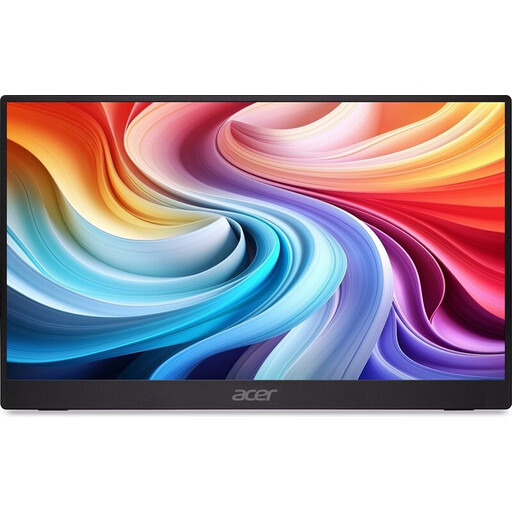 Image unavailable
A 15.6-inch portable screen to compare if you’re looking for a second screen for a field trip. The listed specifications are 15.6 inches and 60 Hz. Before buying, check the video connection, power supply and setup your laptop requires.
No, not without checking the connections first. Check whether the specific laptop port supports the video output the monitor needs, and whether the cable and power supply are suitable. ASUS explicitly states that the ZenScreen Go MB16AHP requires a device that supports USB-C DisplayPort Alternate Mode.
Test the whole connection: laptop output, video cable, monitor input and separate power supply. C’t explains that the portable monitors discussed require a separate power connection when using HDMI.
According to the Dutch government, for a qualifying distance purchase from a business, you generally have 14 days to change your mind. In the Netherlands, there is also a statutory guarantee with no fixed legal guarantee period; a commercial manufacturer’s warranty is an extra. If a product is faulty, contact the seller.
According to the European Commission, CE marking may be required for electrical and electronic products covered by specific applicable EU rules. The manufacturer is responsible for complying with the rules that apply to the product; CE is not a centrally issued quality certificate. Check the product information and marking on the specific item.