
Organiser with people viewing around the table
You want to make notes visible to several people. Viewing angle, readability and a stable position matter more than having the smallest possible package.


A compact screen is a better choice if you’re showing notes to people seated close to the table and you take the monitor with you often. A larger portable screen is worth considering if several people need to view it at once from further away, and there’s space and mains power available. Test readability from the actual viewing distance, and check that your device, cable and monitor can work together to display an image.
You want to make notes visible to several people. Viewing angle, readability and a stable position matter more than having the smallest possible package.
You regularly set up the screen in a different place and take it with you afterwards. Weight, a protective case and a connection setup that works with your equipment are all important considerations.
You’re looking for a screen that can be incorporated into a workspace used for longer periods. How long it will be used and the overall workspace setup are both important.
Best for: showing notes to people seated close to the screen when you regularly pack up and take the monitor with you.
Bear in mind: small text can be hard to read from further away, so check the notes from the planned viewing distance.
Best for: a shared viewing setup where several people need to see the screen at once and it will mainly be moved around the room.
Bear in mind: the screen takes up more space and the ASUS ZenScreen MB249C requires the supplied power adapter; its stated weight is 2.8 kg.
| Consideration | What should you check? | Who is this important to? |
|---|---|---|
| Readability for several viewers | Test the actual notes using the planned font size, viewing distance, lighting and seating positions. A stated wide viewing angle doesn’t guarantee that small text will be readable from a distance. | If people need to view the screen from different places, you’ll want to know whether they can read the notes from their seats. Around 36% of consumers put shared readability first. |
| Video connection and power | Check that the port you’re using supports video output, and that the cable, monitor and power supply are compatible. Test the setup before the event. | If you rely on a specific laptop or other source device, you’ll want to know in advance that the setup will display an image and receive enough power. Around 29% of consumers give connection reliability top priority. |
| Setting up and carrying | Compare the stated weight, included protection and stand with how you transport and set up the screen. | If I need to pack up the monitor after every event and take it to another workspace, weight and protection factor into my choice. Around 21% of consumers put portability first. |
| Setup for longer-term use | Establish how many hours a day employees work at a screen, and assess the overall workspace setup if necessary. | If you want to add a screen to a workspace used for longer periods, the way the whole workspace is set up matters. Around 14% of consumers put workspace setup first. |
A USB-C port on your laptop won’t necessarily output a video signal. Even the larger ASUS ZenScreen MB249C needs its supplied adapter for power.
Check the video output from the port you’re using, along with the cable, monitor connection and power requirements. Test the setup before relying on it at an event.
Depending on the connection, you may need a different video cable or a separate power source.
A stated viewing angle doesn’t tell you whether people will be able to read the chosen text size from their seats.
Open the actual notes and test them from the furthest planned seat. If they’re difficult to read, consider a larger screen or increase the text size.
The right workspace setup also depends on how long the screen is used. The Arboportaal sets out requirements for screen work by employees who work at a screen for more than 2 hours a day. A portable screen on its own doesn’t tell you whether the whole workspace is set up appropriately.
Work out the daily usage time and discuss the overall setup with the person responsible for the workspace.
Depending on the workspace, you may need additional equipment or a suitable monitor mount.
The ZenScreen models in this comparison range from a compact screen to a larger model designed to be moved around a workspace.
The ThinkVision M14t Gen 2 is a compact touchscreen monitor for anyone who wants to use a small screen for their own documents too.
The PRO MP165 E6 is a 15.6-inch portable monitor with USB-C, HDMI and mounting options.
The VA1650 is a compact model for a portable setup, with USB-C and HDMI.
These Joybuy products are portable monitors for event notes in a shared workspace, ranging from compact screens for use close to the table to a larger portable model.
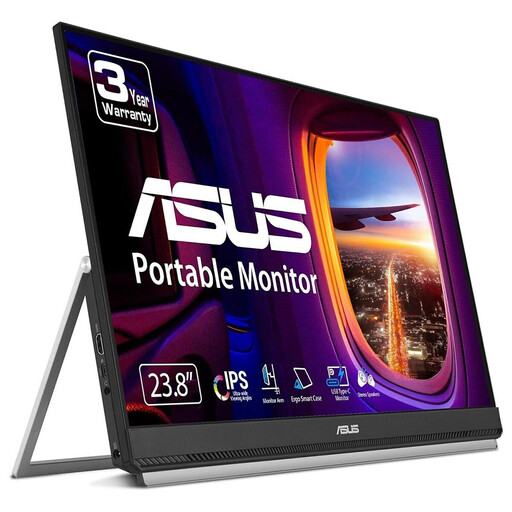 Image unavailable
A larger option if several people need to view the screen at once and you’ll mainly be moving the monitor around the room.
The screen has a resolution of 1920 × 1080 pixels. Its stated weight is 2.8 kg, and it needs the supplied adapter for power.
 Image unavailable
A compact option for showing notes when viewers are seated close to the screen.
The product title describes a Full HD monitor that’s compatible with 13–17.3-inch laptops. Test readability from the distance at which people will be viewing the screen.
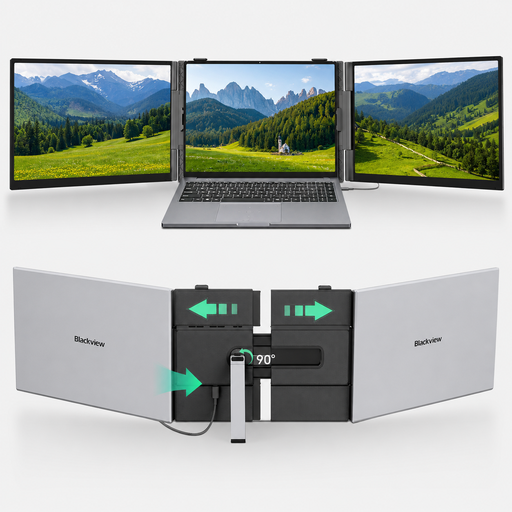 Image unavailable
A portable option for sharing notes around a table if you’re looking for a screen to use with a laptop.
The product title lists a Full HD screen, USB-C with a one-cable setup, a thickness of 4.5 mm and a weight of 1.2 kg. Check that the connection works with your source device.
 Image unavailable
A portable screen option for sharing notes around a table.
The product title lists a Full HD IPS screen, two USB-C ports, Mini HDMI and a built-in stand. Check which connection outputs video from your source device.
 Image unavailable
A portable option if you want to show notes around a table and need a choice of connections.
The product title lists an IPS screen with 2.5K resolution, two USB-C ports, Mini HDMI and a built-in stand. Check your source device’s video output and test the text from the planned viewing distance.
No. The laptop port you’re using must be able to output a video signal, and the monitor and cable must be compatible. ASUS recommends checking whether the laptop port supports video for the MB16AHV; MSI lists DP Alt Mode for the USB-C video connection on the PRO MP165 E6.
Test the actual notes at the planned font size from the furthest seat. Also consider the viewing angle and lighting; a stated wide viewing angle doesn’t guarantee that small text will be readable from a distance.
Assess the overall workspace setup and daily usage time; a portable monitor doesn’t automatically make a workspace suitable. The Arboportaal sets out requirements for screen work by employees who work at a screen for more than 2 hours a day.
Before use, check the cable, power supply and stand stability with the source device you’ll actually be using. Use suitable protection when transporting the monitor; Lenovo and ViewSonic list a protective case for the models mentioned here.